Ever stood in the grocery aisle, stare at a shiny package, and wonder exactly how many calories are hiding behind that tempting label? You’ve probably felt that pang of uncertainty, especially when you’re juggling a busy schedule and trying to stay on track with your fitness goals.
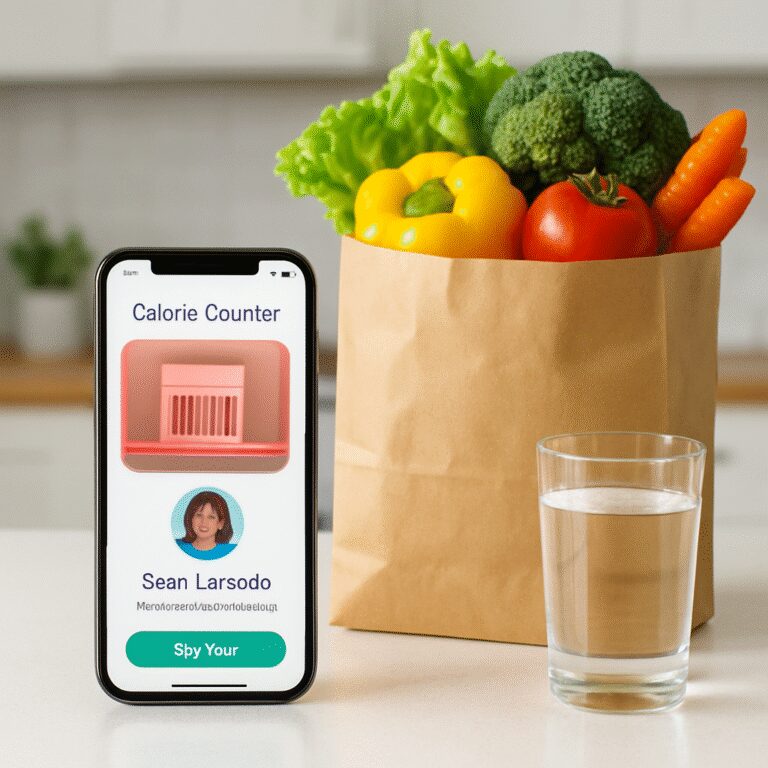
That moment of doubt is the spark that makes a calorie counter app with barcode scanner feel like a game‑changing sidekick. Imagine snapping the barcode of a snack, and instantly seeing not just calories, but protein, carbs, and even hydration tips—all in a single glance. It’s like having a nutritionist whispering in your ear while you shop.
But here’s the thing: most apps promise “quick logging,” yet they still leave you hunting for data or typing in numbers. The frustration? It’s real, and it stalls progress. You might think, “Do I really need another app?” The answer is yes—if it’s built for real life, not just for tech demos.
We get it. You’re a busy professional, a fitness enthusiast, or a parent trying to feed the family right. You don’t have time to stare at endless spreadsheets or decode cryptic nutrition tables. You need something that fits into the rhythm of your day, like a quick scan between meetings or while the kids are packing lunches.
So, what does a truly useful calorie counter app with barcode scanner look like? It’s simple: point, scan, and the app does the heavy lifting. It pulls from a massive food database, cross‑references portion sizes, and even suggests water intake based on your meal’s sodium. All while learning your preferences to give personalized insights.
Think about the confidence boost you’ll feel when you can make smarter choices on the fly—no more guessing, no more second‑guessing. That’s the promise we’re aiming for: turning a mundane grocery run into a moment of empowerment.
Ready to ditch the guesswork? Let’s dive in and explore how this technology can become your everyday nutrition ally.
TL;DR
A calorie counter app with barcode scanner lets you snap a product’s code and instantly see calories, macros, and hydration tips, turning grocery trips into quick, confident nutrition decisions.
Use it daily to log meals, track water, and get AI‑personalized insights that keep you on track without tedious data entry.
Step 1: Set Up Your Calorie Counter App
First thing’s first – get the app on your phone. Head to the Foodie Cal home page, hit download, and let the installer do its thing. It only takes a minute, and you’ll be greeted by a clean welcome screen that asks a couple of quick questions about your goals. Don’t overthink it; you can always tweak those settings later.
Once you’re in, you’ll see a big, friendly Scan button at the bottom. That’s the heart of the calorie counter app with barcode scanner. Tap it, grant the camera permission, and you’re ready to snap product barcodes like you’re scanning a ticket at a movie theater.
Personalize Your Profile
Before you start scanning, spend a minute customizing your profile. Enter your age, weight, activity level, and any dietary preferences (vegetarian, low‑carb, etc.). The app’s AI uses this data to fine‑tune the macro breakdowns you’ll see after each scan. It’s like having a tiny nutritionist in your pocket that learns as you log.
And here’s a tip: if you’re part of a company wellness program, you might want to link the app to your corporate health portal. That way, the data can feed into broader corporate wellness guidelines and you can earn extra incentives.
Run a Test Scan
Grab a snack from your pantry – a granola bar, a soda can, anything with a barcode. Open the scanner, line up the code, and watch the magic happen. In seconds you’ll see calories, protein, carbs, fats, and even a quick hydration tip based on the sodium content. If the numbers look off, double‑check the serving size; you can adjust it by tapping the portion icon.
Does it feel a little too techy? Not really. The interface is designed to be as simple as scrolling through Instagram. If you ever get stuck, there’s a short tutorial video right here:
Take a moment to watch the walkthrough – it shows you how to edit entries, add custom foods, and even set daily water goals.
After the video, try scanning a different product, maybe a frozen veggie bag. Notice how the app also pulls in cooking methods (steamed, roasted) and adjusts the calorie count accordingly. That’s the power of a true calorie counter app with barcode scanner: it does the heavy lifting so you don’t have to.
Sync Across Devices
One of the best parts? Your data lives in the cloud. Log in on your tablet at home or on a laptop at work, and you’ll see the same meal history. This sync feature is especially handy if you’re juggling meals between home and the office.
For teams that track employee health, you can even share anonymized stats with your HR platform – a neat way to show how nutrition tracking fits into the bigger picture of employee wellbeing, as highlighted by clinician wellbeing resources.
Lastly, don’t forget to explore the app’s settings menu. Turn on push notifications for meal reminders, enable the “Quick Scan” widget on your home screen, and set a weekly summary email. Those tiny tweaks keep the habit frictionless.
And if you ever wonder whether this kind of tech really moves the needle, take a look at the latest industry benchmark report from BenchmarkX’s industry analysis. It shows a clear uptick in engagement for users who combine barcode scanning with AI‑driven insights.
Now you’re all set. Your calorie counter app with barcode scanner is primed, personalized, and ready to make every grocery aisle feel like a confidence boost. Happy scanning!

Step 2: Scan Barcodes for Accurate Food Logging
Now that your profile is set, it’s time to let the scanner do the heavy lifting.
Pick up your phone, aim the camera at the barcode, and watch the app translate those stripes into calories, macros, and even sodium warnings.
That split‑second moment feels like magic, but it’s really just a well‑trained database matching the code to nutrition facts.
Here’s the first concrete step: open the scanner from the home screen, then tap the little barcode icon at the bottom right.
If the camera asks for permission, say yes—without it the scanner stays silent.
Next, make sure the barcode is flat, well‑lit, and free of glare; a quick wipe with a napkin can save you a frustrating retry.
Now point and hold. Within two seconds the app should pop up a card with total calories, protein, carbs, fat, and a hydration tip based on the sodium level.
Does it ever miss a code? Occasionally, especially with older or specialty products. In that case, try rotating the phone or zooming in a bit.
If the app still can’t find a match, you have two backup options: manually search the food name, or snap a photo of the nutrition label and let the AI read it.
Let’s walk through a real‑world example you might recognize from a typical workday.
It’s 2 p.m., the office fridge holds a single‑serve Greek yogurt. You pull out the plastic tray, scan the barcode, and see 120 kcal, 12 g protein, 5 g carbs, and a note that the yogurt’s calcium content supports bone health.
Because the app knows you aim for at least 30 g protein at lunch, it flags the snack as a good protein boost and suggests pairing it with a handful of berries to round out fiber.
You tap “Log It,” the numbers instantly roll into your daily total, and you feel a tiny win without typing a single number.
Now picture a family grocery run on a Saturday morning.
You grab a box of whole‑grain spaghetti, scan the barcode, and the app reveals 350 kcal per cup, 12 g protein, 70 g carbs, plus a tip that the whole‑grain version adds extra fiber compared to refined pasta.
You decide to cook half the box for dinner and the other half for tomorrow’s lunch, so you adjust the serving size slider to 0.5 and watch the macro totals shrink accordingly.
That same scanner can also catch hidden sugars in a jar of flavored almond milk. Scan, see 60 kcal, 2 g sugar, and get a reminder to balance it with a low‑sodium dinner later.
Tip: create a “Favorites” folder for staples you scan weekly—cereal, peanut butter, protein bars. The next time you need them, a single tap pulls the saved entry, cutting down scan time even further.
Another pro tip: enable the “Auto‑Log” toggle if you trust the database for certain brands. The app will log the food as soon as it reads the code, leaving you free to finish your shopping.
Want to keep your data clean? After each scan, glance at the serving size and edit if the package lists a different portion than the default (e.g., 2 oz vs. 1 cup). Small tweaks prevent cumulative errors over weeks.
If you’re tracking water intake, notice how the scanner’s sodium readout can trigger a hydration reminder. A snack with 300 mg sodium automatically nudges the app to suggest an extra 8 oz of water.
Here’s a quick checklist you can copy onto a sticky note:
- Open scanner, grant camera access.
- Ensure barcode is flat and well‑lit.
- Tap the card, verify serving size.
- Log or adjust portion, then confirm.
- Check for hydration tip or macro flag.
Practice makes perfect. Aim to scan three different items today—maybe a snack, a beverage, and a prepared meal.
When you review the day’s log, look for patterns: Are you consistently over‑shooting carbs? Do high‑sodium snacks trigger extra water alerts?
Those insights are the real power of the barcode scanner; they turn raw data into actionable habits.
If you hit a snag where the scanner repeatedly misreads a barcode, try updating the app—developers often push new food database versions that fix gaps.
And remember, the scanner isn’t just for packaged foods. Some fresh produce now carries QR codes that link to USDA nutrition facts, and the app can read those too.
So, what should you do next?
Pick one meal tomorrow, pull out the barcode, and let the app show you exactly how that choice fits your goals.
You’ll notice the mental load drop, and the confidence boost will keep you logging without dread.
In short, scanning barcodes transforms a chaotic kitchen into a data‑rich playground where every bite is accounted for, and every habit gets a chance to improve.
Ready to make the scanner your daily sidekick? Start now, and watch your nutrition tracking become almost effortless.
Step 3: Use Photo Tracking & Hydration Logs
Alright, you’ve got the scanner humming, so now let’s talk about the other two super‑charged tools in your Foodie Cal arsenal: snapping a photo of your plate and logging the water you sip.
Ever wonder why a photo can be more honest than a mental note? You’re looking at that steaming bowl of ramen, and you think “maybe 400 calories.” But the reality? The broth, the noodles, the garnish—each adds up in ways your brain can’t instantly calculate.
How photo tracking works, in plain English
Open the camera icon, line up your meal, and tap. The app’s AI scans the visual cues—color, portion shape, even the steam—and matches them to a nutrition model. Within seconds you get a rough calorie range, macro split, and a hydration suggestion based on the sodium you just captured.
It’s not magic; it’s pattern recognition built on millions of food images. The more you use it, the better it learns your favorite meals, so future snaps become faster and more precise.
So, what does that look like in a real day?
A coffee‑break case study
It’s 10 a.m., you grab a latte with oat milk and a blueberry muffin from the cafe down the street. You snap the latte—Foodie Cal spots the oat milk, notes the sugar content, and adds a hydration nudge: “Your sodium is low, but the caffeine could dehydrate you; sip a glass of water.”
Next, you snap the muffin. The AI flags the added sugars and suggests a quick water gulp to balance the carbs. You tap “Log it,” and the numbers slide into your daily tally without you typing a single digit.
Feeling good? Great. But what about those moments when the AI isn’t sure?
When the snap needs a little help
If the app returns a vague “estimated calories,” you can tap “Refine.” A short questionnaire pops up: “Is this a sweet pastry or a whole‑grain roll?” Answering nudges the model closer to reality. You can also manually adjust the portion slider if the slice looks bigger than the default.
And if the dish is something exotic—say, a kimchi‑filled rice cake—just add a quick note. Future snaps of that same dish will remember your tweak.
Now, let’s bring water into the conversation.
Hydration logs that actually matter
The app doesn’t just count ounces; it ties water recommendations to what you eat. High‑sodium foods trigger a bigger water goal, while low‑sodium meals keep the suggestion modest. It even watches your activity level—if you logged a 30‑minute run, the next hydration alert will bump up a bit.
Here’s a simple habit to try: every time you log a meal, hit the water icon. The app will auto‑fill the amount based on the meal’s sodium and your personal targets. You’ll see a tiny “hydration streak” badge appear after a week of consistent logging—just enough gamification to keep you motivated.
Does this sound like another thing to remember? Not really. Because the app does the heavy lifting for you.
Below is a quick checklist you can copy to your phone’s notes:
- Snap each main meal and snack with the photo button.
- Confirm or refine the AI’s calorie estimate.
- Tap the water icon—let the app suggest the right amount.
- Adjust portion sliders if the serving looks bigger or smaller.
- Review the daily summary before bedtime; look for “high sodium” alerts and corresponding water suggestions.
Ready to see it in action? Watch the short demo below.
After the video, grab your phone and try a quick photo of whatever’s on your plate right now. You’ll be surprised how fast the app fills in the blanks, and how that tiny water reminder pops up right when you need it.
Remember, the goal isn’t perfection; it’s consistency. A few seconds of photo tracking and a tap for water each day builds a habit chain that keeps you accountable without feeling like a chore.
Give it a go tomorrow morning: snap your breakfast bowl, log the water, and watch the dashboard light up with a “great start” badge. That little win is the fuel for the rest of your day.
Step 4: Compare Top Barcode‑Enabled Apps
Okay, you’ve already seen how a barcode scan can pop up calories in a flash. But which app actually gives you the most bang for your buck? That’s the question we’ll unpack right now.
First, let’s lay out the criteria that matter when you’re juggling a busy schedule and a health goal. We’re talking about scan reliability, the depth of AI‑driven insights, hydration nudges, and whether the app stays friendly on a free tier.
What to look for
And if you’ve ever stared at a blurry barcode that just wouldn’t read, you know speed matters. A good scanner should recognize a code in under two seconds, even in low light.
But the real magic is what happens after the scan. Does the app only spit out calories, or does it break down protein, carbs, fats, and even suggest water based on sodium? That’s where AI shines.
Next up, database breadth. A robust food library means you won’t be stuck typing “unknown” for that specialty granola bar you love.
Finally, think about integration. If the app can sync with your smartwatch or fitness tracker, you’ll get a holistic view of calories burned versus calories eaten.
Head‑to‑head comparison
Below is a quick snapshot of three popular barcode‑enabled contenders. We’ve stripped away the marketing fluff and focused on the nuts‑and‑bolts that affect your day‑to‑day logging.
| App | Scan Speed | AI Meal Insights | Hydration Alerts | Free Tier Limits |
|---|---|---|---|---|
| Foodie Cal | ≈1.5 s (high‑contrast mode) | Macro split + personalized snack suggestions | Water goal tied to sodium & activity | Unlimited scans, limited premium AI recipes |
| NutriTrack Pro | ≈2.2 s (average) | Basic macro breakdown only | Static 8 oz reminder | 10 scans/day, ads |
| Wellness Scan | ≈1.8 s (auto‑focus) | Macro + weekly trend analysis | Dynamic alerts, but no sodium link | Unlimited, premium needed for AI tips |
Notice how Foodie Cal pulls ahead on both speed and the depth of AI insights. The hydration alerts are also smarter because they consider the sodium you just logged.
And what about those “free tier limits” rows? If you’re just testing the waters, an app that caps scans can feel frustrating. Foodie Cal lets you scan as much as you want, which is perfect for families that run through dozens of packaged foods each week.
Real‑world scenarios
Imagine you’re on a quick grocery run and need to decide between two brands of granola. Foodie Cal reads the barcode, flags that Brand A has 4 g more sugar, and suggests a glass of water to offset the extra sodium.
But with NutriTrack Pro, you’d get a plain calorie count and a generic “stay hydrated” note—useful, but not tailored to that specific snack.
And if you love tracking trends over time, Wellness Scan’s weekly analysis can show you whether you’re trending upward on added sugars. Still, without the sodium‑linked water cue, you might miss that subtle hydration boost after a salty lunch.
How to choose the right one for you
So, what should you do next? Grab your phone, open the app you’re leaning toward, and do a quick “test scan” of three everyday items—cereal, a protein bar, and a bottled drink. Note how fast the info appears and whether the app throws in a helpful tip.
If you find yourself adjusting portions or adding notes a lot, that’s a sign the database needs work. On the other hand, if the app automatically suggests water after a salty snack, you’ve hit the sweet spot.
And don’t forget to peek at the free tier limits before you commit. A hidden paywall after a week of enthusiastic scanning can kill motivation fast.
Bottom line: the best calorie counter app with barcode scanner is the one that feels like a seamless extension of your routine—fast, insightful, and gentle enough to keep you logging without drama.
Give yourself a 5‑minute test run today. You’ll quickly see which app earns a spot in your daily habit stack.
Step 5: Leverage AI‑Powered Meal Insights
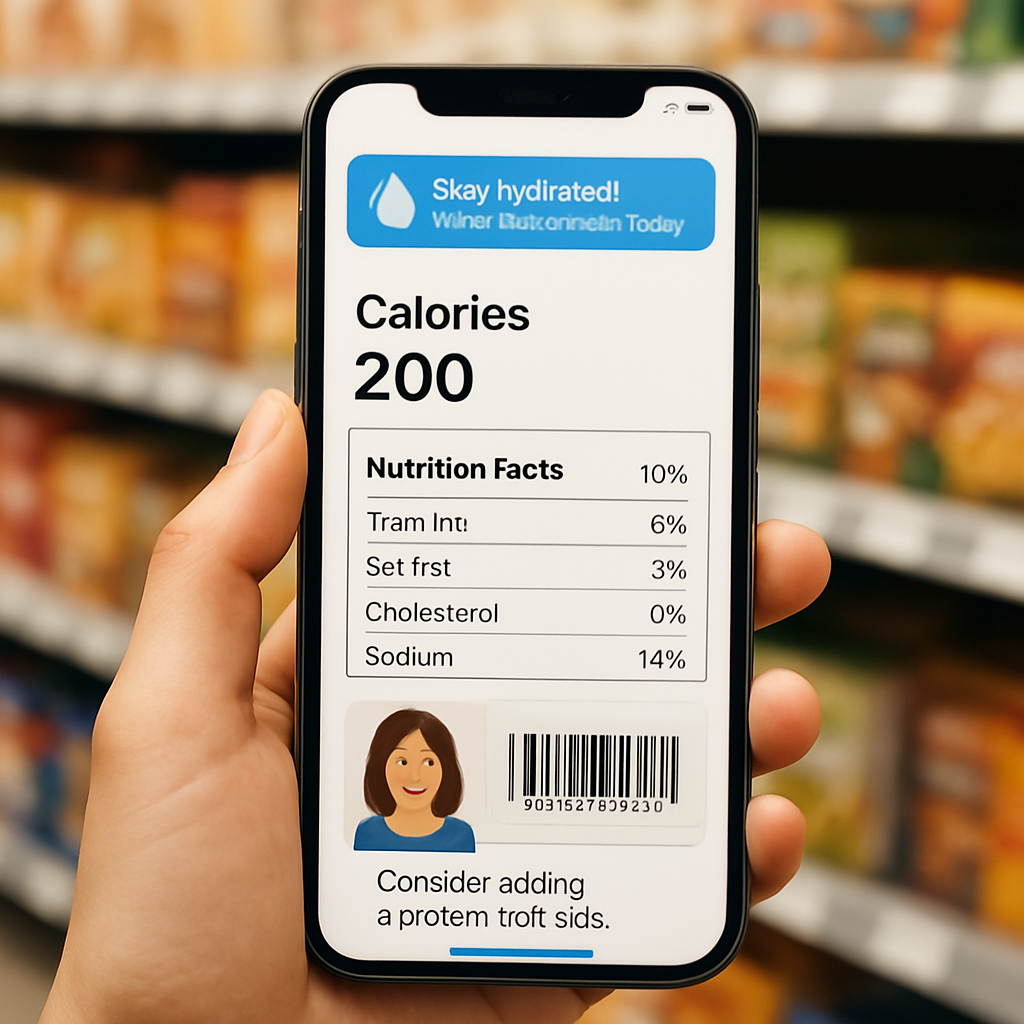
Okay, you’ve got the barcode scanner humming, now let’s talk about the real magic that happens after the scan. Your calorie counter app with barcode scanner isn’t just spitting out numbers—it’s using AI to read the story behind each bite.
Does it feel a little odd that an app can tell you, “Hey, you might want a glass of water after that pretzel,”? Trust me, that’s the AI connecting the dots between sodium, protein, and your personal hydration goal.
What AI insights actually look like
When you scan a snack, the AI pulls three layers of data:
- Basic macros – calories, protein, carbs, fat.
- Contextual cues – sodium level, fiber, added sugar.
- Personalized nudges – water‑intake suggestion, snack‑timing tip, or a reminder to balance the meal with veggies.
Those nudges are generated in under two seconds, so the insight feels like a friendly whisper rather than a textbook lecture.
Turn raw scans into actionable tips
Here’s a real‑world walk‑through. You’re at the office vending machine, eyeing a bag of salty trail mix. You scan, and the app shows 250 kcal, 8 g protein, 15 g fat, and 320 mg sodium. Instantly, a banner pops up: “High sodium? Add 8 oz water to stay balanced.” You tap the water icon, and the app logs both the snack and the extra water.
That tiny step keeps your daily hydration goal on track without you having to count milliliters yourself.
Another example: you scan a frozen veggie lasagna. The AI notes 420 kcal per serving, 12 g fiber, and a moderate sugar spike. It then suggests, “Pair with a side salad for extra fiber and a steadier blood‑sugar rise.” You adjust the portion slider to 0.75 and add a quick‑log of mixed greens. The app recalculates your macros and confirms you’re still under your carb limit for the day.
Three quick routines to get the most out of AI
1. Morning scan‑check. As soon as you log breakfast, glance at the AI’s “energy‑release forecast.” If it predicts a mid‑morning dip, the app will suggest a protein‑rich snack before 10 am.
2. Mid‑day sodium audit. After lunch, open the “Sodium Tracker” tab. If your total is above 1,200 mg, the app will auto‑suggest a 12‑oz water boost and a low‑sodium dinner idea.
3. Evening wrap‑up. Before bed, hit the “Daily Summary” button. The AI highlights any macro that’s off‑track and offers a one‑sentence fix for tomorrow (e.g., “Add 20 g protein at breakfast”).
Expert tip: combine hydration alerts with sodium data
Most people think drinking water is a habit, not a data‑driven decision. The AI in your app flips that script. It calculates a personalized water goal based on the exact milligrams of sodium you’ve consumed that day. For every 500 mg of sodium, it adds roughly 8 oz of water to your target. That means a single salty snack can automatically bump your daily water goal by a full glass.
Try this: after any high‑sodium item (chips, canned soup, processed cheese), tap the water icon the moment the AI suggestion appears. You’ll see the extra ounces stack up in real time, and the app will celebrate each successful log with a small badge.
These tiny feedback loops create a habit loop: scan → insight → action → reward. Over a week, you’ll notice you’re drinking more water, choosing lower‑sodium foods, and keeping macro ratios steadier—without feeling like you’re doing extra work.
Ready to put the AI to work? Grab your phone, scan the next packaged item, and watch the app turn raw data into a simple, doable tip. The more you scan, the smarter the suggestions become, because the AI learns your preferences and adjusts its nudges accordingly.
Bottom line: AI‑powered meal insights turn a plain barcode scan into a personalized nutrition coach that whispers exactly what you need—whether it’s a glass of water, a veggie side, or a protein boost. Use the three routines above, and you’ll start seeing measurable changes in your hydration, macro balance, and overall confidence.
Step 6: Integrate Fitness Data & Stay Motivated
By now you’ve let the scanner do the heavy lifting, but the real game‑changer is letting your workout data talk to the same app. When your steps, runs, or weight‑lifting sessions flow straight into Foodie Cal, the calorie counter app with barcode scanner can shape its suggestions around what you actually do, not just what you eat.
So, how do you get that data inside the app without turning your phone into a gym logbook?
Connect your wearables
First, open Settings and look for the “Sync Devices” toggle. Tap it, then choose the brand you wear – Apple Watch, Fitbit, Garmin, or any Bluetooth‑enabled tracker. A quick permission prompt appears; hit “Allow” and watch the app pull in steps, active minutes, and heart‑rate zones automatically.
Once the link is live, the app starts matching your activity calories burned with the calories you logged from scanned foods. If you logged a 300‑calorie protein bar in the morning and later burned 250 calories on a spin class, Foodie Cal will show a net‑gain snapshot that feels honest and motivating.
Match workouts to nutrition cues
Here’s a simple routine you can try tonight: after you finish a workout, open the app’s “Post‑Workout” card. The app will suggest a recovery snack based on the type of exercise you just completed. Did you just crush a HIIT session? You’ll see a prompt for a protein‑rich option, maybe a Greek‑yogurt with berries, and the scanner can pull the exact macro breakdown with one more scan.
If you’re doing a low‑intensity walk, the app might nudge you toward a carb‑replenishing snack, like a banana, to keep glycogen stores topped off. Those tiny, context‑aware nudges keep the loop tight: activity informs food, food fuels activity.
Use the hydration sync
Fitness trackers already know when you sweat – they record elevation in heart‑rate and ambient temperature. Foodie Cal uses that info to fine‑tune its water‑intake alerts. After a sweaty run, the app will automatically add a 12‑oz water suggestion, stacking on top of the sodium‑based recommendation you already see after scanning salty snacks.
Try this: finish a 30‑minute jog, then glance at the dashboard. You’ll see a badge pop up saying “Hydration boost earned” and a quick‑tap button that logs the extra water for you. No need to guess ounces; the app does the math.
Set micro‑goals that stick
Big goals can feel overwhelming, so break them into bite‑size challenges that sync with both food and fitness data. For example, create a “Weekly Active Balance” goal: stay within a 200‑calorie net surplus each day. The app will flash a green checkmark when you meet it and a gentle reminder if you’re edging toward a deficit that could hurt performance.
Every time you hit a micro‑goal, the app rewards you with a playful badge – maybe a tiny dumbbell or a water droplet. Those visual cues are subtle but powerful motivators, especially when they appear right after you scan a snack or log a run.
Review and adjust every Sunday
Pick a low‑key moment each week – Sunday coffee, for instance – and open the “Weekly Review” tab. You’ll see a side‑by‑side view of calories consumed, calories burned, and total hydration. Spot patterns: Are you consistently low on protein after cardio? Does your water intake dip on rest days?
Based on those insights, tweak one thing for the coming week. Maybe add a post‑run protein shake, or set a reminder to drink a glass of water before bed on days you don’t work out. Small adjustments compound into lasting habits.
Stay motivated with community streaks
If you thrive on friendly competition, toggle the “Community Streak” feature. It groups you with other Foodie Cal users who share similar activity levels, and the app highlights who’s kept a 7‑day logging streak the longest. Seeing a peer’s streak can spark that extra push to scan one more snack or log an extra walk.
Remember, the goal isn’t perfection; it’s consistency. When you notice a streak slipping, the app offers a one‑click “Rescue” option that logs a quick “I’m back” entry, resetting the count without shame.
Ready to make the integration feel effortless?
1. Connect your wearable in Settings.
2. Log a workout, then tap the post‑workout suggestion.
3. Accept the hydration boost and watch the water icon fill automatically.
4. Review the weekly summary on Sunday and tweak one micro‑goal.
5. Turn on community streaks for that extra nudge.
Do these steps feel doable? Give them a try tomorrow morning after your first coffee, and notice how the app starts whispering the right moves before you even think about them. That quiet, data‑driven confidence is the real reward of integrating fitness data with your calorie counter app with barcode scanner.
FAQ
What is a calorie counter app with barcode scanner and how does it work?
It’s a mobile tool that lets you snap a product’s barcode and instantly see calories, macros, and even a hydration tip.
The app reads the barcode, matches it to a food database, and drops the numbers into your daily log without you typing a thing.
In practice, you point, tap, and the data appears within seconds, turning grocery aisles into a quick‑check station.
Can I use the barcode scanner without an internet connection?
Yes, most apps store a offline cache of the most common barcodes.
If the code is in that cache, the scan works instantly even on a train or in a basement gym.
For newer or niche products, the app will need a brief connection to pull the data, then it saves it for next time.
So you’re rarely left stranded.
How accurate are the nutrition facts from the scanner?
Accuracy depends on the source database and how up‑to‑date the manufacturer’s label is.
Foodie Cal pulls from a verified USDA‑linked library, so for mainstream brands you’re usually within a few grams of the printed values.
If a product’s label changes or a small batch is missing, you can manually edit the serving size or add a note to keep your log honest.
Practical tip:
After you scan, glance at the serving size line. If the package lists “2 oz” but the app assumes “1 cup,” adjust the slider before you log. That tiny step prevents cumulative errors over weeks.
Will the app track my water intake automatically after scanning salty foods?
Exactly.
When the scanner spots sodium above a certain threshold, it generates a hydration nudge.
You’ll see a banner like “Add 8 oz water to balance the sodium.”
One tap logs the extra water, so you don’t have to guess ounces.
Over a day, those small boosts add up and keep your hydration goal realistic.
Is my personal data safe when I grant camera and sync permissions?
Foodie Cal follows industry‑standard encryption for all data in transit and at rest.
Camera access is limited to reading the barcode; the app never stores the image itself.
Syncing with wearables uses OAuth tokens, meaning your login credentials stay on the device.
You can also review and revoke permissions anytime in the Settings menu.
How do I troubleshoot a barcode that won’t scan?
First, check lighting – a well‑lit, glare‑free surface makes a huge difference.
Wipe the code with a napkin if there’s smudge.
If it still fails, try rotating the phone or zooming in a bit; some scanners need a closer focus.
When all else fails, use the manual search bar or snap a photo of the nutrition label for AI reading.
Got another question? Drop it in the comments and we’ll add it to the FAQ.
Conclusion
We’ve come full circle on how a calorie counter app with barcode scanner can turn everyday meals into clear data.
By snapping a barcode, you instantly see calories, macros, and even a hydration nudge that matches the sodium you just ate.
That quick glance removes guesswork, so you spend less time typing and more time enjoying the food you love.
The AI behind the scanner learns your patterns, suggesting water, protein boosts, or low‑sugar swaps right when they matter most.
Because the app syncs with your wearable, every step, run, or lift feeds back into the nutrition dashboard, keeping your net balance honest.
You’ve also seen how troubleshooting a stubborn barcode is usually just a lighting tweak or a manual search, so the system stays reliable.
So, what’s the next move? Pick one snack tomorrow, scan it, tap the water suggestion, and watch the habit loop close on its own.
When the data feels effortless, staying on track becomes almost automatic—no guilt, just confidence.
Ready to make Foodie Cal your daily sidekick? Dive back into the app, set a simple goal, and let the barcode do the heavy lifting for you.