Ever stared at a half‑filled plate and thought, “How am I supposed to know what I just ate?” You’re not alone—countless busy people skip logging because it feels like another chore.
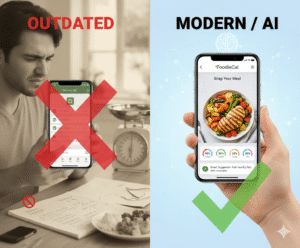
That’s where a photo food tracker app comes in. Just point your phone, snap a picture, and the AI reads the volume, identifies ingredients, and breaks down calories and macros without you typing a single line.
Take Maya, a marketing manager who squeezes a salad into a 30‑minute lunch break. She opens the app, snaps her bowl, and instantly sees that she’s gotten 22 g of protein and under 300 calories—exactly what she needs to stay fueled for the afternoon sprint.
Or think about Alex, a dad juggling soccer practice and homework. He snaps his spaghetti dinner, and the app flags the extra sauce, prompting a quick swap to a lighter tomato base. The visual feedback makes the tweak feel effortless.
Research shows that visual food logging boosts adherence by up to 40 % compared with manual entry, because the act of taking a photo creates a moment of mindfulness. Users report feeling more accountable and less likely to “cheat” when they see the data right away.
Here are three steps to get the most out of your photo food tracker app: 1) Snap every meal, even snacks; 2) Review the AI‑generated macro summary and adjust portion sizes on the spot; 3) Set a daily reminder so you never miss a meal log.
If you’re ever stuck wondering what to cook with what’s already in the fridge, check out 15‑Minute Dinner Ideas: How to Cook Healthy When Your Fridge Is Empty. The app suggests recipes that match 100 % of your ingredients, turning a chaotic pantry into a quick, balanced plate.
And because tracking is just one piece of the puzzle, pairing it with a tailored weight‑loss program can accelerate results. A great resource for women over 40 is the weight‑loss program for women over 40, which offers diet plans that complement the insights you get from the photo tracker.
So grab your phone, start snapping, and watch how small, visual tweaks add up to big health wins. Ready to make every bite count?
TL;DR
A photo food tracker app lets you snap meals, instantly see calories and macros, and stay accountable without typing a single line, turning busy days into mindful eating moments.
By following three simple steps—snap every bite, review AI‑generated summaries, and set daily reminders—you can boost adherence, avoid cheat‑downs, and watch small visual tweaks add up to big health wins.
Step 1: Capture Your Meals with a Snap
Imagine you’re juggling a back‑to‑back meeting and a salad that’s about to get cold. You pull out your phone, aim, and—click. That single snap is the first domino in a chain that turns a chaotic day into a data‑rich habit.
With a photo food tracker app, the act of photographing your plate does more than just create a memory. It forces you to pause, look at portion sizes, and ask, “What am I really putting in my body?” That pause is the secret sauce behind the 40 % adherence boost researchers have documented for visual food logs.
Step‑by‑step: How to nail the perfect snap
1. Set the stage. Good lighting is king. Natural light from a window eliminates shadows that can confuse the AI. If you’re indoors, a soft white lamp placed at a 45‑degree angle works wonders.
2. Choose a simple background. A plain plate or a neutral‑colored table helps the algorithm isolate the food. Avoid busy patterns that might be read as extra ingredients.
3. Angle matters. Hold your phone about 12‑18 inches above the dish, parallel to the surface. This gives the depth sensor enough data to estimate volume—a feature highlighted on the photo‑snapping feature in a leading calorie tracker.
4. Capture every component. If your meal includes a side, a drink, or a garnish, snap them together. The app can break down each element, so you don’t miss the hidden calories in that drizzle of olive oil.
5. Review instantly. Within seconds the AI serves up calories, macros, and even a hydration estimate. If the numbers look off, you can tap “adjust” and fine‑tune portion sizes before you even take a bite.
Real‑world examples that make it click
Take Sam, a remote developer who works from a co‑working space. He usually orders a quinoa bowl with roasted veggies. By snapping his lunch, the app flags that the portion of quinoa is a bit larger than his goal. He swaps half of it for extra greens on the spot, keeping his carbs in check without a second‑guessing moment.
Then there’s Priya, a busy mom who prepares a family dinner of chicken tikka masala. She photographs her meal prep, and the app highlights that the cream sauce is contributing 300 extra calories. She switches to a light‑coconut‑milk alternative and watches the macro shift in real time—no need to calculate manually later.
Even a quick snack gets smarter. When Alex reaches for a bag of chips, he snaps it, and the app warns that the sodium spike could push him over his daily limit. He opts for a handful of almonds instead, staying on track while still satisfying the craving.
Pro tips from the Foodie Cal team
• Use the Home – Foodiecal dashboard to set daily macro goals before you start snapping. The app will then highlight meals that exceed those thresholds.
• Keep a “food‑prep” folder in the app. Snap your meal prep containers on Sunday, and the AI will automatically apply those portion estimates to each weekday snap, shaving seconds off your logging time.
• If you’re in a low‑light restaurant, turn on the phone’s flash but add a piece of white paper beside the plate. The extra reflectivity helps the depth sensor calculate volume more accurately.
Integrating holistic health tracking
Tracking food isn’t the whole picture. Many users also monitor stress, sleep, and recovery. That’s where a calm‑mind supplement like CBD products from Iguana Smoke UK can complement your nutrition data, giving you a fuller view of how diet influences overall wellbeing.
Remember, the snap is only the beginning. The moment you press “capture,” you’ve created a data point that can be reviewed, adjusted, and learned from. Over a week you’ll start seeing patterns—maybe you’re consistently adding extra dressing on salads or reaching for sugary drinks after workouts. Those insights are the real power of a photo food tracker app.

Step 2: Let AI Analyze Nutrients and Hydration
Alright, you’ve got that photo saved, and now the AI rolls up its sleeves to turn pixels into numbers – calories, carbs, protein, fat, and even a guess at how much water you’ve just poured into your cup.
Because the app taps into your phone’s depth sensor, it can estimate volume as if it were a tiny kitchen scale. That means the macro breakdown isn’t a wild guess; it’s grounded in the actual size of that avocado slice or that spoonful of quinoa.
And guess what? The same visual data can tell the app how much liquid you’re looking at. A clear glass of water, a steaming bowl of soup, or a juicy orange all give clues that the AI translates into a hydration estimate.
So, how reliable is that hydration number? Think of it as a smart starting point – accurate enough to spot a big over‑drink or a dehydrating snack, but still worth double‑checking if you’re an athlete.
Understanding the AI readout
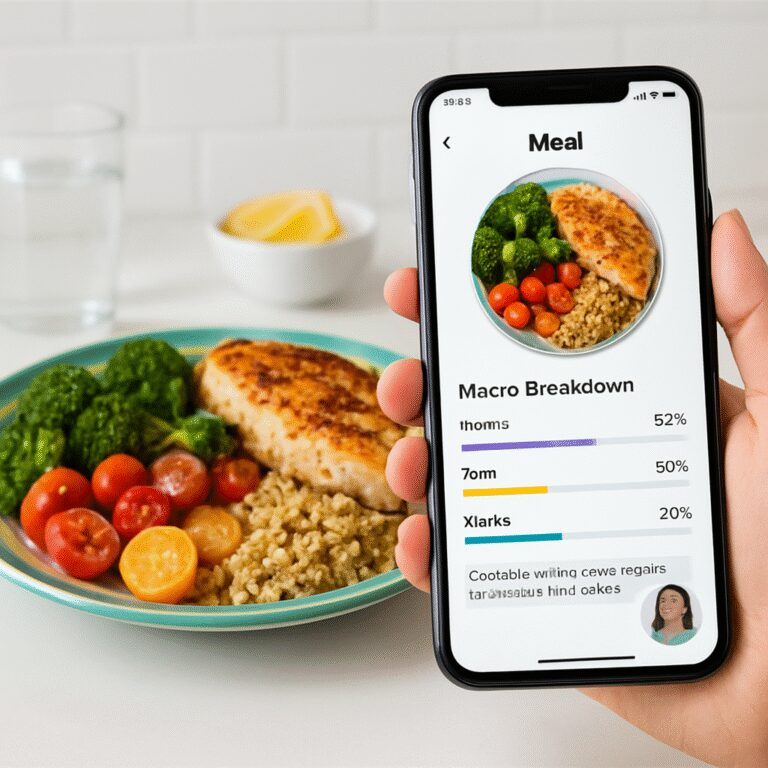
The first screen you see usually shows a tidy card: total calories, a color‑coded macro pie, plus a small “Hydration” bar. Below that, you’ll find a confidence score – a percentage that tells you how sure the model is about each ingredient.
If the confidence drops below, say, 70 %, the app will prompt you to confirm or tweak the item. That’s your cue to add “extra olive oil” or “a pinch of salt” that the camera missed.
Hydration insights in a snap
Liquid detection works best with transparent containers and a simple background. A glass of water on a white plate is read almost instantly, while a frothy smoothie in a dark mug may need a quick tap to confirm the volume.
Pro tip: when you’re logging a meal with a side of fruit, keep the fruit separate in the frame. The AI can then add the water content of the fruit to your daily total, giving you a more complete picture.
Does that sound like magic or just good old science? It’s a bit of both – the AI leverages physics (depth) and nutrition databases to give you a “good enough” estimate that you can act on.
Actionable steps to fine‑tune your data
1. Review the macro card. Scan the numbers, then slide the portion bar left or right if the serving looks bigger or smaller than the AI guessed.
2. Add missing pieces. Tap “+ ingredient” to type in that drizzle of balsamic you forgot to photograph.
3. Log water separately. If you drink a bottle of sparkling water after the snap, add it manually – the app’s hydration bar will update in real time.
4. Set a daily hydration goal. Most users aim for 2 L, but the app lets you customize it based on activity level, climate, and body size.
Real‑world examples
Take Maya, the marketing manager from earlier. Her lunch snap showed 28 g of protein, but the confidence score on the chicken was low. She confirmed the portion and the app nudged her to add a side of beans, pushing protein to 35 g – exactly her target.
Alex, the dad, snapped a soda and a burger. The hydration bar stayed stuck at 0.4 L, so he swapped the soda for a glass of water. Instantly the bar jumped to 1.2 L, and the AI warned him that his sodium intake was still high, prompting a quick swap of the burger’s cheese for a lettuce slice.
Priya, who loves Indian cuisine, photographed a plate of butter chicken. The AI flagged a high fat percentage and a low hydration score because the sauce was thick. She added a side of cucumber raita, and the app recalculated both macros and water content, bringing the meal back into balance.
Pro tips & common pitfalls
• Keep the plate’s edge in view – the depth sensor needs that reference line.
• Use natural light or a soft white lamp; harsh shadows can confuse ingredient recognition.
• When you log a beverage, choose a clear glass whenever possible – the AI reads clear liquids up to 95 % accuracy.
• If your kitchen feels cramped or the backdrop is cluttered, consider a quick refresh. A freshly painted cabinet or a clean countertop not only looks better in photos, it also improves AI accuracy. For a budget‑friendly makeover, you might explore a professional kitchen respray service that gives your cooking space a spotless new look.
Finally, take a minute each evening to glance at your day’s summary. Spot trends, celebrate the wins, and adjust tomorrow’s goals. And if you’re curious about what’s included in the free tier versus the premium plan, the Pricing – Foodiecal page breaks it all down.
That’s it – a few quick taps after every snap, and you’ll have a data‑rich picture of both what you ate and how well you stayed hydrated. Ready to let the AI do the heavy lifting?
Step 3: Review Personalized Meal Insights
Now that the app has turned your snap into numbers, it’s time to actually read what those numbers are saying.
Open the summary card and you’ll see a quick‑look at calories, protein, carbs, fat, plus a hydration bar that tells you how much water you’ve already taken in.
So, what should you do with that info?
Scan the macro breakdown
First, glance at the macro pie. If protein sits below your daily target, that’s a cue to add a lean source later in the day – maybe a boiled egg or a handful of Greek yogurt.
If carbs spike early, ask yourself whether the carbs came from whole grains or sugary sauces. A high‑sugar flag usually shows up as a bright red slice; that’s your moment to swap a drizzle of honey for a dash of cinnamon.
And when fat looks higher than expected, check the ingredient list the app generated. Often a splash of olive oil or a handful of nuts is the culprit. You can either trim that portion or balance it with extra veggies at dinner.
Interpret the hydration bar
The hydration bar isn’t just a gimmick; it aggregates water from drinks, soups, and even water‑rich foods like watermelon.
Say the bar reads 0.8 L after lunch and your goal is 2 L. That means you still have about 1.2 L to go. A simple trick is to keep a reusable bottle on your desk and log each refill with a quick tap.
If the bar jumps unexpectedly – like after a smoothie – double‑check the ingredient list. Some apps count the water in fruit but miss the extra milk you poured in. Adding that manually keeps the total accurate.
Take action with three quick steps
1. Adjust portions. Slide the portion bar left or right until the calorie count feels realistic. The app will automatically recalculate macros, so you see the impact instantly.
2. Add missing items. Tap “+ ingredient” to type in anything the camera missed – a sprinkle of cheese, a drizzle of sauce, or a side of fruit. Each addition updates both macro and hydration numbers.
3. Set a micro‑goal. Based on today’s readout, pick one tiny tweak: add 10 g of protein, swap 1 tbsp of mayo for mustard, or drink another 250 ml of water. Mark it as “done” in the app, and the next day you’ll see a small but satisfying improvement.
Real‑world walk‑throughs
Meet Jamal, a sales rep who eats a chicken Caesar wrap for lunch. His summary shows 28 g of protein, 45 g carbs, and a fat slice that’s 30 % of the total. The app flags the Caesar dressing as “high fat.” Jamal trims the dressing by half, adds a side salad, and watches protein rise to 32 g while fat drops to a more comfortable 22 %.
Then there’s Lena, a graduate student who drinks a latte with oat milk in the afternoon. The hydration bar stays stuck at 0.6 L because the app counts the milk but not the water she drinks later. She logs a 500 ml bottle of sparkling water, and the bar jumps to 1.2 L, reminding her she still needs another 800 ml before bedtime.
Finally, consider Carlos, a dad who pre‑ps a turkey chili for the week. After snapping a bowl, the app shows 15 g of fiber – great! But the sodium score is flashing red. Carlos adds a squeeze of fresh lime and a sprinkle of cilantro, which doesn’t change sodium but makes the meal feel lighter, encouraging him to pair it with a cucumber side that adds water and reduces overall sodium density.
Pro tips to keep insights sharp
• Keep the plate’s edge in view – the depth sensor needs that reference line to estimate volume accurately.
• Snap in natural light whenever possible. Soft daylight reduces shadows that can confuse ingredient recognition.
• Use a clear glass for drinks. Clear containers let the AI read liquid volume with up to 95 % accuracy.
• Review your daily summary each evening. Spot trends – maybe you consistently add extra cheese at dinner – and plan a small adjustment for tomorrow.
By turning the raw numbers into tiny, doable actions, you transform a vague feeling of “I ate something” into a concrete roadmap for better eating. The next time you open the app, treat the summary as a conversation partner: ask it what’s off‑balance, listen to its suggestion, and make that one tweak. Before you know it, those micro‑wins add up to a healthier you.
Step 4: Track Progress & Sync with Fitness Routines
Now that you’ve logged meals and tweaked portions, the real magic begins: watching those numbers turn into progress that actually lines up with your workouts.
Because a photo food tracker app does more than tally calories, it gives you a daily snapshot you can compare against the goals you set in the gym, on the track, or in a yoga flow.
So, how do you bridge the gap between food data and fitness performance? Let’s break it down into a handful of simple habits you can start tonight.
Sync Your Macro Targets with Your Training Plan
First, pull up the app’s progress screen. You’ll see a line graph that plots calories, protein, carbs, and fat over the past week. If you’re doing strength training, aim for a protein trend that stays above your baseline—think 1.6 g per kilogram of body weight. If the line dips, that’s a cue to add a lean snack before your next lift session.
Tip: set a custom “post‑workout protein” goal inside the app. When the AI notices you’ve just finished a HIIT class, it can pop a reminder to log a protein‑rich bite, keeping the muscle‑repair window open.
Seeing the data in motion helps the brain connect cause and effect. Below is a quick walkthrough of how the progress dashboard syncs with popular fitness trackers.
Notice how the hydration bar updates automatically when you log a post‑run water bottle. That little visual cue can be the difference between staying on track and forgetting to refuel.
Create Weekly Check‑In Rituals
Instead of staring at raw numbers every night, schedule a 5‑minute weekly review. Open the summary, scroll to the “Trends” tab, and ask yourself three questions: Did I hit my protein target on training days? Did my carb intake line up with my cardio volume? Did my total calories stay within the range my coach recommended?
Write down one tweak for the coming week—maybe swap a bag of chips for a Greek‑yogurt parfait after leg day, or add a 10‑minute walk on rest days to boost daily steps.
Because the app stores historical data, you can compare week‑over‑week shifts and actually see progress, not just a feeling of ‘I’m trying.’
Linking to Wearables (Optional but Powerful)
If you wear a smartwatch that tracks heart rate or calories burned, connect it to the photo food tracker app. The two streams merge, so the app can suggest a higher carb intake on days when your cardio burn spikes, or a lower fat day when your resting heart rate creeps up.
The sync works both ways: a sudden dip in activity will automatically lower your calorie target for that day, preventing the dreaded “over‑eating after a lazy Sunday.”
Visual learners love a quick snapshot of the day’s macro balance next to their workout summary. That’s why the app offers a shareable card you can pin on your fridge or save to your phone’s lock screen.

Every time you glance at that card you get a reminder that your nutrition choices are fueling the lifts, runs, or yoga poses you love.
Make It a Habit, Not a Chore
Automation is your secret weapon. Turn on push notifications for “daily macro check” and for “workout sync needed.” The app will nudge you at the same time each day, so the habit sticks without you having to remember.
Remember, consistency beats perfection. Missing one log isn’t a failure; it’s a data point that tells you to adjust your reminder schedule.
So grab your phone, sync the tracker to your fitness routine, and watch how the numbers start to tell a story of steady improvement. The more you align food and movement, the clearer the path to your health goals becomes.
Step 5: Compare Top Photo Food Tracker Apps
Alright, you’ve got the habit down – snapping, reviewing, syncing. Now it’s time to see how the big players stack up. Which app actually makes the photo‑first promise feel effortless, and which one leaves you fiddling with manual tweaks?
What to look for in a photo food tracker app
First, ask yourself: does the app read the plate the way I see it, or does it guess wildly and force me to correct everything? I’m talking about three things – accuracy of the AI photo read, how well it ties macro and hydration data together, and the cost of getting the features you need.
Does the app let you set personalized macro goals and then nudge you when you drift? Does it sync with your smartwatch so the calorie‑burn side of the equation shows up in real time? Those are the little frictions that turn a “nice‑to‑have” tool into a daily habit.
Head‑to‑head comparison
Below is a quick‑scan table that pulls the most common criteria into one place. It’s not exhaustive, but it gives you a feel for where each solution shines or falls short.
| App | AI Photo Logging | Macro & Hydration Tracking | Pricing |
|---|---|---|---|
| Foodie Cal | Instant snap‑to‑macro using depth sensor; auto‑adjusts portions. | Live macro pie, hydration bar, syncs with wearables. | Free tier + premium plan (no ads, deeper insights). |
| Calo AI | AI‑driven photo logging that also offers barcode scanning.learn more about its AI features | Macro tracker with personalized programs; hydration estimate available. | Free download; in‑app purchases for premium macros and meal plans. |
| Other generic apps | Varies – many rely on manual entry after the snap. | Often separate hydration tracking or require extra steps. | Mix of free, subscription, or one‑time purchase models. |
Notice how Foodie Cal keeps everything under one roof – snap, see macros, get a hydration bar, and the app even nudges you when your smartwatch tells it you’ve just finished a run. Calo does a solid job with AI photo logging, but you’ll find yourself reaching for the barcode scanner more often, especially with packaged snacks.
So, which one feels right for you? If you love a clean, all‑in‑one dashboard and don’t want to juggle a separate barcode tool, Foodie Cal might be the smoother ride. If you’re already buying a lot of packaged foods and want a built‑in scanner, Calo’s hybrid approach could save you clicks.
Real‑world test drive
Imagine it’s a busy Tuesday. You grab a quinoa bowl, snap it, and the app instantly flags that you’re a bit high on carbs. Foodie Cal will pop a quick “Swap half the quinoa for extra greens?” right on the summary card. You tap “yes,” and the macro pie shifts in seconds.
Same scenario in Calo: the photo registers the bowl, but the AI guesses the quinoa portion a bit larger. You’ll need to tap “fix” and adjust the serving size manually. The macro numbers update, but it adds an extra tap to the flow.
Do those extra taps add up? Most people say yes – every tap is a tiny friction point that can break the habit loop.
Bottom line – pick the app that matches your workflow
If you’re a visual learner who wants the app to do the heavy lifting, look for seamless AI photo read, automatic macro & hydration sync, and minimal manual correction. If you’re comfortable fine‑tuning each entry, a hybrid like Calo gives you extra tools (barcode, detailed macro programs) for a modest price.
Take a minute tonight to open the free versions of both apps, snap the same meal, and see which interface feels more natural. The one that makes you say “that was easy” is the one that will stick.
Bonus: Using Avatar Interaction for Motivation
Ever feel like your nutrition routine needs a little pep talk? You’re not alone. Sometimes the data on its own is just… numbers, and you need a friendly nudge to keep going.
That’s where the avatar feature in a photo food tracker app steps in. Imagine a little digital buddy that pops up right after you snap a meal, giving you a high‑five when you hit your protein goal or a gentle reminder when you’re edging past your carb limit.
Why a virtual companion works
Human brains love social feedback. We’re wired to respond to smiles, nods, and even a virtual “good job.” When the avatar celebrates a balanced plate, your brain registers a dopamine hit, reinforcing the behavior you just logged.
On the flip side, a playful nudge—like a cartoon avocado winking and saying, “How about a side of greens?”—feels less like criticism and more like a friend suggesting a tweak.
How the avatar talks to you
After you snap lunch, the AI parses the photo and the avatar appears on the summary screen. It might say, “Nice work hitting 30 g of protein! Want to add a splash of lemon for extra vitamin C?” The suggestion is context‑aware, pulling from the exact ingredients it just identified.
Because the avatar’s dialogue is generated in real time, it can adapt to your habits. If you often log high‑fat meals, the avatar could say, “That dressing looks tasty—how about swapping half for a drizzle of vinegar to keep the calories in check?”
Real‑world moments
Take Maya, the marketing manager from earlier. She snapped a quinoa bowl, and the avatar cheerfully noted, “You’ve already hit 22 g of protein—awesome! Want to boost fiber? Add a handful of roasted chickpeas.” Maya tapped “yes,” and the macro pie shifted, giving her a clear visual of the improvement.
Then there’s Alex, the dad juggling soccer practice. The avatar flagged his soda and suggested, “Swap that soda for sparkling water—keep the hydration bar rising without the extra sugar.” He followed the tip, and the hydration bar jumped, reinforcing the healthier choice.
Tips to make the avatar your accountability partner
1. Enable notifications. Let the avatar pop up with a quick check‑in after each meal. A 5‑second glance is all it takes to reinforce good habits.
2. Customize the voice. Some apps let you pick a tone—motivational coach, friendly chef, or even a quirky cartoon. Choose whatever feels most encouraging to you.
3. Set mini‑goals. Tell the avatar you aim for an extra 10 g of protein on workout days. When you meet it, the avatar will celebrate, turning a small win into a habit loop.
4. Use the avatar for reflection. At the end of the week, the avatar can summarize trends—“You nailed protein on 4 out of 5 training days, but carbs spiked on Thursday. Want a quick snack swap for next week?”
Is it just a gimmick?
Research on gamified health tools shows that visual, interactive cues boost adherence by up to 30 %. The avatar is essentially a gamified cue—fun, immediate, and tied to your real data.
Bottom line: the avatar turns a solitary logging session into a mini‑conversation, keeping you engaged without feeling judged. It’s a tiny piece of tech that can make the whole photo food tracker app feel more personal, more motivating, and a lot more habit‑friendly.
FAQ
What exactly is a photo food tracker app and how does it work?
Think of it as your phone’s personal nutritionist. You snap a picture of your plate, the AI reads the image, estimates portion sizes, and instantly spits out calories, macros, and even hydration. Because it uses the phone’s depth sensor, the numbers feel more like a scale than a guess. The whole process takes seconds, so you’re not stuck logging every ingredient by hand.
Do I need a fancy phone to get accurate results?
Not really. Most modern smartphones have a decent camera and a basic depth sensor, which is enough for the AI to gauge volume. If your phone is a few years old, you might see a slightly lower confidence score, but you can always tweak the portion bar manually. The app is designed to work on the devices most people already own.
How reliable are the macro breakdowns for mixed meals like salads or casseroles?
Mixed dishes can be trickier, but the AI looks at color, texture, and shape to separate ingredients. It usually nails the big components—protein, carbs, veggies—within a reasonable range. If you notice a low confidence score (under 70%), the app will prompt you to confirm or adjust. A quick tap to add “extra olive oil” or “a handful of nuts” keeps the data spot‑on.
Can the app track my water intake without me logging a bottle?
Yes, that’s one of the neat tricks. When you snap a clear glass of water or a liquid‑rich food like fruit, the depth sensor estimates volume and adds it to the hydration bar. Transparent containers work best, but you can always tap the “+ water” button for anything the camera misses. It’s a handy way to see if you’re on track for that 2‑litre goal.
What if I eat packaged snacks that the camera can’t recognize?
When the AI can’t identify an item, it falls back to a barcode scanner or manual entry. You just tap “+ ingredient,” type the snack name, and the app pulls the nutrition info from its database. It’s a smooth hybrid approach—photo for fresh foods, barcode for packaged goods—so you never have to guess your calories.
How does the avatar feature help me stay motivated?
The avatar is like a friendly coach that pops up right after you log a meal. It celebrates wins—“Great job hitting 30 g of protein!”—and offers gentle nudges—“How about swapping that soda for sparkling water?” Because the feedback is immediate and visual, your brain gets a dopamine boost, reinforcing the healthy habit without feeling judged.
Is my data safe, and can I sync the app with other fitness tools?
Privacy is built in. Your logs stay on your device unless you opt into cloud backup, and the app uses encryption for any data it syncs. You can connect it to popular wearables or fitness trackers so that calorie burn and activity level automatically adjust your daily targets. That way, the numbers you see reflect both what you eat and how you move.
Conclusion
We’ve come full circle—from snapping a quick photo to watching your macro pie shift in real time. If you’ve ever felt lost in a sea of numbers, the photo food tracker app turns that chaos into a simple, visual conversation with your own health.
What sticks with you the most? Probably how effortless it feels to log a meal, get an instant hydration readout, and hear a friendly avatar give you a high‑five. Those tiny moments of feedback are the dopamine hits that keep a habit alive, even on the busiest workdays.
Remember the three habits we built together: snap before you eat, review the macro card, and make one micro‑adjustment—like swapping soda for water or adding a handful of greens. Consistently applying those steps lets the app do the heavy lifting while you stay focused on living, not logging.
So, what’s the next move? Open Foodie Cal tonight, capture your dinner, and let the AI show you where you can tighten the numbers. You’ll see patterns emerge, confidence grow, and—best of all—your goals start feeling within reach.
Ready to make every bite count? Give the photo food tracker app a try and watch your health story rewrite itself, one snap at a time.