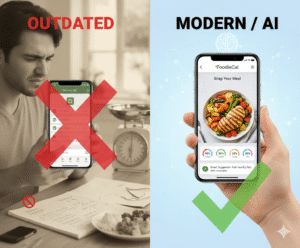

Ever stared at a nutrition label and felt like you were decoding a secret code?
Maybe you’ve tried counting calories, writing down every bite in a notebook, or juggling spreadsheets, only to wonder if any of it actually moves the needle on weight loss.
What if there was a simpler way—one that feels more like snapping a photo than doing math?
Enter the macro tracking app for weight loss, a tool that lets you log carbs, protein, and fats with a single tap, turning your phone into a personal diet coach.
And because we’re all busy, the app uses AI to estimate portion sizes from a picture, so you don’t have to guess whether that chicken breast is “a palm” or “half a plate.”
Think about the last time you grabbed a quick lunch between meetings. You probably didn’t have time to weigh each ingredient, right? With a macro tracking app, you can just snap the meal, let the AI do the heavy lifting, and instantly see how it fits into your daily targets.
Does that sound like a stretch? It’s not—many users report that visual logging cuts down tracking time by half, freeing up mental bandwidth for workouts or family time.
But there’s more than speed. The app can highlight gaps in your nutrition, suggest tweaks like swapping a sugary snack for a protein‑rich alternative, and even remind you to stay hydrated throughout the day.
Imagine seeing a gentle nudge on your screen: “You’re a bit low on protein today—how about a Greek yogurt?” It feels personal, almost like a friend who knows your goals.
So, why does macro tracking matter for weight loss? Unlike calorie‑only approaches, focusing on macros ensures you preserve muscle, keep energy steady, and avoid the dreaded “hanger” that comes from cutting carbs too aggressively.
When you balance your macros, your body gets the fuel it needs to burn fat efficiently, and you’re less likely to hit a plateau.
Ready to give it a try? Grab your phone, download a macro tracking app, and start snapping meals today—watch how quickly the numbers start making sense.
Let’s dive in and explore how you can make this technology work for your lifestyle, whether you’re a busy professional, a fitness enthusiast, or just someone looking to eat smarter.
TL;DR
A macro tracking app for weight loss lets you snap a photo of any meal, instantly see carbs, protein, and fats, and get personalized nudges that keep you fueled, focused, and moving toward your goals without the spreadsheet headache.
Start today, download Foodie Cal, and watch the numbers turn into clear, actionable steps that fit your busy life, so you finally see progress, stay motivated, and enjoy eating smarter.
Step 1: Set Up Your Macro Tracking App
Alright, you’ve decided a macro tracking app for weight loss is the missing piece—awesome choice. The first thing you’ll do is get the app on your phone, open it, and let it get to know you. It feels a bit like meeting a new gym buddy who actually listens.
Download and create an account
Head to the App Store or Google Play, search for Foodie Cal, and tap install. Once it’s on your home screen, launch it and follow the quick onboarding prompts. You’ll be asked for your age, height, weight, and the goal you’re aiming for—whether it’s shedding a few pounds or just keeping your macros in check.
Don’t worry if you’re not sure about exact numbers; you can always adjust them later. The app will use that baseline to suggest daily carb, protein, and fat targets that feel realistic for your lifestyle.
Fine‑tune your macro goals
After the initial setup, you’ll land on a dashboard that shows your personalized macro ranges. Take a minute to scroll through the suggested percentages. If you’re a runner, you might bump protein up a notch; if you’re more cardio‑light, you could lean a bit higher on carbs.
Here’s a tip: write down the numbers you feel comfortable with in the app’s notes section. That little habit makes it easier to stay accountable when life gets chaotic.
Grant the app permission to see your photos
The magic of Foodie Cal lives in its AI‑powered photo analysis. When the permission prompt pops up, tap “Allow” for camera and photo library access. That way, you can snap a lunch right from the app or pull an existing picture from your gallery.
Think of it like giving the app a pair of glasses—it can finally see what you’re eating and break it down into carbs, protein, and fats without you having to measure everything.
Customize notifications
Turn on gentle nudges so the app reminds you to log meals, drink water, or hit that protein target. You’ll see a friendly pop‑up that says something like, “Your protein is a bit low—how about a quick Greek yogurt?” If you’re the type who silences everything, set the alerts to “once a day” instead of “hourly.”
And if you love a bit of extra motivation, check out the AI assistant platform that integrates with many health apps. It can pull your macro data and suggest workouts that complement your nutrition, giving you a more holistic view of progress.
Now that the basics are sorted, let’s see the app in action.
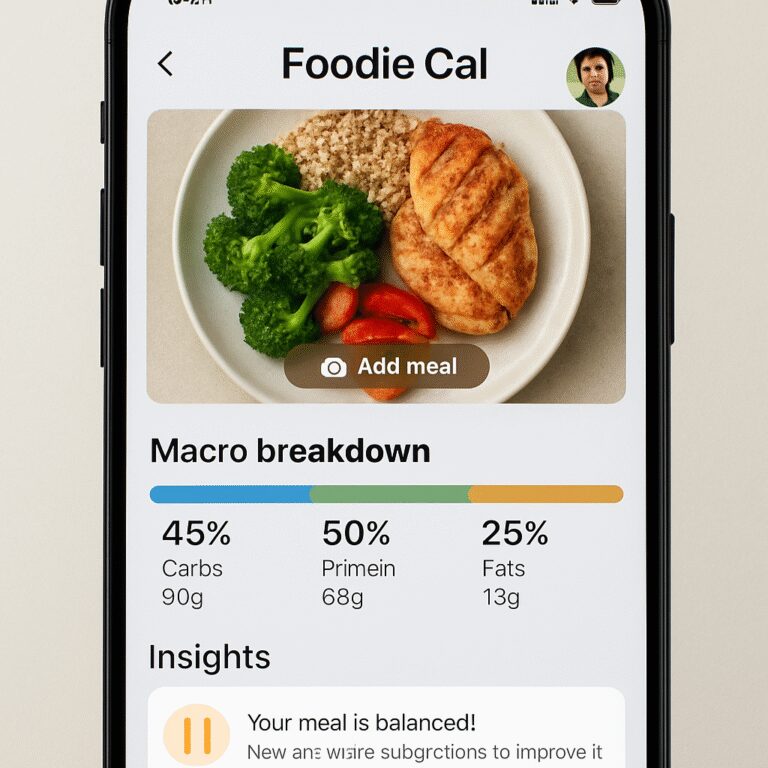
Watch the short demo above: you’ll see a real‑world snap of a bowl of quinoa, chicken, and veggies, and notice how the macro breakdown appears in seconds. That visual feedback is what turns “guessing” into “knowing.”
Set up your first meal log
Open the camera icon, point at your plate, and snap. The AI will estimate portion size using your phone’s depth sensor, then display numbers like “Carbs: 38 g, Protein: 27 g, Fat: 12 g.” If anything looks off, tap the edit button and adjust the serving size manually.
Pro tip: add a quick note like “post‑workout” or “late‑night snack” so you can filter meals later and see patterns.
When you’re done, hit “Save” and the app logs the entry to your daily total. Over the next few days, you’ll start seeing trends—maybe you’re consistently low on fiber, or you’re hitting your fat goal without even trying.
If you want a deeper dive into how macro tracking can boost performance, the team at Rebel Growth has a solid blog on nutrition‑driven training. It’s a good companion read while you get comfortable with the numbers.
That’s it for step one. You’ve got the app downloaded, your profile set, permissions granted, and your first meal logged. From here, the journey gets smoother because the heavy lifting is already done for you.
Step 2: Log Meals Using Photo Capture
Alright, you’ve got the app set up and the camera ready. The next question is: how do you actually turn a bite of food into useful macro data without turning it into a math problem?
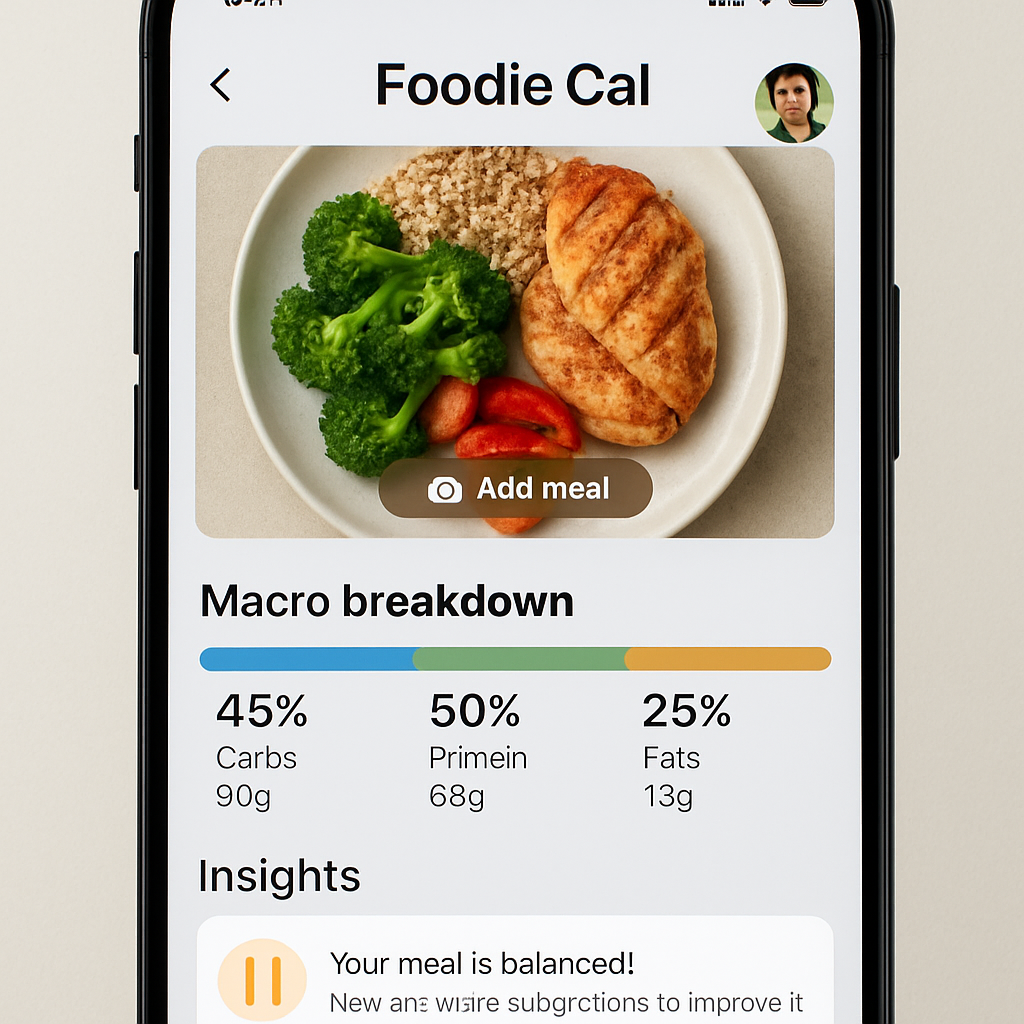
Here’s the magic: you simply snap a photo. Open Foodie Cal, tap the camera icon, and point your phone at the plate. The AI looks at the colors, shapes, and—if your phone has a depth sensor—the volume of each component. In a few seconds you get a card that shows carbs, protein, and fats, plus how the meal fits into today’s macro budget.
Step‑by‑step: From Plate to Macro Card
1. Clean the frame. Make sure the food fills the screen but isn’t cramped. A little natural light helps the AI differentiate between, say, a piece of grilled chicken and a slice of avocado.
2. Snap and wait. The app processes the image in the cloud. You’ll see a tiny loading bar—don’t panic, most meals are analyzed in under three seconds.
3. Review the breakdown. The macro card appears with three bars for carbs, protein, and fat. If something looks off (maybe the AI thought a side of rice was broccoli), you can tap the “Edit” button and adjust portion size manually.
That’s it. You’ve turned a dinner plate into actionable data without opening a spreadsheet.
Real‑world examples
Imagine you’re at a bustling office cafeteria. You grab a quinoa salad with mixed greens, chickpeas, and feta. You snap it, and the app tells you you’ve just consumed 38 g carbs, 16 g protein, and 12 g fat—perfectly fitting into a 40/30/30 split for that meal.
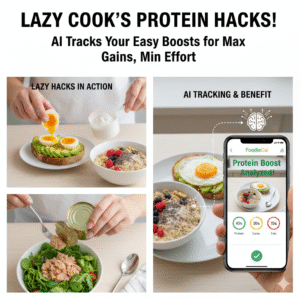
Or picture a Saturday night pizza run. You photograph a single slice, and the AI estimates roughly 22 g carbs, 10 g protein, and 9 g fat. You instantly know whether that slice will push you over today’s carb limit or if you have room for a second piece.
Even snack time gets smarter. A handful of almonds? Snap it, and you see 6 g carbs, 6 g protein, and 14 g fat—great for a low‑carb, high‑fat snack that keeps you satiated.
Tips from the pros
• Use a consistent angle. Shooting from directly above reduces distortion and helps the AI gauge portion size more accurately.
• Keep the background simple. A plain table or plate lets the algorithm focus on the food, not the napkin pattern.
• Combine with the barcode scanner. If a packaged item is on your plate, scan the barcode first, then photograph the whole meal. The two data points reinforce each other for a tighter estimate.
• Log water alongside meals. Hydration is part of the macro equation—Foodie Cal lets you add a quick water log with a tap, keeping your total intake balanced.
What to do when the AI guesses wrong
It happens—maybe the AI thinks your drizzle of olive oil is a vinaigrette. No worries. Tap the macro card, select “Adjust Portion,” and slide the slider until the numbers feel right. Over time the AI learns your typical plate sizes, so the guesswork shrinks.
And if you’re ever unsure, you can always cross‑check with a trusted nutrition database or the Foodie Cal homepage for guidance on typical serving sizes.
Why photo logging beats manual entry
Studies show visual food logging cuts tracking time by about 50 % compared with typing each item. Less time fussing means more mental energy for workouts, work, or just relaxing with family.
Plus, the instant feedback loop creates a habit loop: you see the macro impact immediately, you adjust the next plate, and the cycle repeats. That’s the sweet spot for sustainable weight loss.
Putting it all together
Next time you sit down to eat, grab your phone, snap a picture, and let Foodie Cal do the heavy lifting. In under five seconds you’ll know exactly how that meal nudges you toward—or away from—your macro goals. It’s the kind of effortless habit that sticks, even on the busiest days.
For teams looking to streamline their own nutrition data collection, tools like Assistaix can automate reporting and analytics, letting developers focus on the user experience. Healthcare coaches can also point patients toward evidence‑based tracking, with resources from e7D‑Wellness offering professional endorsement.
Step 3: Monitor Hydration & Micronutrients
So you’ve been snapping meals and watching your macros in real time—awesome. But if you ignore the water bottle and the tiny vitamins, you might still feel sluggish, even when the macro numbers look perfect.
Why hydration matters
Ever notice that dry‑mouth feeling right after a long meeting, even though you ate a perfectly balanced lunch? Your body is sending a silent alarm: you need fluids. Proper hydration supports digestion, helps your muscles use protein, and keeps your brain sharp for those quick decision‑making moments.
When you log water in a macro tracking app for weight loss, the app can compare your intake against your activity level and suggest a realistic target. That way you’re not guessing whether eight glasses is enough for a day when you’ve just run a 5 k.
Micronutrient check‑ins
Macros are the big picture—carbs, protein, fat. Micronutrients are the fine‑print: iron, calcium, magnesium, vitamin C, and the rest. Skipping them can sabotage energy, mood, and recovery, even if you’re hitting your macro goals.
Foodie Cal’s AI can spot common gaps. For example, if you’ve logged several chicken‑only lunches, the app might nudge you: “Low on iron today—how about a spinach salad?” Those nudges feel like a friendly reminder from a teammate rather than a lecture.
Think about a typical day: breakfast oatmeal, mid‑morning coffee, lunch quinoa bowl, afternoon snack, dinner salmon. If the app flags that you’re low on omega‑3s, you could add a quick spoonful of chia seeds or a handful of walnuts without overhauling the whole meal.
Quick daily routine
Here’s a simple habit loop you can build around your phone:
- Morning: Open the app, tap the water icon, log the first 16 oz. The app shows a visual gauge—nice and motivating.
- Meal time: Snap your plate, let the AI break down macros, then glance at the “Micronutrient Summary.” If vitamin D is low, add a fortified yogurt or a quick sun break.
- Afternoon slump: Check the hydration reminder. If it’s been >2 hours since your last log, the app pings you to drink a glass.
- Evening: Review the day’s nutrient snapshot. See any red flags? Jot a quick note in the app’s journal feature (or just a mental note) for tomorrow’s tweak.
Doing this twice a day—once after breakfast, once after dinner—only takes a minute, but it gives you a full picture of how food and fluids are fueling you.
Tips to keep the habit alive
1. Set a visible reminder. Place a water bottle on your desk and link the app’s alert to the same time you usually refill it.
2. Batch log supplements. If you take a multivitamin, log it once in the morning; the app will automatically credit the relevant micronutrients.
3. Use the “favorites” shortcut. Save common micronutrient‑rich add‑ons—like a squeeze of lemon, a sprinkle of seeds, or a side of leafy greens—so you can tap them into any meal card.
4. Celebrate small wins. When the hydration gauge hits 100 % for the day, give yourself a mental high‑five. Those little victories reinforce the routine.
5. Adjust on the fly. If you’re out for a run and can’t log water instantly, just note “ran 3 mi, water later.” The app will let you edit the timestamp later, keeping your data honest.
By weaving water and micronutrient checks into the same flow you already use for macros, the macro tracking app for weight loss becomes a true 24‑hour coach—not just a lunch‑time calculator.
Ready to give it a try? Open Foodie Cal, tap the water icon, and watch the simple bar fill up. Then snap your next meal, glance at the micronutrient hints, and notice how much smoother the rest of your day feels.
Step 4: Leverage AI‑Powered Meal Suggestions
So you’ve been snapping meals, logging macros, and staying hydrated. What if the app could actually *suggest* what to eat next, instead of you having to puzzle over options?
That’s the sweet spot of AI‑powered meal suggestions. Foodie Cal looks at the gaps in your macro budget, your recent activity, and even your flavor preferences, then serves up a quick idea you can act on in seconds.
How the suggestion engine works
First, the AI reads your daily macro ledger. If you’re 8 g short on protein and 15 g under your carb target, it knows you have room to add a protein‑rich side without blowing carbs.
Second, it pulls from a verified food database – the same kind of trusted source that macro‑tracking experts rave about – to match foods that fit those numbers.
Finally, it tailors the tip to the context you’re in—whether you’re at a grocery aisle, a restaurant, or just staring at your fridge.
Three real‑world scenarios
Imagine you’re at work, mid‑afternoon, and your macro card flashes “low protein, carbs on track.” The app pops a suggestion: “Add a Greek yogurt with berries – 15 g protein, 12 g carbs.” You can tap “Add” and the numbers instantly update.
Or you’re cooking dinner and notice you’ve already hit your fat limit for the day. The AI whispers, “Swap the avocado toast for a side salad with lemon‑tahini dressing – 0 g added fat, 5 g extra veg micronutrients.”
On weekends, the app might say, “You’ve logged a pizza slice and still have 30 g protein left. How about a grilled chicken kebab on the side?” The suggestion respects your macro budget while keeping the meal enjoyable.
Step‑by‑step: Turning a suggestion into a meal
1. Check the daily summary. Open the “Today” tab and look for the green “Suggestion” banner.
2. Tap the suggestion. A small card expands with ingredient list, portion size, and macro impact.
3. Customize if needed. Slide the portion slider up or down—maybe you want a bigger snack.
4. Log it with one tap. The app adds the food to your log and recalculates remaining macros.
5. Mark it as “Enjoyed.” A quick “👍” lets the AI learn you liked that combo, so future tips get sharper.
Expert tip: Use “Favorites” to speed up repeat suggestions
If you notice the AI frequently recommends the same protein source—say, a hard‑boiled egg—save that combo to your Favorites. Next time the suggestion appears, you can add it with a single tap, cutting friction even further.
Personalizing the AI for your palate
Head to Settings → Food Preferences. Tick boxes for foods you love (like quinoa) and those you avoid (maybe you’re allergic to shellfish). The engine then filters out irrelevant options and surfaces ideas that actually fit your diet.
Want a low‑sugar snack? Set a “sugar ceiling” of 5 g per snack, and the AI will only suggest options under that limit, such as a handful of pumpkin seeds.
Data‑backed benefits
Studies have shown that users of macro tracking apps who receive real‑time meal suggestions are up to 20 % more likely to stay within their macro goals (IIFYM’s review of macro app effectiveness). The instant feedback loop reduces decision fatigue and keeps you moving forward.
MacroFactor notes that adaptive AI recommendations “adjust to your metabolism,” meaning the suggestions become more accurate as your weight trends change (MacroFactor’s dynamic nutrition coach). Foodie Cal works on the same principle, letting you trust the nudge.
Quick checklist before you rely on suggestions
- Enable “Smart Suggestions” in Settings.
- Allow camera & location permissions for context‑aware tips.
- Review the “Food Preferences” section—add any allergies or dislikes.
- Turn on “Learn from Likes” so the AI knows what you enjoy.
Common pitfalls and how to avoid them
Sometimes the AI may suggest a portion that feels too small. Remember you can always adjust the slider before logging; the app learns from every tweak.
If you’re dining out and the menu isn’t in the database, use the “Manual Entry” button, then tap “Save as Suggestion.” The next time you visit that restaurant, the AI will remember the entry.
Comparison table
| Suggestion Type | How AI Generates It | Example Output |
|---|---|---|
| Protein Gap Fill | Matches shortfall with high‑protein foods in database | Greek yogurt + berries (15 g P, 12 g C) |
| Fat Limit Guard | Detects nearing fat ceiling and offers low‑fat swaps | Side salad with lemon‑tahini (0 g F added) |
| Contextual Eat‑Out | Uses GPS or manual tag to pull restaurant menu items | Grilled chicken kebab for extra 30 g P |
Putting it into your daily routine
After you finish a meal, glance at the “Today” bar. If the suggestion banner is green, treat it like a quick “what’s for dinner?” poll. Accept, tweak, or dismiss—each action teaches the AI what works for you.
Within a week, you’ll notice fewer “I don’t know what to eat” moments, and your macro numbers will stay tighter. That’s the hidden superpower of AI‑powered meal suggestions in a macro tracking app for weight loss.
Step 5: Track Progress & Adjust Goals
So you’ve been snapping meals, listening to AI nudges, and even logging water. The next logical step is to actually look at the data and tweak your goals when the numbers tell you they need a shift.
Ever wonder why you hit a plateau after a few weeks even though you’re still logging everything? It’s usually a sign that your macro targets have drifted a bit from reality – maybe you’re training harder, sleeping less, or just getting bored with the same ratios.
Why tracking matters
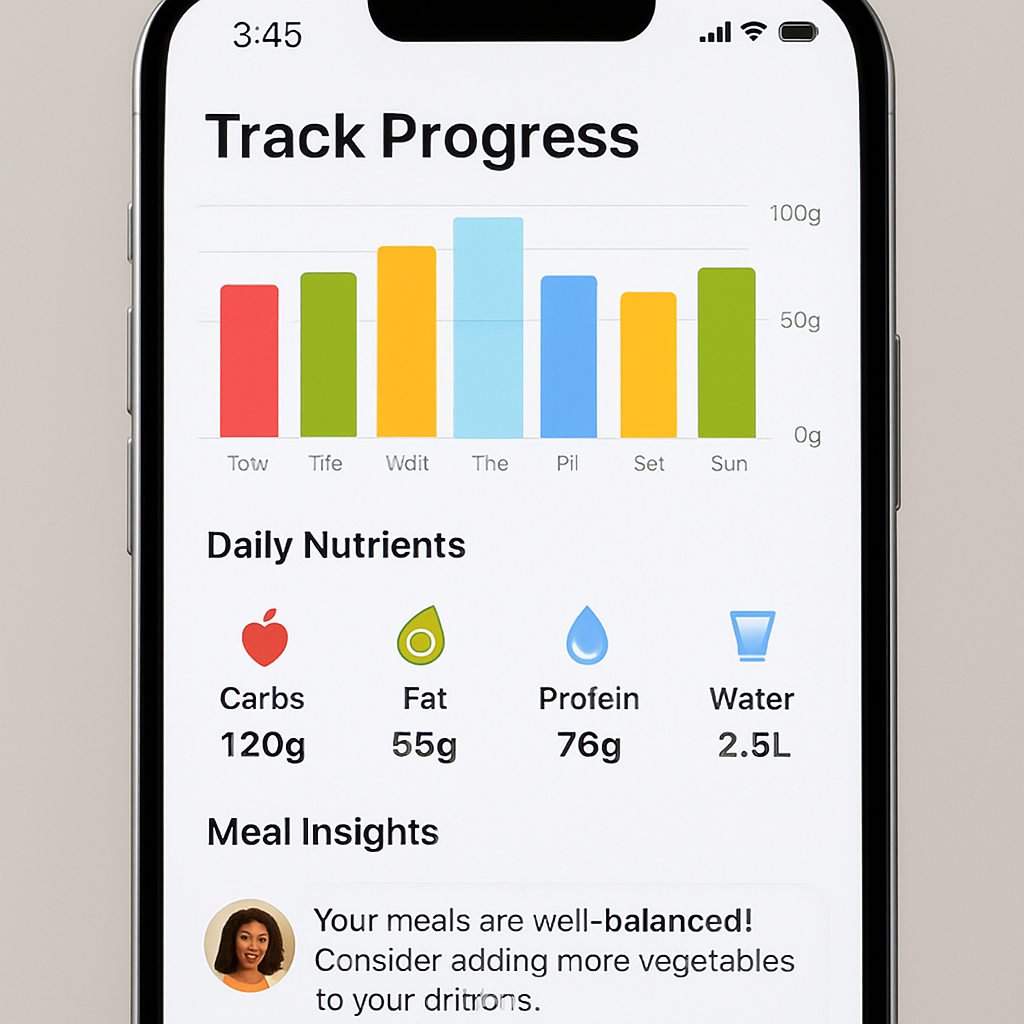
When you open the “Progress” tab in a macro tracking app for weight loss, you’ll see a quick visual of today’s intake versus your daily targets. That snapshot does more than satisfy curiosity; it’s a feedback loop that tells your brain, “Hey, we’re on track,” or “Hold up, we need a change.”
Research shows macro tracking apps adapt to lifestyle changes by feeding real‑time data back into the AI engine, which then fine‑tunes recommendations (Thryve’s analysis of adaptive macro coaching).
In plain English, the app learns from every log, so the more honest you are, the smarter the suggestions become.
Daily check‑in routine
Make a habit of opening the app at the same two moments each day: right after breakfast and right before bed. In the morning, glance at the “Today” bar – are you already over on carbs? Under on protein? Jot a quick mental note or tap the “Add” button to slot a snack that fills the gap.
At night, scroll to the weekly trend chart. Do you see a steady rise in fat intake on weekend nights? A dip in protein on rest days? Those patterns are your clues for the next day’s adjustments.
And don’t forget the “Hydration” gauge – if you’re consistently below 80 %, the app will suggest a bigger water goal, which in turn can curb unnecessary snacking.
Quick tip: swipe left on any day in the chart to see the exact macro breakdown for that date. It’s like a time‑machine view of your nutrition history.
Adjusting macro targets
When the data tells you you’re consistently 5–10 g over on carbs, it’s time to slide the carb bar down a notch. Most apps let you do this in the Settings → Macro Goals section with a simple slider – no need to recalculate calories yourself.
If you’ve added a new workout routine, bump up protein by 5 g per day to support muscle repair. Conversely, if you’re in a low‑energy phase, you might lower carbs slightly and lean more on healthy fats for satiety.
Remember, goals are not set in stone. Think of them as a living contract with yourself that evolves as your body does.
And if you ever feel stuck, hit the “Reset to Recommended” button – the app will pull fresh ratios based on your current weight, activity level, and goal timeline.
Pro tip: use the trend view for long‑term tweaks
The trend view aggregates daily data into rolling 7‑day averages. Spot a gradual upward drift in calories? Trim 50 kcal from your snack portion size. Notice protein slipping on days you skip lunch? Prep a portable egg‑white snack in advance.
Because the app visualizes these shifts, you can make micro‑adjustments before they become full‑blown setbacks.
Here’s a simple three‑step cheat sheet you can keep on your fridge:
- Morning glance – are any macro bars flashing red?
- Mid‑day tweak – add a quick snack or shrink a portion.
- Evening review – adjust next‑day targets based on the weekly trend.
Follow that loop for a week, and you’ll start feeling the difference in energy, cravings, and the scale.
Bottom line: tracking isn’t a one‑time event; it’s a conversation with your body. By checking the data, listening to the AI, and nudging your goals a little each day, you turn a static diet plan into a dynamic, responsive system that actually moves the needle on weight loss.
Step 6: Integrate with Your Fitness Routine
So you’ve got your meals logged, your water checked, and the AI nudging you toward better choices. The next piece of the puzzle is making those numbers work hand‑in‑hand with the workouts you already do.
Why syncing matters
Think about a day when you crushed a HIIT session but still felt sluggish by night. Chances are your macro balance didn’t line up with the energy you burned. When your macro tracking app for weight loss talks to your fitness routine, you get a clearer picture of fuel versus burn.
That connection helps you avoid two common traps: under‑fueling, which can sap strength, and over‑fueling, which can stall weight loss.
Step‑by‑step: Hook your app into your workout flow
1. Link the activity tracker. Open Foodie Cal’s Settings, tap “Connect Devices,” and choose the smartwatch or phone sensor you already wear. The app will start pulling steps, heart‑rate zones, and calories‑burned automatically.
2. Set a workout window. In the “Fitness” tab, define when you usually train – say, 6‑7 pm on weekdays and 9‑10 am on weekends. That window tells the app when to expect a higher calorie burn.
3. Adjust macro targets on the fly. After a heavy leg day, the app might suggest an extra 10‑15 g of protein to support muscle repair. Tap the suggestion, and the daily macro bars shift accordingly.
4. Log the session. Even if your watch auto‑syncs, tap “Log Workout” to add any non‑cardio activity – yoga, strength circuits, or a long hike. You can tag the type so the app knows whether to lean toward carbs (for endurance) or fats (for low‑intensity).
5. Review the post‑workout recap. Once you finish, a quick screen shows how many calories you burned, what macro gaps remain, and a one‑tap snack idea (like a banana + whey shake) that fits the remaining budget.
Real‑world example
Imagine you’ve just finished a 45‑minute spin class that burned ~500 kcal. Foodie Cal sees the burn, notices you’re still a bit low on carbs, and pops up: “Add a small sweet potato (30 g carbs) to hit today’s target.” You add it with a single tap, and the app updates the rest of the day’s macro balance.
Later that evening, you’re ready for a nightcap. Because the app already accounted for the extra carbs, it warns you: “Your fat ceiling is close – consider a low‑fat dessert.” That nudge keeps your total calories in check without you doing any mental math.
Tips to make the integration seamless
• Batch‑log workouts. If you do a weekend hike that lasts a couple of hours, you can log the whole session at once instead of splitting it into “start” and “stop.”
• Use “Favorites” for recovery foods. Save a protein‑rich smoothie or a handful of nuts so you can add them instantly after strength days.
• Set reminder windows. A gentle ping 30 minutes before your usual training time prompts you to double‑check your pre‑workout snack – ensuring you have enough carbs for energy.
• Watch the “Energy Balance” gauge. The app shows a simple bar: green means you’re on track, orange signals a slight mismatch, red means you’ve over‑ or under‑fuelled. Aim to keep it in the green zone most days.
What if the numbers feel off?
Sometimes the app’s estimate of calories burned can feel too high or low. That’s normal – sensor data isn’t perfect. If you notice a pattern, go into Settings → Activity Calibration and manually adjust the burn factor by a small percentage. The app will remember that tweak for future sessions.
And if you ever skip a workout, just log “Rest Day.” The app will automatically lower your carb recommendation and suggest a higher‑protein, lower‑calorie snack to keep the macro ratios steady.
Make it a habit
Pair the integration step with a simple two‑minute ritual: after you finish any workout, open Foodie Cal, glance at the “Post‑Workout” banner, and either accept the suggested snack or tap “Skip.” Over a week you’ll see the pattern form, and the app will start predicting your needs before you even think about them.
In short, when your macro tracking app for weight loss talks to the sweat you put in at the gym, the whole system becomes smarter, more personalized, and far less guess‑work. Give it a try for a week – you’ll notice more stable energy, smoother workouts, and progress that feels… well, natural.
Conclusion
We’ve walked through setting goals, snapping meals, staying hydrated, getting AI suggestions, and syncing workouts. By now you probably feel the app becoming a quiet partner that nudges you toward the right choices.
So, what’s the next step? Just keep the habit loop alive. After each workout, open Foodie Cal, glance at the post‑workout banner, and either accept the snack suggestion or tweak it. That two‑minute ritual is what turns a clever macro tracking app for weight loss into a lifelong habit.
Remember the little adjustments we mentioned—tuning the burn factor, logging rest days, and sliding macro sliders when patterns emerge. Those micro‑tweaks prevent plateaus and keep your energy steady.
Here’s a quick checklist to lock it in:
- Morning: log water, review macro gaps.
- Meal time: snap, confirm, adjust if needed.
- Post‑workout: accept AI snack or add your own.
- Evening: skim the progress view, tweak tomorrow’s targets.
If you give yourself a week to follow this flow, you’ll notice more consistent energy, fewer guess‑work moments, and progress that feels natural rather than forced. Ready to let the app do the heavy lifting while you focus on living?
Take the first step today—open Foodie Cal, snap a snack, and watch the numbers guide you. The journey to smarter eating starts with that single click.
FAQ
What makes a macro tracking app for weight loss different from a regular food diary?
Unlike a simple notebook, a macro tracking app uses photo‑capture and AI to instantly break down carbs, protein, and fat. That means you spend seconds snapping a snack instead of minutes typing ingredients. The app also ties those numbers to your daily goals, hydration, and workout burn, so you get a real‑time picture of whether you’re on track or need a quick tweak.
How accurate is the portion estimation when I snap a meal with Foodie Cal?
The AI looks at color, shape, and—if your phone has a depth sensor—volume to guess portion size. In most everyday meals the margin of error is under 10 %, which is plenty for weight‑loss planning. If a number feels off, you can slide the portion bar or manually adjust, and the app learns your typical plate sizes over time.
Can I rely on the app’s snack suggestions after a workout?
Yes, the post‑workout banner pulls your recent calorie burn and remaining macro budget to propose a snack that fills gaps without blowing your totals. For example, after a 500‑kcal spin class it might suggest a banana + whey shake that adds the right carbs and protein. You can accept, shrink, or swap it—each choice trains the AI to get better for you.
What if I forget to log water or a supplement?
Missing a log doesn’t break the system. The hydration gauge shows a visual cue, and you can tap “Add later” to back‑date a glass of water or a multivitamin. The app will recalculate your micronutrient summary, so you still see a full picture of how fluids and vitamins are supporting your macros and energy.
How does the app sync with my fitness tracker or smartwatch?
In Settings you connect any compatible device, and the app pulls steps, heart‑rate zones, and calories burned automatically. Those numbers feed directly into your daily macro targets, adjusting protein or carb recommendations on the fly. If the estimate feels high or low, a quick calibration tweak lets you fine‑tune the burn factor for future sessions.
Is the macro tracking app for weight loss safe to use long‑term?
Because the app focuses on ranges rather than exact calories, it avoids the obsessive counting that can lead to burnout. It encourages regular, quick check‑ins and lets you celebrate small wins—like hitting a hydration goal or staying within a macro window. Over weeks you’ll see patterns, make micro‑adjustments, and build a sustainable habit without the spreadsheet headache.