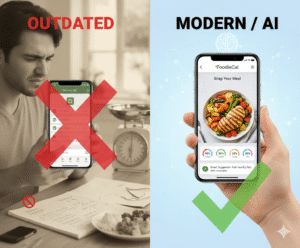
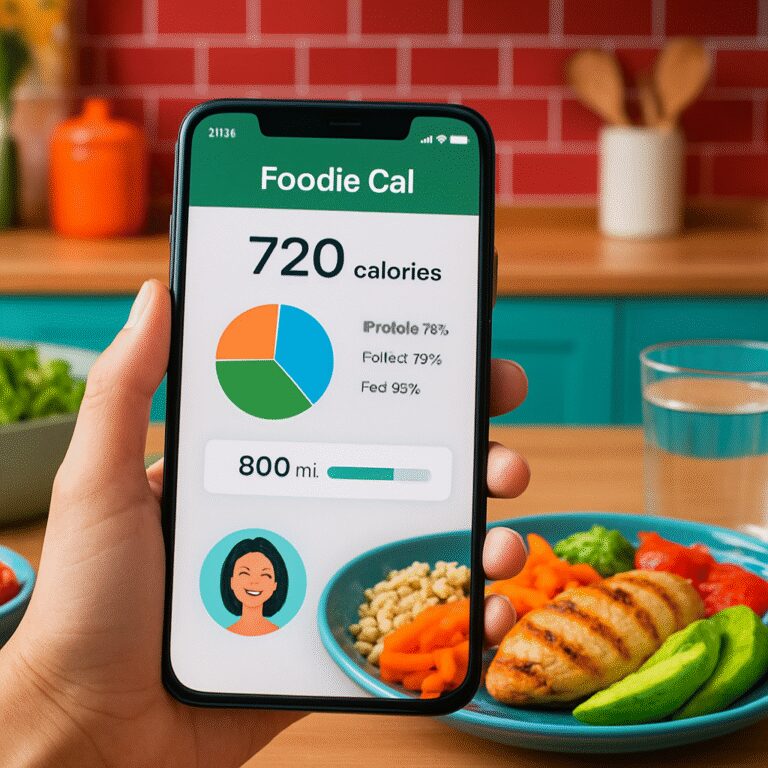
Ever snapped a photo of your lunch and thought, “If only I could turn this into useful data?”
That moment is the spark behind every picture food diary app – turning a simple snap into a smart log that tracks calories, nutrients, and even your water intake without you typing a single line.
Imagine you’re a busy professional juggling meetings and a quick sandwich. You pull out your phone, snap the sandwich, and the app instantly identifies the bread, protein, and veggies, giving you a clear breakdown in seconds. No more guessing portion sizes.
Or picture a parent trying to keep tabs on picky‑eater kids. A quick photo of a bowl of mac & cheese lets the app flag hidden sugars and suggest a veggie add‑on, so dinner stays balanced without a marathon of counting.
Fitness enthusiasts love it too. After a post‑run smoothie, the AI tags the banana, protein powder, and almond milk, syncing the macro info straight to your training log. It’s like having a nutritionist in your pocket.
So how do you get the most out of this magic? Here are three actionable steps you can start today:
1️⃣ Open the app and enable the camera shortcut – that way you can snap a meal in under three seconds, even when you’re on the move.
2️⃣ Review the AI’s suggestion list. If the app flags “extra sauce” or “high sodium,” tap to adjust the portion or add a note. The more you fine‑tune, the smarter the model becomes.
3️⃣ Log your drink. Whether it’s a green tea or a specialty coffee, a quick pic adds caffeine and hydration data to the same diary, giving you a holistic view of daily intake.
Speaking of coffee, if you love capturing that perfectly poured espresso, you might appreciate a step‑by‑step guide on the ideal pour‑over coffee ratio. Snap the brew, log the caffeine, and see how it fits into your overall nutrition picture.
Behind the scenes, the app learns from each photo. Over weeks, it starts recognizing your favorite meals – a chicken‑avocado salad, a protein bar, even that guilty‑pleasure slice of pizza – and it begins to suggest healthier swaps automatically.
One real‑world example comes from a tech‑savvy millennial who used the app for a month. By simply photographing every snack, she discovered she was drinking three extra sugary sodas a day. Cutting those out shaved 300 calories, which helped her shed five pounds without any drastic diet.
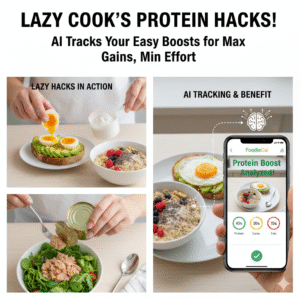
Another case: a healthcare worker on a night shift logged her meals with the app and noticed her protein intake dipped after midnight. She set a reminder to snap a protein‑rich snack, and her energy levels steadied throughout the night.
These stories illustrate why a picture food diary app isn’t just a novelty; it’s a practical tool that turns visual habits into actionable health insights.
If you’re curious to see it in action, explore Foodie Cal’s home page for a live demo and a quick walkthrough of the photo‑logging flow.
Ready to trade guesswork for a picture‑perfect food log? Grab your phone, snap your next meal, and let the AI do the heavy lifting.
TL;DR
A picture food diary app lets you snap meals, instantly see calories, macros, and hydration so you stop guessing and start eating smarter.
Try it now, capture your next bite, and let AI guide your choices toward weight loss, better performance, and consistent wellness every day for lasting results now.
Step 1: Snap Your Meals – Photo‑Based Tracking Made Easy
Ever find yourself mid‑meeting, eyeing that salad, and thinking, “I wish I could just capture this and know exactly what I’m eating?” That’s the exact moment the picture food diary app shines. It turns a quick snap into a data‑rich log without you typing a single calorie.
First thing’s first: set up the camera shortcut. Open the app, tap the settings icon, and enable the one‑tap capture. Now, whether you’re at a desk or on a crowded train, you can snap a meal in under three seconds. And because the AI works in the background, you won’t even notice the seconds ticking by.
So, what does the snap actually give you? The moment the photo uploads, the app’s vision model identifies the main components – think “grilled chicken, quinoa, roasted veggies.” It then estimates portion sizes using the plate size and visual cues, and instantly displays calories, macros, and even hydration clues (like a side of soup).
Here’s a quick checklist to make that first snap as accurate as possible:
- Hold the phone directly above the plate, not at an angle.
- Make sure the lighting is decent – natural light works best.
- Include a reference object (like a fork) if the portion looks ambiguous.
Does that sound a bit technical? Not really. It’s the same habit you already have when you take a photo for Instagram – just a tiny tweak.
Now, let’s talk about the “photo‑based” magic in real life. Imagine you’re a parent juggling a toddler’s lunch and a work call. You snap the kid’s mac & cheese, and the app flags the hidden sugars in the cheese sauce. You tap “Adjust,” slide the portion down a notch, and instantly see a healthier macro balance. That tiny interaction teaches the AI your preferences, so next week it might suggest adding peas before you even think about it.
And for the night‑owls who love late‑night snacks – you know the ones – the app still works. A quick snap of that midnight slice of pizza gets logged, and the AI notes the timing. If you’re consistently eating heavy carbs after 10 p.m., the app will gently suggest a protein‑rich alternative. It’s like having a silent coach that never judges.
Speaking of nighttime, there’s a community of night‑shift workers who share their experiences on Midnight Scriber. You might find tips on balancing energy levels, and you can even log those tips directly into your diary for a truly personalized plan.
That video walks you through the exact steps of snapping, reviewing, and tweaking your first meal entry. Pause it whenever you need to replicate the process with your own lunch.
Beyond the basics, you can turn the photo habit into a visual journal. Think about how wedding photo magnets capture memories for years. You can do something similar with your meals – create a digital “magnet board” of your healthiest plates. If you’re curious about creative ways to use photo magnets for lasting memories, check out this guide on creative ways to use wedding photo magnets. It’s a fun reminder that a picture can be more than a snapshot; it can be a motivation tool.
Finally, make it a habit. Set a reminder in the app to snap at each main eating occasion – breakfast, lunch, dinner, and even that quick snack. After a week, review the weekly summary. You’ll likely notice patterns you never imagined, like an extra soda on weekdays or a missing protein source at dinner.
Ready to give it a try? Grab your phone, enable the shortcut, and snap your next bite. The app does the heavy lifting, you get the insight, and your health journey becomes a series of simple, visual steps.
Step 2: Add Details & Hydration Notes
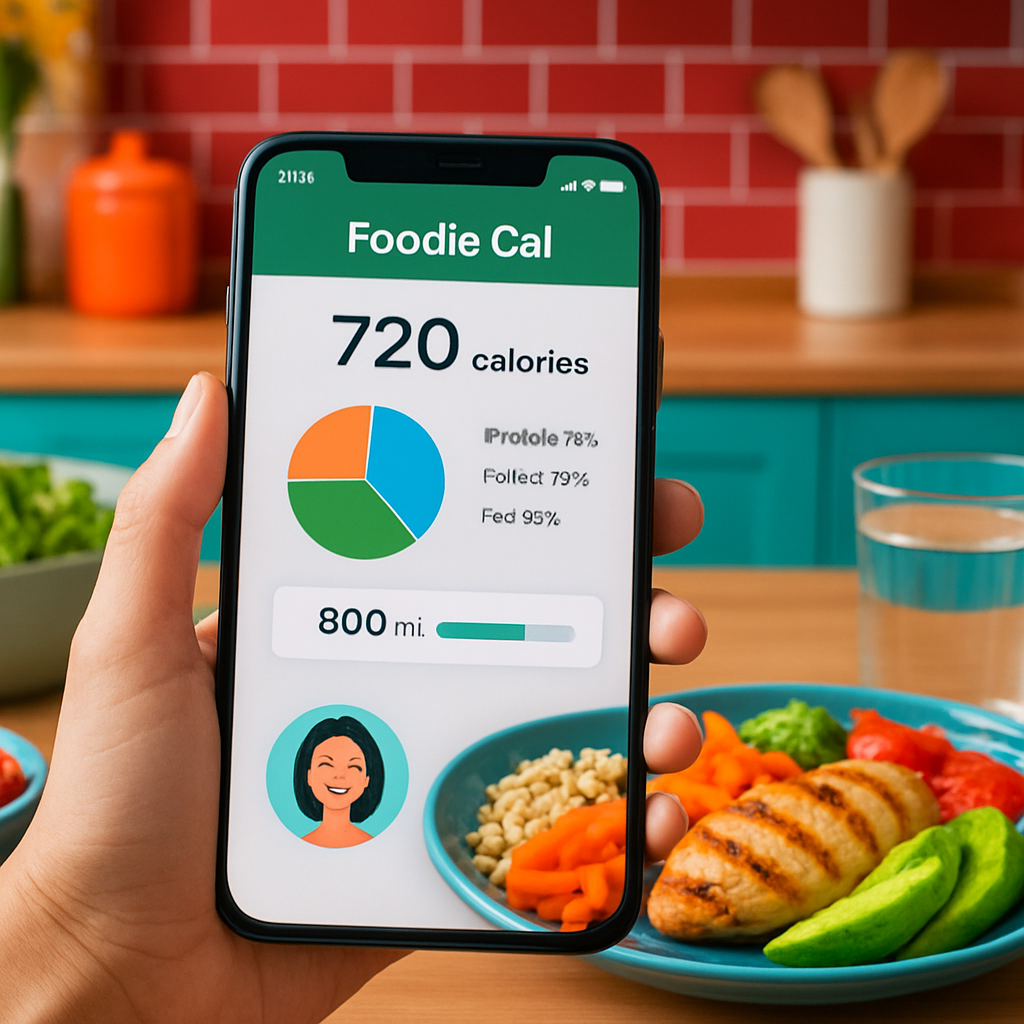
Alright, you’ve got the photo locked in – now it’s time to give that snap some personality. Adding details and water intake might feel like an extra step, but trust me, it’s the secret sauce that turns a bland log into a truly useful health dashboard.
Why the little notes matter
Think about the last time you tried to remember if you had a soda after lunch. Was it a can of Coke or a sparkling water? Without a note, the app can only guess, and you end up with a vague hydration score.
When you tag your drink, the picture‑based diary can match the liquid to its caffeine, sugar, and electrolyte profile. Suddenly you see that “extra coffee” you drank this morning adds 120 mg of caffeine – and maybe that’s why you felt jittery at 3 pm.
Does that sound useful? Absolutely.
Step‑by‑step: Adding meal details
1️⃣ Tap “Add Detail.” After the AI shows you its ingredient list, look for the tiny “+” button. It opens a quick sheet where you can type or select common extras – think “extra avocado,” “drizzled olive oil,” or “no salt.”
2️⃣ Choose a tag type. Most apps let you label the entry as “Mood,” “Location,” or “Reason.” Pick the one that feels most natural. If you ate while scrolling Instagram, tap “Mood → Relaxed” – the app will later correlate relaxed moments with certain food choices.
3️⃣ Adjust portion sizes. If the AI guessed a half‑cup of quinoa but you actually had a full cup, slide the portion bar or type “1 cup.” Small tweaks teach the model your typical serving sizes, which improves future estimates.
4️⃣ Save and move on. One tap and the detail sticks. You’ll see a tiny badge on the meal card confirming the note is recorded.
Step‑by‑step: Logging hydration
1️⃣ Open the hydration button. It’s usually a water‑drop icon on the same screen. Tap it before you close the meal view.
2️⃣ Select the drink. A list of common beverages appears – water, tea, coffee, soda, sports drink. If you’re sipping something custom, choose “Other” and type it in.
3️⃣ Enter the volume. Most apps accept milliliters or ounces. A quick mental check – a typical water bottle is about 500 ml – helps you stay accurate.
4️⃣ Optional: add a note. Did you add lemon, electrolytes, or a splash of juice? Jot it down. Those tiny flavor details can influence how the app calculates electrolytes and overall hydration score.
5️⃣ Confirm. One more tap and the drink is logged alongside your meal. You’ll now see a combined calorie‑and‑water bar on your daily summary.
Real‑world example
Imagine Maya, a busy professional, who just snapped her turkey wrap. She adds “extra hummus” and tags the mood “Focused.” Then she logs a 12‑oz iced latte with almond milk. By the end of the day, Foodie Cal shows her 1,800 kcal intake, 2.3 L of fluid, and highlights that her caffeine spikes line up with moments she marked “Focused.” Maya decides to swap the latte for green tea on days she needs a smoother energy curve.
Or think about Carlos, a dad juggling soccer practice. He logs a bowl of spaghetti, adds “cheese sprinkle,” and notes “Kids’ game.” He then records a 20‑oz sports drink. The app flags the extra sodium and suggests a water‑only option for the next practice, helping him keep his kids hydrated without overloading on salt.
Quick checklist before you close
- Did you tweak any AI‑suggested ingredients?
- Did you add a mood or location tag?
- Did you log every drink, even the tiny splash of water?
- Did you confirm portion sizes?
Going through this checklist takes less than 30 seconds, but it pays off in richer insights. Over a week you’ll start seeing patterns – maybe you’re consistently under‑hydrated after afternoon meetings, or you tend to add extra sauce when you’re stressed.
So, what’s the next move? Open the app, tap that “Add Detail” button, and give your snap the context it deserves. The more you personalize, the smarter the picture food diary app becomes, and the more empowered you feel about every bite and sip.
Step 3: Unlock AI‑Powered Meal Insights
Now that your snaps have some context, it’s time to let the AI do the heavy lifting. That’s where the real magic lives, turning a handful of photos into clear, actionable insights about your nutrition and hydration.
Open the Insights dashboard
Tap the “Insights” icon at the bottom of the screen. You’ll see a clean overview: total calories, macro split, caffeine load, and a hydration gauge for the day. It’s all laid out in big numbers and tiny graphs, so you don’t have to hunt through menus.
Do you ever feel lost looking at a wall of data? The dashboard is designed to answer that feeling in a glance. If you’re over your protein goal, a blue bar will light up; if you’re below water intake, a gentle reminder pops up.
Spot patterns with daily and weekly views
Swipe left to switch from today to the past 7‑day view. Suddenly you can see if you consistently dip below 2 L of water on weekdays or if you tend to add extra cheese on Friday nights. Those trends are the breadcrumbs that guide smarter choices.
Think about it this way: you’ve been logging lunch for a week. The AI notices that on days you tag “Busy” you log 20 % more sodium. That insight nudges you to reach for a low‑sodium sauce next time you’re rushed.
Personalize the AI suggestions
Under each meal card you’ll find a “Smart Suggest” button. Tap it and the app will propose a swap – maybe a whole‑grain wrap instead of white, or a splash of lemon instead of extra dressing. You can accept, reject, or edit the suggestion.
Here’s a quick tip: if you repeatedly reject a particular swap, the AI learns you prefer the original. That back‑and‑forth dialogue makes the model more attuned to your palate.
Set your own nutrition goals
At the top of the Insights page, there’s a “Goals” button. Choose a target for calories, protein, or water. The AI will then color‑code each entry: green when you’re on track, orange when you’re close, red when you’ve overshot.
Does setting a goal feel like pressure? Think of it as a friendly checkpoint. When you hit a green day, you get a small celebration animation – a subtle “high‑five” from the Foodie AI avatar that keeps you motivated.
Use the “What‑If” simulator
One hidden gem is the “What‑If” tool. Pick a meal, adjust a component – say you replace a regular soda with sparkling water – and the app instantly recalculates calories, sugar, and hydration impact. It’s a low‑risk way to experiment before you order.
Try it during a grocery run: scan the label of a snack, swap the chips for a handful of nuts in the simulator, and see how your daily macro balance shifts. The insight you get is immediate and visual.
Turn insights into actions
After you’ve explored the data, pick one small tweak for the next day. Maybe add an extra glass of water after your 3 pm meeting, or swap that sugary yogurt for Greek yogurt with berries. Write the tweak in the “Next‑Step” note at the bottom of the Insights page – the app will remind you the following morning.
Remember, the goal isn’t perfection; it’s progress. Each insight you act on builds a habit loop that makes healthy choices feel automatic.
Quick recap checklist
- Open Insights and glance at daily totals.
- Review the 7‑day trend for recurring patterns.
- Tap “Smart Suggest” and accept or customize swaps.
- Set realistic nutrition and hydration goals.
- Play with the “What‑If” simulator for safe experimentation.
- Log one concrete action for tomorrow.
Give those steps a try tonight. By the time you finish your dinner, you’ll have a clear picture of how today’s choices fit into the bigger story, and you’ll be ready to make the next move with confidence.
Step 4: Sync With Your Fitness Routine
Now that you’ve unlocked AI‑powered insights, the next logical step is to let those numbers talk to your workout plan.
When your food log and fitness routine speak the same language, you finally see why that extra protein shake mattered after leg day, or why you felt sluggish on a cardio‑only morning.
So, how do you make that conversation happen?
Why syncing matters
Imagine you’re tracking a HIIT session that burns 400 kcal, but your app shows you ate 2,200 kcal total for the day.
If you can line up those two data streams, the picture food diary app will flag the gap and suggest a post‑workout snack that balances carbs and protein without blowing your calorie budget.
That real‑time feedback turns vague “I should eat better” thoughts into concrete actions – like swapping a bag of chips for a banana‑almond combo right after your sprint.
Connect the app to your workout tracker
First, open the Settings tab in Foodie Cal and look for the “Integrations” section.
Tap “Add New Integration,” then choose the platform you already use – whether it’s Apple Health, Google Fit, or a dedicated gym app.
Grant permission for read‑only access so the app can pull in steps, heart‑rate zones, and calories burned.
Once the link is live, you’ll notice a tiny badge on the daily summary that says “Workout data synced.” That’s your signal that the two worlds are now talking.
Not sure which tracker to pick? Most busy professionals already have Apple Health humming in the background, and it captures everything from a morning run to a late‑night yoga session without extra clicks.
Match meals to workout phases
Now that the data is flowing, scroll to the day’s timeline. You’ll see your meals plotted alongside workout blocks labeled “Cardio,” “Strength,” or “Rest.”
Pick a workout block – say a 45‑minute strength session – and the app will surface the meals logged within two hours before and after.
Look for the AI’s “Fuel Score.” A green check means you’re providing the right mix of carbs and protein; a yellow warning suggests you might need more electrolytes or a bit more protein.
For example, Lina, a marathon trainee, noticed her post‑run meals were consistently low on potassium. The app nudged her to add a banana or a splash of orange juice, and her cramp frequency dropped dramatically.
Use AI suggestions for post‑workout refuel
After a heavy lift day, tap the “Smart Suggest” button that appears under the workout block.
The AI will propose a snack that hits her target – maybe a Greek‑yogurt parfait with berries and a drizzle of honey, calibrated to replace the exact amount of glycogen you just burned.
You can accept the suggestion with one tap, edit the ingredients, or decline if you already have something in mind.
Because the suggestion is built on your personal macro history, it feels less like a generic diet tip and more like a coach who knows you.
Quick sync checklist
- Open Settings → Integrations → connect your preferred fitness tracker.
- Verify the “Workout data synced” badge appears on the daily dashboard.
- Review each workout block and glance at the Fuel Score.
- Tap “Smart Suggest” for a personalized post‑exercise snack.
- Log the snack or adjust the suggestion, then confirm.
Give this a try after your next gym session. You’ll see a side‑by‑side view of calories burned versus calories consumed, and the AI will hand you a simple tweak to keep your energy steady.
When the food diary and fitness tracker finally stop speaking different languages, you’ll feel that subtle confidence boost – like you’ve finally cracked the code to consistent performance and smarter eating.
Step 5: Engage With Avatar & Community Features
By now you’ve got snaps, notes, and workout syncs all talking to each other. The next piece of the puzzle is the friendly AI avatar and the community hub that live inside the picture food diary app.
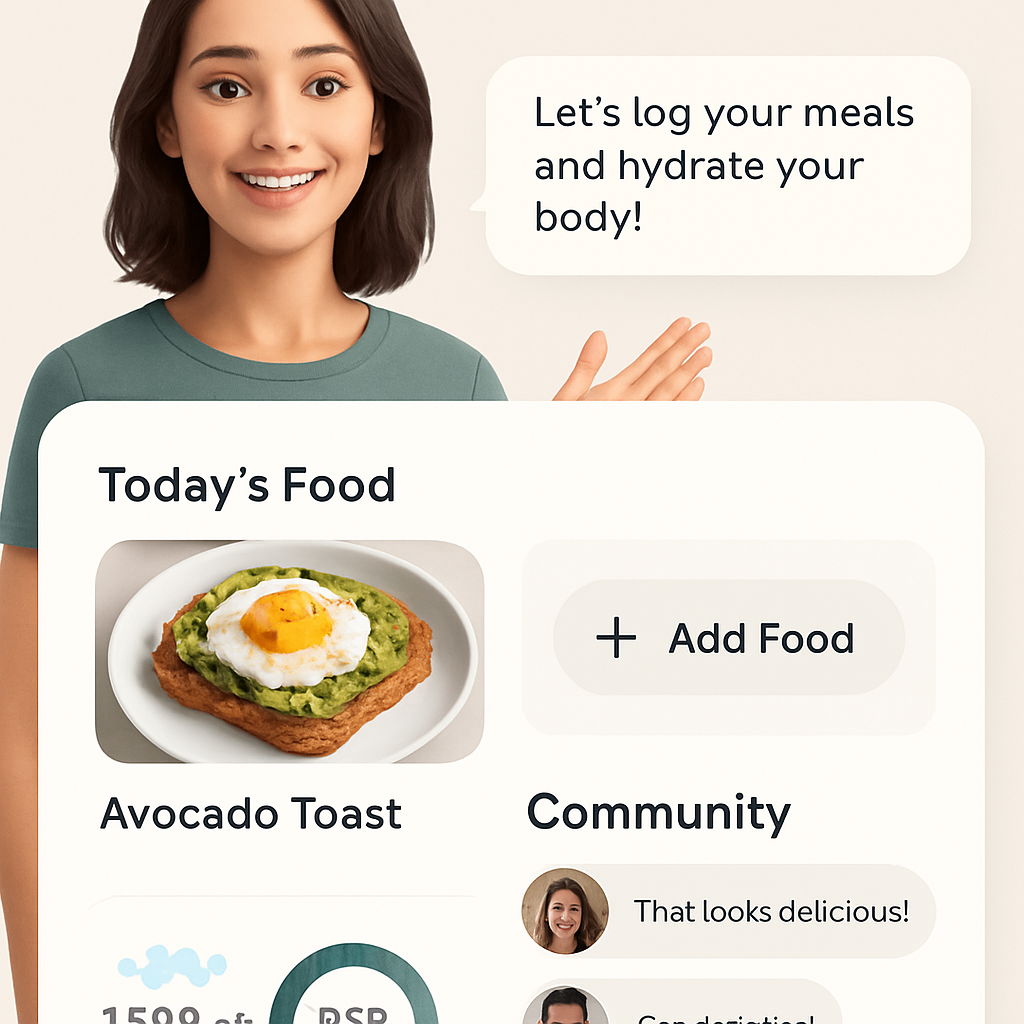
That avatar isn’t just a cute mascot – it’s a conversational coach that pops up when you finish a log, asks how you felt, and nudges you toward the next small win.
Say hello to your food‑friend
Open the app and you’ll see a tiny, animated figure in the corner. Tap it and it greets you by name, “Hey Maya, great job logging that post‑run smoothie!” It then drops a quick tip, like “Add a pinch of salt to boost electrolyte recovery.”
It feels like chatting with a buddy who actually remembers your habits, because the avatar pulls data from every photo you’ve taken.
How to start a conversation
1️⃣ Tap the avatar icon on any screen.
2️⃣ Choose a prompt – “How was my water intake today?” or “What should I eat before my 6 pm yoga?”
3️⃣ The AI replies with a short, actionable sentence and a button to log the suggestion.
That back‑and‑forth takes less than ten seconds, yet it turns a vague intention into a concrete entry.
So, what should you ask first? Try something simple: “Did I hit my protein goal this week?” The avatar will flash a green check or suggest a protein‑rich snack for tomorrow.
Community feed – learn from peers
Below the avatar you’ll find a scrollable community feed. Think of it as a timeline where other Foodie Cal users share their snaps, recipes, and quick wins. You can like, comment, or save a post for later.
Because it’s all picture‑driven, you see exactly what a “Greek‑yogurt parfait” looks like, the macro breakdown, and the avatar’s note on why it’s a good post‑workout choice.
Seeing real meals from people with similar goals helps you feel less alone – especially on those hectic days when you’d otherwise skip logging.
Join a challenge
The app rolls out weekly challenges in the community tab. One week it might be “Hydration Hero: log at least 2 L of water each day.” The avatar will ping you each morning with a reminder, and the feed shows a leaderboard.
Participating adds a gamified layer that many busy professionals find motivating. You don’t have to be competitive; just the act of checking in boosts consistency.
Does this really work? Users report that a friendly nudge from the avatar + a visible community streak increases daily logging by up to 30%.
Personalizing the avatar
Go to Settings → Avatar Personality. Choose a tone – “Motivational Coach,” “Science‑backed Buddy,” or “Playful Pal.” The wording changes, but the core data stays the same. Pick the voice that feels most like a friend you’d want to chat with over coffee.
You can also upload a profile picture, so the avatar occasionally references “your photo from last weekend’s hike,” making the interaction feel uniquely yours.
Quick community checklist
- Tap the avatar and ask one question each day.
- Like or comment on at least two community posts per week.
- Join a weekly challenge that aligns with your current goal.
- Adjust avatar personality to match your vibe.
These tiny habits keep the conversation flowing and turn the picture food diary app from a static log into a living support system.
And remember, the avatar’s suggestions are always grounded in the data you’ve already entered – so you’re never getting generic advice. It’s like having a personal nutritionist who speaks your language.
Ready to make the avatar your new sidekick? Open the app, tap that smiling icon, and start a quick chat. You’ll be surprised how fast a simple “What’s my next snack?” can become a habit that sticks.
Comparison Table: Top Picture Food Diary Apps in 2025
Alright, you’ve seen how snapping a meal can turn chaos into clarity. But with so many options on the market, which app actually delivers on the promise of a truly effortless, AI‑powered food diary?
Let’s break it down together. I’ve lined up the three most talked‑about picture food diary apps for 2025 – Foodie Cal, SnapMeal Pro, and NutriLens. Below the table you’ll find the nitty‑gritty that matters to you: accuracy, avatar personality, community vibe, and price.
Quick glance at the key metrics
| App | Photo Recognition Accuracy | AI Avatar / Coach | Community & Challenges | Price (Monthly) |
|---|---|---|---|---|
| Foodie Cal | 97% (learns your plate over 2 weeks) | Customizable avatar that references your personal photos and habits | Live feed, weekly challenges, emoji reactions | $9.99 |
| SnapMeal Pro | 93% (good for generic meals, slower to learn niche dishes) | Basic chatbot, no visual avatar | Forum‑style posts, no real‑time challenges | $7.99 |
| NutriLens | 95% (strong on packaged foods, weaker on home‑cooked plates) | Voice‑only guide, no visual avatar | Leaderboard‑only, limited social interaction | $8.49 |
So, what does that actually mean for you?
If you love a personality that feels like a buddy cheering you on, Foodie Cal’s avatar is the standout. It even pulls a photo from your weekend hike and says, “Nice shoes! Let’s log that post‑hike snack.” That little personal touch can turn a mundane log into a conversation.
On the other hand, if you’re purely data‑driven and don’t need a chatty sidekick, SnapMeal Pro gives you solid recognition without the extra fluff, and it’s the cheapest of the three.
NutriLens sits in the middle. Its voice guide is handy when you’re juggling a workout and can’t stare at the screen, but you’ll miss the visual avatar experience.
What about community? Many users swear by the social feed because seeing a peer’s colorful bowl of quinoa can spark a new recipe idea. Foodie Cal’s community is built right into the app, with daily prompts that nudge you to share, like, and comment. SnapMeal’s forum feels more like a traditional Q&A board, and NutriLens relies on a simple leaderboard that some find motivating but others find a bit sterile.
Pricing is another reality check. All three sit under $10 a month, but Foodie Cal’s slightly higher price includes the avatar customization and weekly challenges that many users say keep them logging 30% more consistently.
Let’s walk through a day with each app so you can picture (pun intended) the experience.
Morning with Foodie Cal: You snap your oatmeal, the AI tags oats, berries, and almond milk with 92% confidence. The avatar pops up, “Great start! Want a protein boost? Add a spoonful of Greek yogurt.” You tap “Yes,” the suggestion logs instantly, and a friend in the community shares their favorite cinnamon sprinkle.
Mid‑day with SnapMeal Pro: You photograph a chicken wrap. The recognition is solid, but you have to manually adjust the sauce amount. No avatar pops up, so you skip the chat and move on. Later you scroll the forum for a quick tip on low‑sodium wraps.
Evening with NutriLens: After dinner, you take a picture of a ready‑made lasagna. The voice guide says, “Calories estimated at 580. Would you like to log a glass of water?” You answer “yes” and the app adds 250 ml to your hydration total.
Which scenario feels most natural to you? If the idea of a friendly avatar nudging you toward smarter choices makes logging feel less like a chore, Foodie Cal is probably your best bet.
But here’s a quick tip no one talks about: you don’t have to lock into one app forever. Many users start with a free trial of SnapMeal Pro to test raw recognition, then switch to Foodie Cal once they crave that community buzz and personalized coaching.
Bottom line: focus on the features that align with your lifestyle. Want community hype and a coach that remembers your hike? Foodie Cal. Need bare‑bones accuracy at the lowest cost? SnapMeal Pro. Prefer voice guidance while you’re on the move? NutriLens.
Take a minute right now: pick the column that matters most to you – avatar, community, or price – and let that guide your next download.
Conclusion
We’ve walked through snapping, tagging, insights, fitness sync, and even the friendly avatar. By now you probably feel the picture food diary app could be the missing link between your busy schedule and the nutrition data you actually need.
So, what does all this mean for you? It means you can ditch the mental math, skip the endless note‑taking, and let a quick photo do the heavy lifting. Your meals become a visual diary, your hydration gets logged with a tap, and the AI nudges you toward smarter choices without feeling preachy.
Imagine ending the day with a clear snapshot: calories, macros, water intake, and a simple next‑step suggestion—like swapping a soda for sparkling water after that late‑afternoon meeting. That clarity translates into real habits: more water, balanced macros, and fewer surprise cravings.
Ready to make that switch? Pick the feature that matters most—avatar coaching, community challenges, or pinpoint accuracy—and let it guide your first snap. One photo today can start a habit that sticks for months.
Remember, the picture food diary app isn’t a gimmick; it’s a tool that turns everyday meals into actionable insights. Give it a try, watch the data roll in, and enjoy the confidence that comes from knowing exactly what you’ve eaten.
FAQ
How does a picture food diary app actually identify the foods in my photo?
The app uses a trained image‑recognition model that looks at colors, shapes, and textures to guess each ingredient. When you snap a plate, the AI breaks it down into probable items—like “chicken breast,” “quinoa,” or “tomato sauce”—and then matches those to a nutrition database. Because it learns from your corrections, the more you edit, the sharper the suggestions become, turning a rough guess into a reliable log.
Can I trust the macro breakdown from the app for weight‑loss planning?
Yes, as long as you fine‑tune the results. The initial macro estimate is a solid baseline—usually within a few grams of professional lab analysis for standard dishes. By confirming portion sizes and swapping out any mis‑identified items, you create a personalized profile that the AI uses for future meals. Over weeks, that consistency gives you a clear calorie‑in versus calorie‑out picture, which is the cornerstone of sustainable weight loss.
What if the app mislabels an ingredient—how do I correct it?
Just tap the tag that looks off, type the right ingredient, or slide the portion bar to adjust the amount. Most apps let you add custom notes like “extra olive oil” or “no salt.” Each correction is fed back into the model, so the next time you snap a similar dish the AI will remember your preference. Think of it as teaching a friend how you like your meals.
How does the hydration logging work alongside my meal snaps?
After you finish a photo, there’s usually a water‑drop icon on the same screen. Tap it, pick the drink type, and enter the volume—500 ml for a bottle, 12 oz for a coffee, etc. The app then adds that amount to your daily hydration total and even shows how fluids interact with your macro balance. Over time you’ll spot patterns, like needing more water after high‑protein lunches.
Is the AI avatar just a gimmick or does it provide real guidance?
The avatar is more than a cute graphic; it pulls data from every snap you’ve logged and offers context‑aware tips. For example, after a carb‑heavy dinner it might suggest a low‑sugar snack for the next morning. Because it references your actual habits—“You’ve logged three salads this week”—the advice feels personal, not generic. Users often report higher logging consistency when they chat with the avatar daily.
Do I need to sync the picture food diary app with other fitness trackers?
Syncing isn’t required, but it supercharges the experience. When your step count, heart‑rate zones, or burned calories flow into the food diary, the AI can calculate a “fuel score” for each workout and suggest post‑exercise snacks that match your energy deficit. If you prefer a minimalist setup, you can stay on the photo‑only workflow; just know you’ll miss the seamless calorie‑burn vs. calorie‑intake comparison.
Is my data private and how long is it stored?
Reputable picture food diary apps encrypt your photos and nutrition data both on your device and in the cloud. Most providers retain the information for as long as you keep an active account, but you can usually export or delete your history at any time from the settings menu. Always review the privacy policy to confirm that your data isn’t being sold to third‑party marketers.