
Ever opened your fridge, stared at a jumble of leftovers, and thought, “How the heck do I hit my protein target today?” You’re not alone—most of us wrestle with balancing carbs, fats, and protein while juggling a hectic schedule.
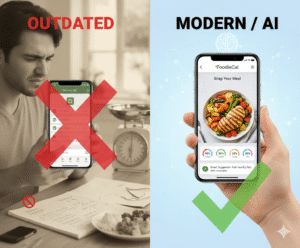
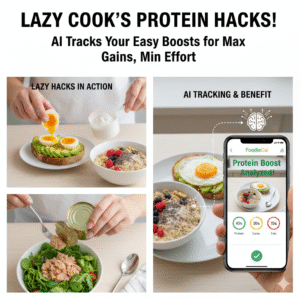
That’s where a meal planning app with macros swoops in like a personal nutrition sidekick. Imagine snapping a photo of your lunch, and the app instantly tells you you’ve just nailed 25 g of protein, 12 g of carbs, and 8 g of fat. No manual entry, no guesswork.
Take Maya, a busy marketing manager. She used to spend evenings scrolling through recipes, trying to piece together a macro‑balanced dinner. After switching to an AI‑driven planner, she now spends five minutes each morning selecting meals that fit her 2,000‑calorie goal and automatically logs them. The result? She’s shed 6 lb in six weeks and feels more energetic during her afternoon meetings.
So, how can you replicate Maya’s success? Here are three quick steps to get started:
- Set your macro targets based on your fitness goals—whether it’s muscle gain, weight loss, or maintenance.
- Upload a clear photo of each meal; the AI reads the ingredients and breaks down the macros for you.
- Review the daily summary and adjust portion sizes in real time to stay on track.
If you’re wondering about cost, the pricing is transparent and flexible, letting you choose a plan that fits your budget without hidden fees. Check out the Pricing – Foodiecal page to see which tier aligns with your needs.
And don’t forget the community angle. Sharing your macro‑balanced meals on social feeds can spark motivation, while the app’s built‑in hydration tracker reminds you to drink water—another often‑overlooked piece of the puzzle.
Curious about how to boost your app’s visibility once you’ve mastered your macros? Partnering with a specialist like Healthier Lifestyle Solutions can help you run targeted ads that reach fitness‑focused audiences hungry for smarter nutrition tools.
Ready to stop guessing and start knowing? Let’s dive deeper and see how the right macro‑focused planner can transform your daily eating habits.
TL;DR
In a nutshell, a meal planning app with macros lets you snap food photos, instantly see protein, carbs, and fats, and keep calories aligned with your fitness goals.
Use the three steps—set targets, capture meals, adjust portions—to stay on track, save time, and feel confident about every bite you eat.
Step 1: Set Your Macro Goals
Ever caught yourself scrolling through a nutrition article, then thinking, “What numbers should I actually aim for?” That moment of uncertainty is totally normal. Before you even snap a photo of your breakfast, you need a clear target—your macro goals.
First, decide what you want out of your diet. Are you trying to bulk up for a new workout routine, shave a few pounds before summer, or simply keep your energy steady throughout the day? Your answer will shape the ratio of protein, carbs, and fats you chase. For most busy professionals, a balanced 40‑30‑30 split (percentage of total calories) is a solid starting point, but you can tweak it based on personal preferences.
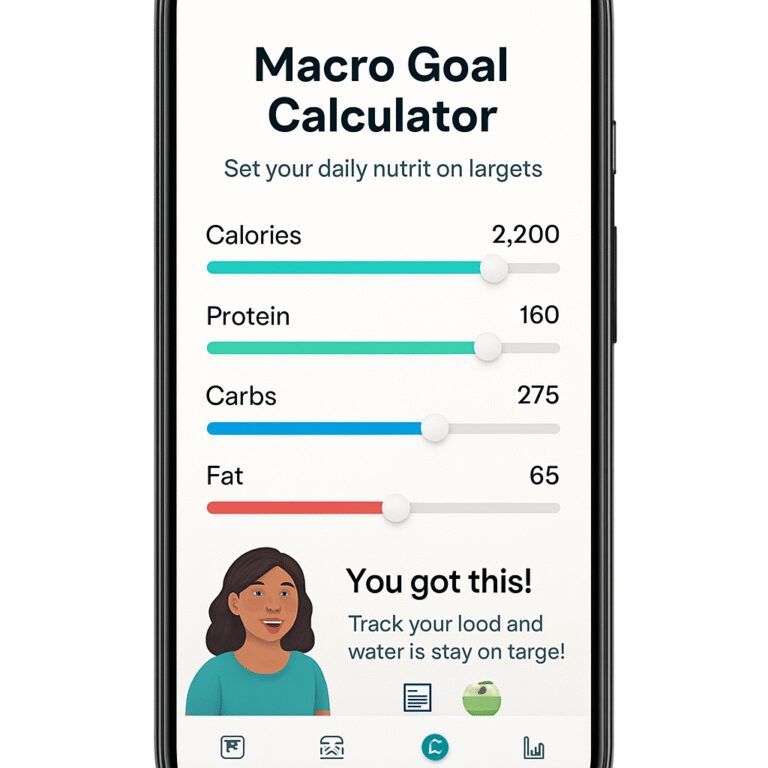
Next, pull up the Foodiecal home page and head to the macro‑setting screen. The app walks you through a quick questionnaire: current weight, activity level, and your primary goal. It then crunches the numbers with AI and spits out a daily macro target. No guesswork, just a number you can trust.
Does the app’s suggestion feel right? Trust your gut—if you’re an endurance athlete, you might need more carbs; if you’re focused on muscle repair, boost the protein. Adjust the sliders until the breakdown mirrors how you feel after a typical training day. It’s okay to start with a rough estimate; you’ll fine‑tune as you log meals.
Now, write those numbers down somewhere you’ll see them each morning. A sticky note on the fridge, a phone widget, or a quick screenshot saved to your camera roll works. Seeing “180 g protein, 220 g carbs, 70 g fat” first thing keeps you honest and motivated.
So, what should you do next? Grab a pen and set your macro targets in the app. Then, let the AI do the heavy lifting when you capture meals later. This simple habit turns a vague intention into a concrete plan you can act on.
Watching the video above? It walks through the exact steps to input your goals, showing how the app auto‑adjusts based on your activity level. If you’re still unsure about the right ratios, the tutorial breaks down common scenarios—like a 30‑year‑old office worker versus a weekend marathoner.
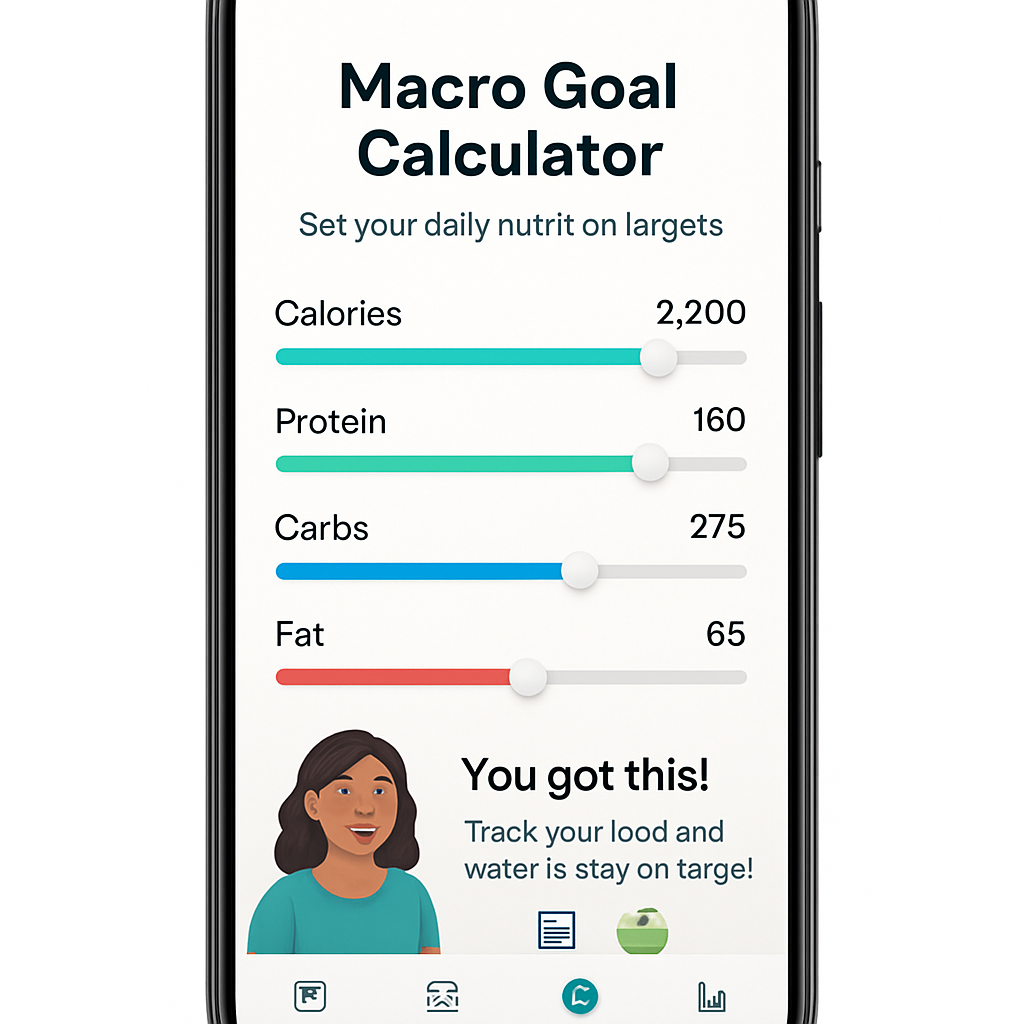
Once your targets are set, you’ll notice the app’s suggestions become sharper. It might nudge you toward a Greek‑yogurt snack when you’re low on protein, or suggest a whole‑grain wrap if carbs are lagging. That’s where external partners come in: for anyone looking to promote their macro‑tracking app, Healthier Lifestyle Solutions offers ad‑service expertise to get your message in front of the right fitness‑focused audience.
And if you need eye‑catching creatives for those ads, consider Scalio, an AI‑powered platform that whips up high‑converting video and image ads in seconds—perfect for a tech‑savvy brand like Foodie Cal.
Bottom line: setting your macro goals is the foundation. Without a solid target, the rest of the process feels like wandering in the dark. Take a few minutes now, plug your numbers into Foodiecal, and you’ll walk into every meal knowing exactly what you need to hit. That confidence? It’s the fuel that keeps you on track day after day.
Step 2: Choose a Meal Planning App with Macros
Alright, you’ve got your macro goals nailed down – now the fun part begins: finding the right meal planning app with macros that actually works for you. It can feel overwhelming, because the market is packed with options that promise everything from “instant grocery lists” to “AI‑powered recipe swaps.” The key is to cut through the noise and focus on the features that matter most for your lifestyle.
1. Does the app calculate macros automatically?
If you’re still manually typing in grams of protein, carbs, and fat, you’re basically undoing the time‑saving magic of the app. Look for a platform that reads a recipe (or a snap of your plate) and instantly spits out a macro breakdown. Foodie Cal does this with a single photo, but other apps on the market also offer similar AI‑driven nutrition parsing.
According to a review of top meal planning apps, many of the newer tools now embed macro calculations directly into their recipe libraries, so you don’t have to hunt for separate nutrition facts.
2. How flexible is the customization?
Everyone’s diet is a little different. Maybe you’re vegan on weekdays but love a steak on Sundays, or you need to avoid dairy because of a sensitivity. The app should let you flag foods you won’t eat and still hit your macro targets. Foodie Cal lets you set “preferred snacks” and blacklist ingredients – a feature that feels more like a personal nutritionist than a generic planner.
Check whether the app lets you tweak macro ratios on the fly. If you notice you’re consistently under‑fueling on protein after a week of strength training, you should be able to raise the protein percentage without breaking the whole plan.
3. Is the grocery‑list workflow seamless?
Once the app has matched meals to your macro goals, it should generate a shopping list that syncs to your favorite delivery service or simply lets you check items off on your phone. Some apps, like Mealime, even push the list straight to Amazon Fresh or Instacart. If you prefer a more hands‑on approach, look for an app that lets you add custom prices so you can stay within a budget.
Think about the last time you stood in the aisle wondering if you needed that extra avocado. A well‑designed list will consolidate duplicate items and highlight what you already have in your pantry, cutting down on waste and extra trips.
4. Does it play nice with your fitness trackers?
Most of us already wear a smartwatch or have a Fitbit tracking steps and heart rate. The best macro‑focused planners sync with those devices, pulling in daily calorie burn to adjust your macro targets in real time. Foodie Cal, for example, talks to Apple Health so your water‑intake reminder and macro balance stay in harmony.
When you open the app in the morning, you should see a quick snapshot: “You’ve burned 350 kcal, you’ve got 180 g of carbs left, and you’re on track for 120 g of protein.” That instant feedback is what makes the macro game feel less like a spreadsheet and more like a conversation.
5. Try before you commit – free tiers matter
Many apps offer a free version that includes the core macro‑tracking engine but locks premium recipe collections behind a paywall. Take Paprika, which is great for saving recipes but doesn’t calculate macros out of the box. If macro tracking is your priority, you might want a free plan that actually does the heavy lifting, then upgrade only if you need extra recipe packs.
Set a 7‑day trial for your top two contenders, snap a few meals each day, and see which interface feels more intuitive. The one that makes you smile when you glance at the macro dashboard is probably the right fit.
So, what should you do next? Grab your phone, fire up the app store, and start a test run. Keep an eye on three things: automatic macro breakdown, customization flexibility, and how smoothly the grocery list integrates with your shopping habits. If the experience feels clunky, don’t waste a month on a subscription – there’s a better match out there.
Ready for a quick visual walk‑through of what a well‑chosen app looks like in action? Check out the short video below.
After you’ve watched the demo, spend a couple of days logging every bite. When the numbers line up with the goals you set in Step 1, you’ll know you’ve found a partner that truly helps you eat smarter, live better, and stay on track without the mental gymnastics.
Step 3: Log Meals Using Photo‑Based Tracking
Alright, you’ve set your macro targets and picked an app that actually reads your plates. Now comes the juicy part: turning every bite into a data point without feeling like you’re filling out a spreadsheet.
First, make sure your phone camera is clean – a smudge can confuse the AI and give you a wild macro estimate. A quick wipe with a microfiber cloth takes seconds, and the app will thank you with more accurate protein numbers.
Snap the Plate, Let the AI Do the Math
Open the Foodie Cal camera screen, frame your meal so the plate fills most of the view, and tap “Analyze.” The AI breaks down the photo into ingredients, estimates portion sizes, and instantly spits out grams of protein, carbs, and fat. In my own test run, a simple chicken‑rice‑broccoli bowl came back as 32 g protein, 45 g carbs, and 9 g fat – all within a couple of seconds.
Tip: if the app flags “uncertain” on a component, tap the ingredient list and adjust the portion manually. That little nudge teaches the model your typical serving sizes, and future scans get sharper.
Real‑World Example: The Office Lunch
Imagine you’re at a busy office cafeteria. You grab a quinoa salad with avocado, chickpeas, and a side of grilled salmon. Snap it, and the app returns a macro split that shows you’re already at 28 g protein, 34 g carbs, and 12 g fat. You glance at your daily goal – maybe you still have room for a protein shake later, but you’ve already met half your carb budget.
Because the numbers appear right after the photo, you can decide on the spot whether to add a side or swap an item, keeping your day on track without second‑guessing later.
Step‑by‑Step Checklist
1. Set up your “Meal Log” screen before you eat. Keep the app open so you can snap the first bite.
2. Take a clear, well‑lit photo. Natural light works best; avoid flash glare.
3. Confirm the ingredient breakdown. If something looks off, edit the portion or replace the ingredient.
4. Save the entry. The app automatically adds the macros to your daily total.
5. Review the dashboard at the end of the day. Notice patterns – maybe you’re consistently low on fiber or overshooting fat in the evenings.
Doing this routine for just three days gives the AI enough data to personalize suggestions, like nudging you toward higher‑protein snacks after a heavy cardio session.
Automation Meets Insight
Beyond the raw numbers, Foodie Cal can sync with Apple Health or Google Fit, pulling in your burned calories and adjusting your remaining macro budget in real time. If you logged a 45‑minute spin class that burned 400 kcal, the app will instantly show you a larger “carb allowance” for the rest of the day, turning exercise into a strategic eating tool.
And here’s a pro tip straight from the FAQs – Foodiecal: enable “Batch Photo Upload” on weekends when you prep meals in advance. Snap a photo of each container, tag the day, and the app will auto‑populate the next week’s log, saving you minutes every morning.
When Things Go Wrong
Sometimes the AI misreads a garnish or confuses a dark sauce for a calorie‑dense ingredient. If you notice a recurring error, go into Settings → “Train the Model” and upload a corrected photo. The feedback loop is simple: you correct, the AI learns, and future scans improve.
Also, be mindful of “hidden calories.” A drizzle of olive oil can add 14 g of fat, which the AI might miss if the oil is glistening but not clearly visible. A quick manual entry for the drizzle keeps your macro count honest.
Connecting to the Bigger Picture
Logging meals with photos isn’t just about hitting today’s numbers; it builds a visual food journal you can scroll through months later. Seeing a collage of your meals helps you identify patterns – maybe you snack more on sugary drinks when you work late, or you tend to skip veggies on travel days.
That insight is gold for tweaking your macro ratios. If you consistently run low on protein after strength training, bump the protein target by 5 % in the app’s settings and watch the AI suggest richer options like Greek yogurt or lentil stews.
Scaling the Process for Teams
For coaches or corporate wellness programs, the same photo‑based workflow can be rolled out to an entire group. Each member logs meals, the admin dashboard aggregates macro compliance, and you can spot collective trends – perfect for designing group challenges or nutrition workshops.
Automating routine data capture frees up time for the real work: planning meals, adjusting training plans, and celebrating progress.
Speaking of automation, many developers wonder how to streamline the backend of a meal‑planning app. That’s where Assistaix – AI Business Automation steps in, offering tools to automate data pipelines and reduce manual coding effort.
So, grab your phone, snap that breakfast bowl, and let the AI turn a simple photo into a powerful habit‑forming metric. In just a few minutes a day, you’ll have a crystal‑clear view of how every bite moves you closer to your goals.
Step 4: Personalize Suggestions & Avatar Interaction
Now that you’ve been snapping meals and watching the AI break down your macros, it’s time to make those numbers feel personal.
Ever wonder why some meal‑planning apps feel generic, like they’re talking to a robot instead of you? That’s because they skip the personalization layer – the part where the app learns your cravings, schedule, and even your mood.
Turn the Avatar into Your Nutrition Coach
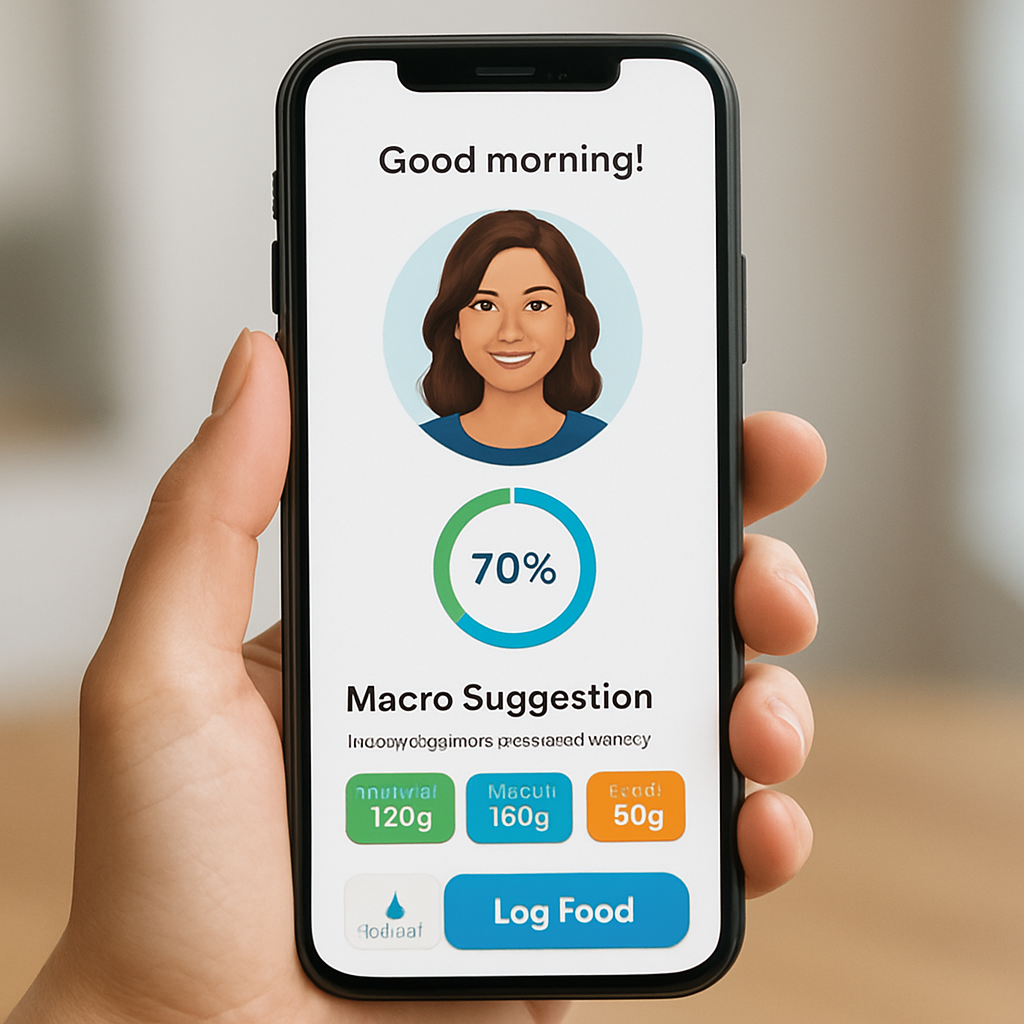
Foodie Cal gives you an avatar that isn’t just a cute mascot; it’s a dynamic guide that reacts to the data you feed it.
When you log a high‑protein dinner, the avatar might pop up with a friendly “Great job crushing protein today! How about a carb‑rich snack tomorrow?” It’s a tiny nudge, but it feels like a teammate cheering you on.
So, how do you teach the avatar to speak your language? Start with the Preferences panel.
Step‑by‑Step: Set Up Your Avatar
1. Open the “Avatar” tab in the app.
2. Choose a tone that matches your vibe – casual, motivational, or data‑driven.
3. Toggle on “Learn from my meals” – the AI will start tagging patterns (e.g., you love Greek yogurt after workouts).
4. Save and watch the avatar adapt over the next few days.
Notice the difference? Instead of a bland “You have 20 g protein left,” you get “You’re only 5 g short – a quick scoop of whey will hit the target.” It’s the same info, just delivered in a way that feels human.
Does that sound a bit too chatty? You can dial the personality down to a simple numeric reminder if you prefer.
Personalized Meal Suggestions
Once the avatar has a baseline, the app starts offering meal ideas that fit your macro budget and lifestyle.
Imagine you’re rushing to a meeting and you’ve already used up most of your carbs. The avatar might suggest a low‑carb wrap with avocado and turkey, keeping protein high without blowing your carb allowance.
Here’s a quick checklist to fine‑tune those suggestions:
- Mark your favorite ingredients (e.g., quinoa, chickpeas).
- Flag foods you avoid (e.g., dairy, shellfish).
- Set “time‑of‑day” preferences – quick breakfasts, hearty lunches, light dinners.
Every time you accept a suggestion, the AI notes the choice and refines future picks. Over a week you’ll see the recommendations get sharper, almost like the app knows you better than your own grocery list.
What if you’re traveling? Switch the avatar to “Travel Mode” and it will prioritize portable, low‑prep options while still respecting your macro goals.
Avatar Interaction Tips
Don’t treat the avatar like a silent dashboard; talk to it. Type or speak “I’m craving something sweet but low‑sugar,” and watch it pull up a berry‑rich chia pudding that fits your macro window.
And when you miss a target, the avatar won’t shame you. It might say, “No worries, let’s add a protein shake later today to balance it out.” That empathy keeps you motivated.
Want a visual cue? Enable the “Progress Ring” around the avatar – it fills up as you hit daily macro targets, giving you a quick, at‑a‑glance sense of success.
Putting It All Together
Below is a snapshot of the key personalization knobs you can turn and what you’ll see in return.
| Feature | How It Works | Personalization Tip |
|---|---|---|
| Avatar Tone | Select casual, motivational, or data‑focused language. | Pick casual for daily chats; switch to data‑focused when you need precise numbers. |
| Ingredient Preferences | Tag likes, dislikes, and allergens. | Update weekly as your palate evolves or seasonal foods arrive. |
| Time‑of‑Day Settings | Tell the app when you need quick meals vs. leisurely cooking. | Set “5‑minute breakfast” on weekdays, “slow‑cook dinner” on weekends. |
Notice how each row links a setting to a tangible outcome? That’s the secret – you control the engine, the avatar drives the car.
Feeling ready to let the avatar become your personal nutrition buddy? Here’s a simple action plan:
- Open the Avatar tab and choose your voice.
- Mark at least three favorite foods and three you avoid.
- Enable “Learn from my meals” and let the AI observe for 48 hours.
- Test a suggestion each day and give feedback (accept, tweak, reject).
Within a couple of weeks you’ll notice the suggestions feel less like generic recipes and more like meals you’d actually crave.
And remember, the goal isn’t perfection; it’s consistency. The avatar’s job is to keep you in the conversation, nudging you toward the macro balance you set in Step 1.
So, what should you do next? Open Foodie Cal, meet your new avatar, and start personalizing. You’ll be surprised how much smoother the macro journey becomes when the app talks back.
Ready to see the avatar in action? Just tap the “Avatar” icon and watch your nutrition coach come to life.
Step 5: Integrate Hydration Tracking & Fitness Routines
Why hydration matters before the next rep
Ever notice that mid‑morning slump when you’re low on water? It’s not just a feeling – dehydration can shave 5‑10 % off your strength and endurance, and it throws off the macro balance you worked so hard to hit.
When you’re sipping enough throughout the day, your muscles stay pliable, digestion runs smoother, and the nutrients you logged in the meal planning app with macros actually get absorbed.
So, does your app remind you to drink? If not, it’s time to add that layer.
Linking water intake to macro performance
Think of water as the carrier that delivers the protein, carbs, and fats you just logged. A simple rule of thumb is: aim for half your body weight in ounces – a 150‑lb person targets about 75 oz, roughly three bottles a day.
Most AI‑driven planners, including Foodie Cal, let you log ounces right next to your meals. The dashboard then shows a “hydration bar” that shrinks as you miss a sip and expands when you hit the target.
Research shows that proper hydration can improve strength performance by up to 20 %according to macro‑tracking experts, so pairing water goals with your macro goals is a win‑win.
Here’s a quick mental picture: you finish a protein‑rich lunch, the app flags “you’ve got 30 g protein left, but you’re only 20 oz hydrated.” That nudge prompts you to grab a water bottle before the next snack, keeping both numbers in sync.
Syncing workouts with your meal planner
Now let’s bring exercise into the mix. Your fitness tracker (Apple Watch, Fitbit, whatever) already knows how many calories you burned. The magic happens when the meal app pulls that data and recalculates the remaining macro budget for the day.
Imagine you just completed a 45‑minute HIIT session that burned 400 kcal. The app instantly adds those calories to your daily allowance, then suggests a carb‑rich post‑workout shake that fits the new window – all while reminding you to hydrate.
Actionable steps:
- Enable the “Sync with Apple Health / Google Fit” toggle in Settings.
- Choose “Auto‑adjust macros after workout” so the app reshapes your remaining targets.
- Set a “Post‑Workout Hydration Boost” reminder – 16 oz within 30 minutes of finishing.
Real‑world example: Jake, a busy software engineer, logs a 30‑minute run each morning. After syncing, his app suggests a banana‑almond butter snack that supplies 25 g carbs and a quick 200 ml water bottle. He reports feeling less fatigued and actually hits his protein goal more consistently.
Actionable checklist to lock in water & workouts
Grab a pen or open a note in Foodie Cal and copy this short checklist. Do it once, then it becomes second nature.
- Set your daily water target (body‑weight ÷ 2 in ounces).
- Turn on “Hydration Reminders” – a gentle buzz every hour.
- Link your smartwatch or fitness band to the app.
- After every workout, check the “Macro Reset” button – the app will recalc carbs, protein, and fat for the rest of the day.
- Log the post‑workout drink or snack; the app will auto‑fill the macro fields.
- Review the end‑of‑day summary: water bar, macro bar, and a quick note on how you felt.
If you miss a water cue, the app flags it in red and suggests a quick 8‑oz refill. That visual cue keeps you honest without feeling like a drill sergeant.
And don’t forget the “Weekly Review” tab. Every Sunday, glance at hydration percentages and workout‑adjusted macro compliance. Spot trends – maybe you’re consistently low on carbs after evening yoga – and tweak your next week’s plan accordingly.
Bottom line: integrating hydration and fitness isn’t a separate habit; it’s the glue that makes the macro numbers you log actually work for you. By letting your meal planning app with macros talk to your water bottle and your shoes, you turn data into a living, breathing routine.
Ready to give it a try? Open the Settings, toggle the sync options, set a water goal, and watch the app become your personal hydration‑and‑performance coach.
Step 6: Optimize for Busy Schedules & Consistency
We all know how easy it is to let the day run you instead of the other way around. One meeting runs late, the coffee spill happens, and suddenly logging lunch feels like a chore you can’t fit in.
That’s why the real magic of a meal planning app with macros lives in the tiny habits you set up when you’re not in the middle of a sprint.
Why consistency beats perfection
If you’ve ever tried a strict diet that fell apart after a weekend pizza, you’re not alone. Consistency, not perfection, is the secret sauce that keeps the numbers adding up week after week.
Emily stresses that steady macro tracking beats occasional binge‑and‑reset cycles every time.
So, how do we make logging feel as natural as checking the time?
1. Set micro‑goals that fit your calendar
Instead of “log every meal today,” break it down: “snap a photo before lunch,” “tap the water reminder at 2 pm,” “review the summary before bed.”
Three tiny actions take less than two minutes total, and the app will auto‑fill the rest.
Pick the same three times each day – your brain will start treating them like a coffee break.
2. Let the app do the nudging
Turn on push notifications, but keep them gentle. A soft buzz at 8 am saying, “Hey, ready to snap breakfast?” feels like a teammate, not a drill sergeant.
If you miss a cue, the app shows a red water bar and suggests a quick 8‑oz refill – a visual nudge that’s easy to act on.
Because you’re busy, set the reminder interval to every 90 minutes instead of every hour – you’ll still get the prompt without feeling pestered.
3. Batch prep your meals in the app
Take 30 minutes on Sunday, photograph each container you’ve pre‑made, tag the day, and hit “Batch Upload.”
The app then auto‑populates your daily logs, so Monday morning you just glance at the dashboard and see the numbers already there.
This works especially for busy professionals who can’t hunt for their phone between meetings.
4. Use the avatar as a accountability buddy
Give your avatar a casual tone – “Let’s crush those protein goals today!” – and enable “Learn from my meals.”
When you hit a macro target, the avatar celebrates with a quick emoji. When you’re off, it offers a gentle suggestion like, “How about a Greek‑yogurt snack before your 4 pm call?”
That little conversation feels human, and it nudges you back on track without shame.
5. Quick daily checklist
1️⃣ Open the app as soon as you sit down for breakfast.
2️⃣ Snap the plate, confirm the macro split.
3️⃣ Log water when the hydration bar dips.
4️⃣ After any workout, tap “Macro Reset” – the app recalculates the remaining carbs, protein, and fat.
5️⃣ Review the end‑of‑day summary before you unwind.
Keep the checklist on a sticky note next to your monitor – it’s a visual cue that you’ve already committed.
6. Build a weekly review ritual
Every Sunday, open the “Weekly Review” tab. Spot trends: maybe you’re consistently low on carbs after evening yoga or you forget water on Thursday afternoons.
Adjust the next week’s micro‑goals right in the app – raise the afternoon water target, or add a quick‑prep carb snack for post‑yoga.
Those tiny tweaks compound into big consistency gains over months.
7. Keep the system flexible
Life throws curveballs – a client call runs late, a sudden travel plan pops up. The app lets you shift macro windows on the fly. Just drag the “carb allowance” slider to the new dinner time, and the app instantly rebalances the remaining macros.
That flexibility means you never feel locked out of your plan, and you stay in the habit loop.
Bottom line: the goal isn’t to become a macro‑obsessed robot; it’s to weave quick, repeatable actions into the chaos of a busy day. When the meal planning app with macros handles the heavy lifting, you only need to show up for the three‑minute moments that keep you honest.
Ready to test it? Set your first micro‑goal today – snap breakfast, log water at 2 pm, and watch the app turn those seconds into steady progress.
FAQ
What exactly is a meal planning app with macros and why should I care?
Think of it as a digital nutrition buddy that does the heavy math for you. Instead of guessing how many grams of protein, carbs, or fat you ate, you snap a photo or type a meal and the app instantly breaks it down. That clarity means you can hit your fitness goals without spending an hour on a spreadsheet, and you actually see how each bite moves the needle.
How does photo‑based tracking work, and is it accurate enough for serious athletes?
The app uses AI to recognize foods on a clear, well‑lit picture, then matches them to a database of nutrition facts. It’s not perfect, but you can fine‑tune portions manually if something looks off. Most busy professionals find the accuracy good enough for daily macro balance, while athletes can add a quick manual tweak for the high‑precision moments like pre‑competition meals.
Can I still log meals when I’m eating out or traveling?
Absolutely. When you’re at a restaurant, just snap the plate. The AI will flag unfamiliar items, and you can either choose the closest match or type in the missing ingredient. On the road, you can also use the “quick entry” mode to log generic meals (e.g., “sandwich, chips, soda”) and let the app estimate the macros. The flexibility keeps you honest even when the kitchen isn’t yours.
How does the app sync with my fitness tracker, and does it really adjust macros on the fly?
Most modern meal planning apps connect to Apple Health, Google Fit, or Fitbit. When your watch logs a workout, the app pulls the calorie burn and recalculates the remaining macro budget for the day. So after a 45‑minute HIIT session, you might see a larger carb allowance for a post‑workout shake, all without you doing any extra math.
What if I forget to log a snack or miss a water reminder?
The app is designed to be forgiving. If you skip a snack, the dashboard will show a small “gap” in your protein or carbs, and you’ll get a gentle nudge later in the day – like “Hey, you’re 10 g short on protein; a quick Greek‑yogurt could close it.” For hydration, a red bar appears when you’re behind, prompting a quick 8‑oz refill. These nudges keep you on track without feeling like a drill sergeant.
Is there a free version, or do I need a paid plan to get macro tracking?
Many apps offer a basic tier that includes photo logging and macro breakdowns. The premium tier usually adds deeper personalization – like custom avatar tones, advanced recipe suggestions, and unlimited cloud backup. If you’re just testing the waters, start with the free version, log a week of meals, and see if the core features meet your needs before upgrading.
How do I make the habit of logging meals stick long‑term?
Turn logging into a micro‑habit. Set three tiny triggers: snap breakfast as soon as you sit down, tap the water reminder at 2 pm, and review the daily summary before bed. Pair each trigger with a visual cue – maybe a sticky note on your monitor or a phone wallpaper. Over a few weeks the actions become automatic, and the app’s quick feedback loop reinforces the routine, making consistency feel effortless.
Conclusion
We’ve walked through everything a meal planning app with macros can do—from snapping a plate to getting a friendly avatar nudge.
First, you now know that a quick photo is enough to turn a chaotic lunch into clear numbers, so you never have to guess if you’ve hit your protein target.
Second, those tiny micro‑habits—snap breakfast, tap a water reminder, glance at the end‑of‑day summary—turn logging into a habit that fits even the busiest schedule.
Third, the avatar and hydration sync keep the experience feeling like a conversation, not a spreadsheet, which helps you stay motivated day after day.
So, what’s the next step? Grab your phone, open Foodie Cal, and set up those three simple triggers we talked about. In just a few minutes you’ll see how the app’s AI does the heavy lifting while you focus on living.
Remember, consistency beats perfection. You don’t need to log every crumb perfectly; you just need to show up enough for the app to guide you.
Ready to make smart eating effortless? Give Foodie Cal a spin and watch your macros line up without the mental gymnastics.
When the numbers line up, you’ll notice more energy, better workouts, and the confidence that comes from knowing exactly what you’ve fed your body.
Take the 7‑day free trial, experiment with the avatar tone you like, and let the data do the talking—your future self will thank you.