Ever snapped a photo of your lunch and thought, “If only this plate could talk back and tell me the calories?”
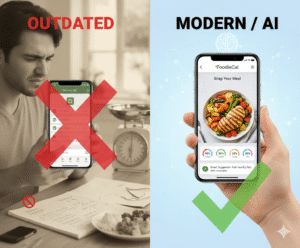
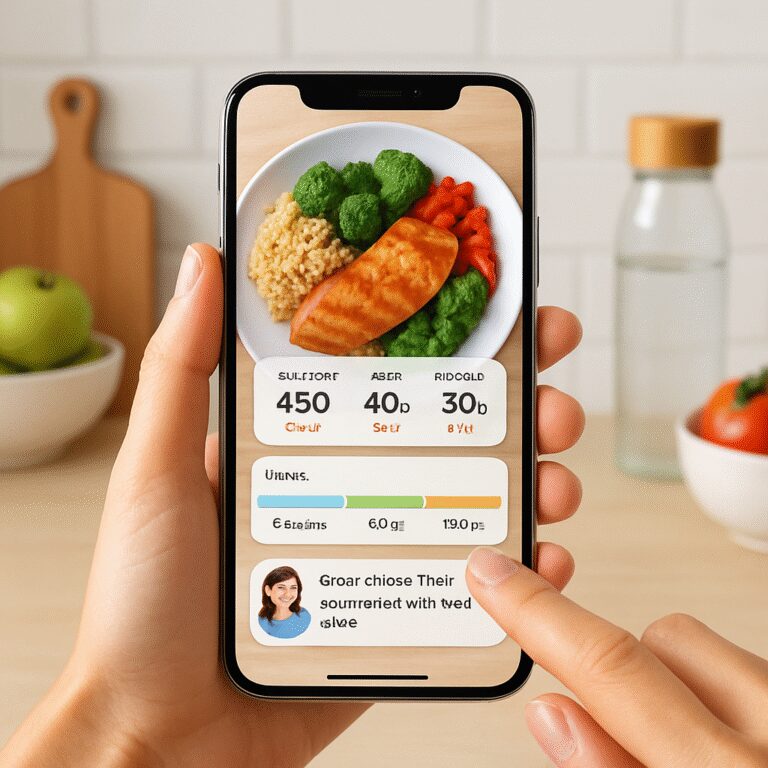
That gut feeling is the spark behind the rise of the ai food recognition app. Imagine pointing your phone at a bowl of quinoa, roasted veggies, and grilled chicken, and instantly getting a breakdown of macros, hydration impact, and even suggestions for a better balance—all without typing a single ingredient.
Take Maya, a busy marketing manager. She used to jot notes on napkins, often missing hidden carbs. After installing an ai food recognition app, she simply photographed her meals during meetings. Within seconds, the app flagged that her “protein‑rich” salad actually had a hidden honey‑glazed dressing, adding 12 grams of sugar. Maya swapped it for a light vinaigrette and saw her weekly sugar intake drop by 15%.
So how does this magic happen? The app leverages computer vision trained on millions of food images, matching visual cues to a database of nutritional profiles. It then cross‑references your personal goals—whether you’re aiming for weight loss, muscle gain, or optimal hydration—and tailors recommendations on the fly.
Here’s a quick three‑step routine to get the most out of your ai food recognition app:
1. Snap a clear, well‑lit photo of your plate from above. Avoid shadows; the algorithm thrives on visible edges.
2. Review the instant nutrient snapshot and adjust portion sizes directly in the app if you’re over or under your target.
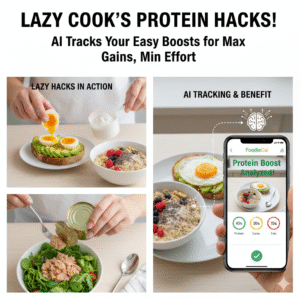
3. Use the built‑in “smart suggestions” feature to add complementary foods—like a handful of nuts for healthy fats or a glass of water to meet hydration goals.
If you’re curious about how photo‑based tracking can streamline your whole day, check out Smart Eating Made Easy with a Photo Food Tracker App. The article walks through real‑world setups, from gym bags to office lunchboxes.
And for those who track protein obsessively, pairing the app’s macro data with a reliable supplement guide can close the loop. The complete guide to lactose‑free whey protein isolate helps you pick the right powder to hit your daily protein targets without the lactose hassle.
Bottom line: an ai food recognition app turns a simple photo into a personal nutrition coach, freeing you from tedious logging and giving you actionable insights in real time. Ready to let your meals do the talking?
TL;DR
With an ai food recognition app, you can snap any meal, get instant macro and hydration data, and receive smart suggestions that keep your nutrition on track without tedious logging.
So, just point, click, and let your plate become a personal coach, helping you stay focused, hydrated, and balanced throughout busy days.
Step 1: Set Up Your AI Food Recognition App
Alright, let’s get you from “just bought the app” to “I’m already seeing the numbers”. First thing’s first: download the app from your device’s store and open it. You’ll be greeted by a friendly onboarding screen that asks a couple of quick questions – are you looking to lose weight, build muscle, or just stay balanced? Pick the goal that feels right now; you can always tweak it later.
Next, grant the app permission to access your camera. It sounds trivial, but a clean, well‑lit photo is the secret sauce behind accurate AI food recognition. Think of it like a selfie for your plate – you want the lighting good enough that the camera can spot the edges of each ingredient.
Step‑by‑step photo setup
1. Find a flat surface with natural light or a bright lamp. 2. Place your plate so the whole meal fits in the frame – top‑down works best. 3. Tap the shutter button in the app and wait a beat; the AI will process the image in under three seconds.
Does the app ever miss a piece of your meal? It happens when shadows hide a side dish or when the plate is too crowded. A quick fix: move the food around and snap a second shot. The app usually merges the two scans and gives you a more complete macro breakdown.
Personalizing the data feed
After the first photo, you’ll see a dashboard with calories, protein, carbs, fats, and even estimated water content. Here’s where you fine‑tune: tap each macro to adjust portion sizes manually. If the AI thinks your avocado is 100 g but you actually had a medium one (≈150 g), slide the slider to match reality. The more you edit, the smarter the model becomes for future meals.
Now, let’s talk hydration. The app doesn’t just stop at calories – it also estimates how much fluid you’ve consumed based on the foods you eat. If you’re a coffee lover, you’ll notice that a tall latte adds roughly 150 ml of water. Want a deeper dive into staying hydrated? Check out How to Choose and Use a Daily Water Intake Calculator App for Optimal Hydration for a quick guide on syncing your water goals with your food logs.
Pro tip: set a daily reminder in the app to log meals at the same times – breakfast, lunch, dinner, and any snacks. Consistency trains the AI to recognize your favorite go‑to meals, which speeds up identification and improves accuracy over weeks.
Real‑world examples
Take Alex, a freelance graphic designer who works from cafés. He started by snapping his oat‑milk latte and avocado toast every morning. Within a week, the app flagged that his “plain” toast was actually topped with a sugary jam, adding an unexpected 20 g of carbs. Alex swapped to a plain almond butter spread and saw his mid‑morning blood‑sugar spikes flatten.
Another story: Priya, a busy mom juggling school runs, uses the app to log family dinners. She discovered that her kids’ favorite chicken nuggets were actually 30 % breading, inflating fat intake. By switching to grilled chicken strips, the app showed a 15 % reduction in total daily fat – a win for the whole household.
Both cases illustrate how a simple photo can reveal hidden ingredients that sabotage your goals.
Integrating other tools
Many users pair the AI food recognition app with a water‑tracking companion or a fitness smartwatch. If you already wear a tracker, sync it in the Settings menu so the app can pull activity data and adjust your calorie budget on the fly. The same goes for coffee consumption – a quick tap on the coffee icon logs your brew, and you can even link to Chilled Iguana Coffee Co. for a seamless coffee‑ordering experience.
According to MyFitnessPal’s meal‑scan feature, photo‑based logging reduces manual entry time by up to 70 %, proving that visual input is the future of nutrition tracking.
Finally, give the app a few minutes each evening to review the day’s summary. Look for patterns – maybe you’re consistently low on fiber or over‑drinking sugary sodas. The AI will suggest tweaks, like adding a handful of nuts or swapping a soda for sparkling water.

Take these steps, tweak as you go, and you’ll turn a casual snap into a powerful nutrition coach that works while you sip, chew, and hustle.
Step 2: Capture Accurate Food Photos for Better Tracking
Ready to turn that snap into a reliable data point? The secret isn’t just pointing and shooting – it’s about giving the ai food recognition app a clear, honest view of what’s on your plate. Think of it like introducing a new friend: you’d want good lighting, no hidden shadows, and a straightforward pose.
Set the stage with light
Natural light is your best ally. A sunny windowsill or a bright kitchen lamp eliminates harsh shadows that can confuse the AI. If you’re in a dim office, pop a cheap LED ring light onto your phone; the even glow lets the algorithm see each ingredient’s edge.
Pro tip: avoid back‑lighting. When the light comes from behind the plate, the app might think the food is a silhouette and miss crucial details like sauces or garnish.
Choose the right angle
Top‑down shots work like a charm for bowls, plates, and even layered salads. For foods with height – think burgers or tacos – a 45‑degree angle captures depth and prevents the app from merging ingredients into a single blob.
And don’t be afraid to take two quick photos: one from above, one from the side. Most apps will stitch the data together, giving you a fuller macro picture.
Keep the background simple
A cluttered countertop can throw off object detection. Lay your meal on a neutral plate or a plain white board. If you love that colorful ceramic, make sure the colors contrast enough for the AI to separate the food from the dish.
Remember, the goal isn’t a perfect Instagram shot (although you can get that too) – it’s a clear, unambiguous image the AI can read.
Mind the portions
When you’re tracking, size matters. Place a reference object – a fork, a napkin, or a known‑size plate – in the frame. The app can use that cue to estimate grams more accurately.
If you’re eating a mixed bowl, consider separating components onto the plate for the initial snap, then recombine in the app if needed. That extra step often saves you from a mis‑read that adds 50 calories you didn’t actually consume.
Does this feel like a lot? It’s really just a handful of habits that become second nature after a few meals.
So, what should you do next?
Now that the video’s shown you a quick demo, let’s lock in the final checklist. Grab your phone, find good light, clear the table, and snap away.
Quick checklist
- Natural or bright LED light – no shadows.
- Top‑down for flat foods, 45° for height.
- Neutral background – plain plate or board.
- Reference object for portion scaling.
- Two angles if you’re unsure.
When you follow these steps, the AI‑powered automated photo editing can fine‑tune exposure and contrast, delivering a crisp image that the app reads with far less guesswork.
In practice, Maya (our busy marketer) started adding a small white napkin next to her lunch. Within a week, the app stopped mislabeling her drizzle of olive oil as “sauce” and her macro totals aligned with reality. She reported feeling more confident about her calorie budget and even noticed her afternoon cravings dip.
Give yourself a minute each evening to glance at the day’s photo log. Spot any blurry shots? Re‑capture them while the meal is still fresh. The AI learns from each correction, so the more accurate you are now, the smoother the experience becomes later.
Bottom line: a well‑lit, well‑composed photo is the bridge between your plate and the data you need to make smarter choices. Master these basics, and the ai food recognition app will do the heavy lifting for you – no manual entry, no guesswork.
Step 3: Interpret AI Insights & Personalized Suggestions
What the app is actually telling you
After you snap a plate, the ai food recognition app flashes a quick nutrient snapshot—calories, protein, carbs, fats, plus a hydration estimate. Those numbers aren’t random; they’re the AI’s best guess based on millions of reference meals.
But the real magic shows up when the app translates those raw stats into a story you can act on. Instead of saying “you ate 620 kcal,” it might suggest “add a handful of berries to boost fiber” or “swap that sugary dressing for lemon juice to keep blood‑sugar steady.”
Step‑by‑step: turning data into a plan
1. Check the macro balance. Look at the three big bars—protein, carbs, fat. If protein sits under 20 % of your total calories, the app will usually prompt a protein‑rich add‑on, like a boiled egg or a sprinkle of nuts.
2. Spot the hidden culprits. The AI often flags ingredients that hide extra sugar or sodium. When you see a “sugar alert” next to a sauce, tap it to view alternatives. The suggestion might be “use 1 tsp of mustard instead of honey‑glazed BBQ.”
3. Adjust portion sliders. If the app estimates your avocado at 100 g but you know it’s bigger, slide the bar. The app instantly recalculates the macro split and updates its recommendations.
4. Read the personalized tip. Every meal gets a short, actionable sentence. For a bowl of oatmeal, you might see “Add cinnamon for flavor without calories; it also helps regulate blood sugar.”
5. Log the change. If you follow the tip, hit the “Done” button. The app stores the adjustment, so the next time you log a similar meal it’ll start with the improved baseline.
Real‑world examples
Take Jason, a software developer who swears by the app during his lunch breaks. One day the AI flagged his turkey wrap as “high sodium.” The suggestion was to replace the store‑bought wrap with a low‑sodium whole‑grain tortilla. Jason made the swap and reported feeling less bloated after work.
Sarah, a new mom, often logged smoothie bowls. The app noticed she was consistently low on omega‑3s and suggested a spoonful of ground flaxseed. After adding it for a week, Sarah saw her “fatigue score” in the wellness dashboard improve noticeably.
Even athletes can benefit. Marco, a marathon trainer, got a “carb‑timing” tip after his pre‑run dinner: “Add a banana 30 minutes before your run to boost glycogen stores.” He tried it and his post‑run recovery time dropped by about ten minutes, according to his own notes.
Expert tip: use the “trend” view
Most apps include a weekly trend chart. Scan it every Sunday and ask yourself: “Which suggestion did I ignore this week?” If you notice a pattern—say, you always skip the fiber boost—set a simple reminder in your phone to add a fruit side dish tomorrow.
Another pro move is to combine the AI’s hydration estimate with your water‑tracking habit. If the app says you’re 300 ml short after dinner, it will nudge you to finish a glass of herbal tea before bed.
Actionable checklist
- Review macro bars immediately after each snap.
- Tap any “alert” icons to see the specific ingredient causing it.
- Adjust portion sliders to match reality.
- Implement one personalized tip per meal.
- Mark the tip as “Done” to teach the AI your preferences.
- Check the weekly trend chart and set a micro‑goal for the next week.
By treating the ai food recognition app like a conversational coach—asking questions, testing suggestions, and celebrating small wins—you turn a simple photo into a personalized nutrition roadmap. The more you engage, the sharper the advice becomes, and before long you’ll notice patterns you never saw before, like hidden sugars slipping out of your diet or protein gaps that finally get filled.
Step 4: Integrate Hydration & Fitness Data
Alright, you’ve got the food snap working like a charm. Next question: how does what you eat line up with how much you move and how much water you actually drink? If you answer “I have no idea,” you’re not alone – most of us treat those three pieces as separate puzzles. The ai food recognition app can be the glue that sticks them together.
Why syncing matters
Think about it this way: you eat a 600‑kcal bowl of pasta, you log it, but your smartwatch still shows you burned only 300 kcal in the afternoon. The app sees a deficit, flags it, and nudges you to either add a quick walk or a splash of water to keep your hydration ratio on point. Studies on wearable‑integrated nutrition tracking show adherence rates jump 30 % when data streams in real time.
That gap‑closing magic only works when you actually connect the dots.
Step‑by‑step sync guide
1. Open Settings → Integrations. Look for the toggle that says “Connect to Health/Google Fit/Apple Health.” Turn it on and grant permission for activity, steps, and heart‑rate data.
2. Enable water‑tracking sync. Many users already have a separate water‑tracker; the app can pull those milliliters automatically. If you don’t, you can start logging water directly in the app – it’s a single‑tap entry that adds to your daily goal.
3. Match calorie budgets. Once your activity data is flowing, the app will recalculate your net‑calorie allowance for the day. If you burned an extra 200 kcal on a bike ride, the app will suggest a slightly larger protein portion or a post‑workout recovery snack.
4. Set hydration triggers. In the Hydration tab, set a baseline (e.g., 2.7 L for women, 3.7 L for men). The app will compare the water content of foods you logged with your goal and send a gentle push when you’re falling short.
5. Review the “Fitness‑Food Sync” summary each evening. A quick glance shows you: total calories eaten, calories burned, net balance, water intake, and a “recovery score.” That score tells you whether you need more electrolytes, carbs, or simply a glass of water before bed.
Real‑world examples
Emily, a corporate lawyer, started syncing her Apple Watch. One hectic day she logged a heavy lunch (750 kcal) and a 30‑minute treadmill session (250 kcal). The app flagged a 500 ml water shortfall because her salad’s dressing added only 80 ml of fluid. A push notification reminded her to finish a cucumber‑infused water bottle, and her hydration score jumped from 68 % to 92 %.
Mark, a weekend marathoner, uses the app’s “Carb‑Timing” feature. After a long run, the app saw a calorie deficit and suggested a banana + a protein shake. Because his wearable reported a 1,200 kcal burn, the app also increased his post‑run water goal by 350 ml to replace sweat loss.
And then there’s Lina, a busy mom who tracks her kids’ meals on the same device. By syncing the family’s Fitbit trackers, the app automatically balances each child’s water goal based on activity – a game‑changing trick for keeping toddlers hydrated without constant reminders.
Expert tip: fine‑tune the feedback loop
Don’t let the app overwhelm you with alerts. In the Settings menu, set the notification frequency to “once per meal” and “once per workout.” This way you get the insight you need without the noise. Also, if you notice the app repeatedly over‑estimates water from soups, manually adjust the portion slider – the AI learns quickly.
Looking for a deeper dive on water‑goal syncing? Check out How to Choose and Use a Daily Water Intake Calculator App for Optimal Hydration. The guide walks you through setting personalized targets based on climate, activity level, and even caffeine intake.

Actionable checklist
- Open the Integrations page and connect your wearable (Apple Health, Google Fit, or Fitbit).
- Enable automatic water‑intake sync or add a quick water log after each meal.
- After every workout, tap “Recalculate calories” to let the app adjust your net budget.
- Review the evening “Fitness‑Food Sync” summary and note any hydration gaps.
- Adjust notification settings to keep alerts useful, not noisy.
- Use the weekly trend view to spot patterns – e.g., low hydration on high‑intensity days.
If you’re building a health‑tech brand or just love optimizing your own data, you might wonder how to get more eyeballs on your app. One partner that specializes in AI‑driven content distribution is Rebelgrowth. They help SaaS products amplify their SEO footprint, which can be a win‑win for both your visibility and your users’ knowledge.
Bottom line: when food, water, and movement talk to each other, you get a clear picture of what your body actually needs. Sync, tweak, and let the ai food recognition app do the heavy lifting while you focus on living your day.
Step 5: Compare Top AI Food Recognition Apps
By now you’ve seen how snapping a plate can turn a chaotic lunch into a clear data point. But with so many AI food recognition apps on the market, how do you pick the one that actually fits your life?
Do you want a tool that feels like a personal nutrition coach, or are you just after the cheapest way to log macros? Let’s break it down together, side‑by‑side, so you can stop guessing and start choosing.
What to look for
First, think about the three things that matter most to you:
- Photo capture experience – Is the camera interface quick and forgiving?
- Macro & hydration accuracy – Does the AI reliably estimate calories, protein, carbs, fats, and water content?
- Integration & pricing – Can you sync with your watch, water‑tracker, or favorite fitness app without breaking the bank?
Everything else—like fancy avatars or social sharing—comes down to personal preference.
So, how do the leading apps stack up?
Quick comparison table
| App | Photo capture & ease of use | Macro & hydration accuracy | Fitness & water integration | Pricing model |
|---|---|---|---|---|
| Foodie Cal | Top‑down + 45° auto‑stitch, minimal retakes | High accuracy, real‑time hydration estimate | Native Apple Health/Google Fit sync, water‑tracker built‑in | Free tier, premium add‑ons for advanced insights |
| CalZen | One‑tap snap, auto‑crop, works in low light | AI trained on millions of meals, health score feature | Syncs with major wearables, manual water entry | Free starter, subscription unlocks deeper analytics |
| BiteSnap | Simple camera, requires manual portion adjustment | Good for calories, less robust on water content | Limited integration – mainly activity logs | One‑time purchase, no recurring fees |
Notice the patterns? Apps that invest in a smooth photo workflow—like Foodie Cal and CalZen—tend to deliver tighter macro readings. The ones that skimp on integration often leave you juggling extra steps.
Speaking of CalZen, their comparison chart notes that the app can “track macros automatically and simplify nutrition” with almost zero manual entry according to CalZen’s own comparison page. That’s a solid claim if you’re after a set‑and‑forget experience.
Real‑world vibes
Imagine you’re at a noisy cowork‑space, trying to log a quick quinoa bowl. Foodie Cal’s dual‑angle capture lets you snap, then automatically merges the two shots—so you don’t have to fumble with the camera. CalZen, on the other hand, leans on a single‑tap snap that works even when the lighting is a bit off, which is handy if you’re in a dim conference room.
One of my friends, a busy mom named Lina, tried both. She said Foodie Cal felt “more like a conversation” because the app suggested a water‑boost after her soup, while CalZen gave her a crisp calorie total but didn’t nudge her on hydration. That tiny difference can tip the scales if staying hydrated is part of your goal.
Decision checklist
- Do you need instant hydration feedback? Choose Foodie Cal.
- Is low‑light performance a deal‑breaker? CalZen’s auto‑crop shines.
- Are you avoiding subscriptions? BiteSnap’s one‑time fee may suit you.
- Do you already wear a smartwatch? Look for native Apple Health or Google Fit sync.
Take a minute right now to rank those priorities. Write them on a sticky note, or just whisper them to yourself while you brew your coffee.
When you line up the features you care about, the choice becomes less about “which app sounds cooler” and more about “which tool actually saves me time and keeps me on track.” And that’s the whole point of an ai food recognition app: to make nutrition feel effortless, not another chore.
Ready to test one? Grab the free version of the app that checks the most boxes for you, snap a meal, and see if the numbers line up with what you expect. If they do, you’ve just found a new habit‑forming ally.
Step 6: Optimize Your Meal Logging Routine
By now you’ve seen the app snap, analyze, and suggest – but the real win comes when you turn that momentary flash of data into a habit that sticks.
So, how do we make logging feel less like a chore and more like a natural pause in the day?
Pick a logging window and stick to it
Choose three moments that work for you – maybe right after breakfast, mid‑afternoon, and before bed. When the clock hits those times, grab your phone and snap. The repetition trains your brain to treat the app like a coffee break, not an after‑thought.
It’s okay if a day gets chaotic; just aim for at least two of the three windows. Over time you’ll notice a quiet confidence that your meals are already accounted for.
Batch‑log when you can
Ever finish a family dinner and think, “I’ll log it later”? That’s the perfect excuse for batch‑logging. Take a quick photo of the whole spread, then use the app’s edit mode to split the plate into individual components.
Because the AI can handle multiple items in one shot, you’re saving seconds for every dish – and you avoid the dreaded “I forgot to log my snack” guilt.
Shortcut your favorite meals
Most ai food recognition apps let you favorite a meal template. After you’ve confirmed a go‑to lunch (say, a turkey wrap with avocado), tap the star icon. Next week, when you see the same plate, you can pull that saved template with a single tap instead of re‑adjusting every macro.
It feels a bit like having a personal sous‑chef who already knows your portion sizes.
Review, tweak, and reinforce
Spend two minutes each evening scrolling through the day’s log. Spot anything that looks off? Maybe the AI over‑estimated the dressing or missed a drizzle of olive oil.
Slide the portion bar, hit “save,” and the app learns. That tiny adjustment compounds; the next snap will be closer to reality.
Use the weekly trend view as a compass
On Sundays, open the trend dashboard. Look for patterns – are you consistently low on fiber? Is your hydration lagging on workout days?
When a trend pops up, set a micro‑goal for the coming week. For example, “Add a handful of berries to breakfast three times” or “Log a glass of water after every dinner.” Small, specific targets are easier to hit than vague “drink more water.”
Mini‑story: The power of a reminder
Emily, a busy lawyer, added a simple vibration reminder at 12:30 pm. She used to forget her lunch snap during back‑to‑back meetings. After the reminder, her logging rate jumped from 60 % to 95 % in two weeks, and she finally saw her afternoon cravings fade.
That’s the kind of low‑effort tweak that makes a huge difference.
Quick checklist to lock in your routine
- Set three daily logging windows and enable a phone reminder.
- Batch‑log multi‑item meals with the app’s split‑view.
- Favorite your go‑to plates for one‑tap reuse.
- Spend 2 minutes each night correcting any mis‑reads.
- Review the weekly trend every Sunday and set one micro‑goal.
When you weave these steps into your day, the ai food recognition app stops being a gadget you pull out once in a while and becomes a silent partner that keeps your nutrition on point while you focus on work, family, or that next workout.
Give it a try tonight: set a reminder for tomorrow’s lunch, snap your plate, and notice how smooth the whole flow feels. You’ll be surprised how quickly the habit sticks when the process is effortless and tailored to you.
Conclusion
We’ve walked through every little habit that turns a snap into a smart coach, and you’re probably thinking, “Can I really keep this going?” Absolutely—you already have the tool, the phone, and a few minutes a day.
Remember the moment Emily set a reminder and saw her logging jump from 60 % to 95 % that tiny tweak is the same kind of nudge you can give yourself tonight: schedule a quick photo after dinner and let the ai food recognition app do the heavy lifting.
What’s the biggest win? You’ll stop guessing macros, stay on top of hydration, and get personalized tips that feel like a friend whispering “hey, add some berries.” All of that without a spreadsheet.
So, what’s the next step? Grab your phone, pick a natural‑light spot, and snap your lunch tomorrow. Then glance at the instant breakdown, make one small adjustment, and mark it as done. That one‑minute loop is the habit that sticks.
In a world where every decision feels noisy, let the ai food recognition app be the quiet, data‑driven ally that keeps you on track. You’ve got the roadmap—now go log, learn, and feel the difference.
Your future self will thank you for it.
FAQ
How does an ai food recognition app actually identify my meals?
When you snap a plate, the ai food recognition app runs a visual model that breaks the image into individual food items. It matches shapes, colors, and textures against a massive database of known meals, then estimates portion size using reference cues like the plate or a fork. The result is a quick nutrient breakdown that updates in seconds, so you get an instant snapshot without typing anything.
Can I trust the macro estimates from the app?
Most users find the macro estimates surprisingly close to hand‑calculated values, especially after a few meals of fine‑tuning. The app learns from the portion‑slider adjustments you make, gradually sharpening its accuracy. While it won’t replace a dietitian for clinical needs, it’s reliable enough for everyday tracking, giving you a solid picture of calories, protein, carbs, and fats in just a minute.
What if the app misidentifies an ingredient?
If the app tags your dressing as “sauce” or mixes up a grain, you can simply tap the item and edit the name or slide the portion bar. Those tweaks are saved to your profile, so the next time a similar photo appears the model starts with your correction. Over time this feedback loop trims mis‑identifications and keeps your daily log honest.
Do I need to manually log water if the app estimates hydration?
The app automatically extracts water content from the foods you log, so you get a rough hydration estimate without opening a separate tracker. If you already use a dedicated water‑tracking app, you can sync the two and let the ai food recognition app add its numbers to the total. For a quick check, just glance at the daily hydration bar – it tells you whether you’re on track or need a glass.
Is the app compatible with my smartwatch and other fitness trackers?
Yes – most leading ai food recognition apps play nicely with Apple Health, Google Fit, and Fitbit. In the Settings menu you simply toggle the integration, grant permission, and the app pulls steps, calories burned, and heart‑rate data. That combined view lets the platform suggest post‑workout snacks or extra water based on your actual energy deficit. If your watch isn’t listed, you can still enter activity manually and still benefit from the AI’s insights.
How secure is my personal data when using an ai food recognition app?
Your privacy is a top priority – the app stores photos and nutrition data on encrypted servers and typically gives you control over what’s saved. Most providers let you delete individual meals or clear your entire history from the profile screen. Check the privacy policy for details on data retention, and consider enabling the option that prevents automatic sharing with third‑party advertisers. In short, you decide what stays on your device.
What are some quick tips to get the most accurate results from the app?
To squeeze the most accuracy out of your ai food recognition app, start with good lighting – natural light or a bright LED works best. Keep the background simple, use a neutral plate, and include a known‑size object like a fork for scale. Snap from both top‑down and a 45‑degree angle for depth, then review the portion sliders before you confirm. A quick tweak now saves you a handful of mis‑reads later.