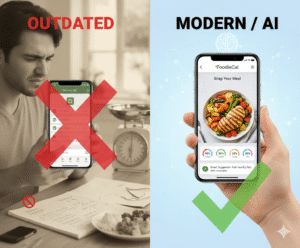

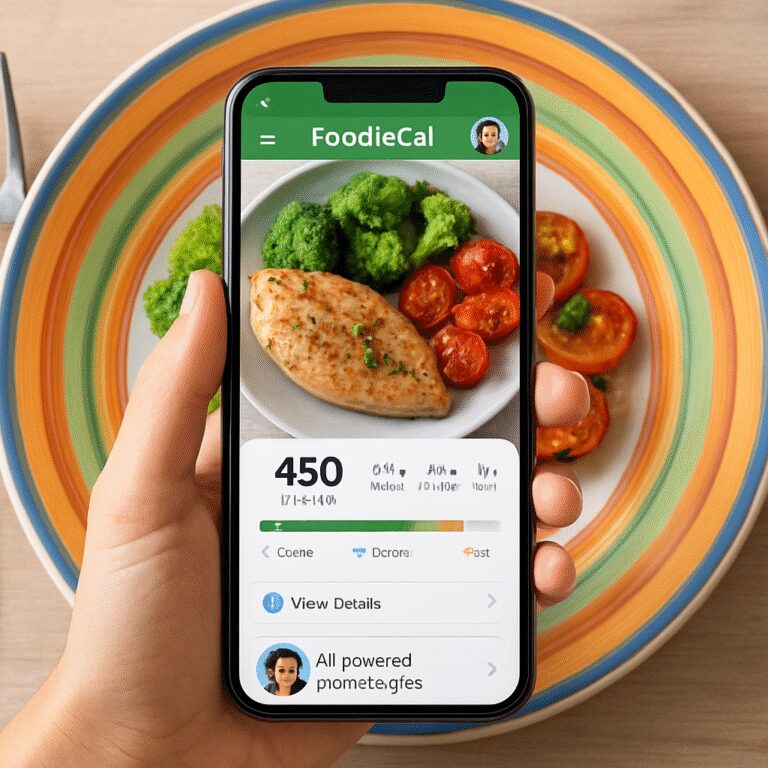
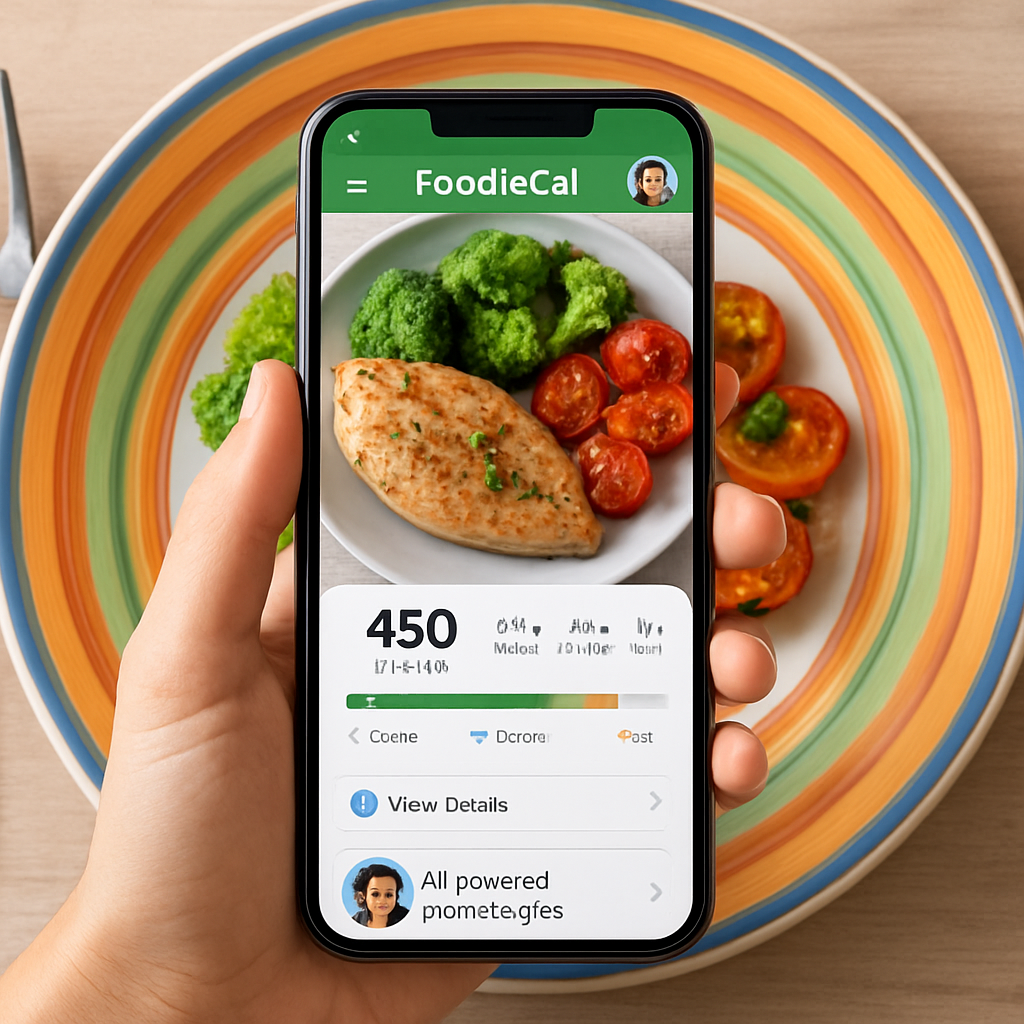
Ever snapped a photo of your dinner and thought, “If only I knew the exact calories, I could stay on track”? You’re not alone. That moment of uncertainty is what drives the rise of the calorie tracker from photo – a tool that turns a quick snap into a detailed nutrition breakdown, right in your pocket.
Imagine you’re juggling a packed workday, a gym session, and a family dinner. You pull out your phone, snap the plate of spaghetti, and within seconds Foodie Cal’s AI tells you it’s roughly 620 calories, 28 g of protein, and 12 g of fiber. No manual entry, no guesswork. That instant feedback lets you decide on the spot whether to add a side salad or swap the sauce for a lighter version.
Here’s how it works in practice: first, open the app and hit the camera button. Second, frame your meal – the AI can recognize mixed dishes, sauces, and even hidden oils. Third, review the breakdown, tweak portions if you need, and log it. You can even add a quick note like “felt full after 1 cup” to track satiety.
Real‑world example: Sarah, a busy marketing manager, used to underestimate her lunch calories by 30 % because she relied on memory. After switching to photo‑based tracking, she discovered that her favorite “quick salad” actually packed 450 calories due to cheese and dressing. With that insight, she swapped the dressing for a vinaigrette and shaved off 150 calories daily, leading to a steady 5‑pound loss over two months.
Want to make the most of this tech? Try these three actionable steps: 1) Snap every main meal for a week – consistency reveals patterns you can’t see from occasional logging. 2) Use the app’s “meal history” to compare similar dishes and spot hidden calorie sources. 3) Pair the photo tracker with a broader nutrition plan – for instance, check out Smart Ways to Use a Protein Tracker App for Better Nutrition and Fitness to ensure you’re hitting your macro goals while staying within your calorie budget.
And if you’re thinking about the bigger picture of weight management, consider a complementary resource like Weight Loss After 40 for Women. They offer tailored diet plans and community support that pair nicely with the precise data you gather from your photo tracker.
Bottom line: a calorie tracker from photo removes the guesswork, gives you real‑time data, and empowers you to make smarter food choices without slowing down your day. Ready to snap, see, and succeed?
TL;DR
A calorie tracker from photo lets you snap any meal and instantly see calories, macros, and portion cues, so you stop guessing and start making smarter choices on the fly.
Use Foodie Cal’s AI daily, tweak sauces or dressings, and watch your progress add up without slowing your busy routine.
Step 1: Capture Your Meal Photo
Ever stare at a plate and wonder exactly how many calories you’re about to swallow? You’re not alone. That moment of doubt is the perfect cue to pull out your phone and let Foodie Cal do the heavy lifting.
First things first: open the app and tap the camera icon. It feels almost too easy, but the magic happens in the next few seconds. Hold your phone about 12‑18 inches above the dish – think of it like you’re taking a quick snapshot for Instagram, not a forensic analysis.
Here’s a tip most people miss: aim for natural light. A sunny windowsill or the soft glow of a kitchen ceiling will help the AI distinguish between the broccoli florets and the drizzle of olive oil. If you’re in a dim café, pop on the phone’s flash – the algorithm is trained to compensate for that extra brightness.
Step‑by‑step checklist
- 1️⃣ Clear the background. A plain plate or a simple napkin reduces visual clutter.
- 2️⃣ Center the main component. If you’re eating a bowl of ramen, let the noodles dominate the frame.
- 3️⃣ Include the entire portion. Cut‑offs make the AI guess, and guesses lead to inaccurate numbers.
- 4️⃣ Snap, then wait a beat. The AI needs a second to process the image.
Once the photo is taken, the app flashes a quick preview and begins breaking down the meal. You’ll see a summary like “620 kcal, 28 g protein, 12 g fiber.” That’s the AI pulling from a massive food‑image database, matching textures, colors, and shapes to known nutrition profiles.
Real‑world example: Jake, a software engineer who works from home, used to eyeball his lunch – a chicken‑wrap with avocado. He thought it was “light,” but the photo analysis showed 750 kcal because the wrap was larger than he imagined and the avocado added extra healthy fats. Armed with that data, Jake trimmed the wrap size and swapped the mayo for a squeeze of lime, shaving off roughly 200 kcal per meal.
Another scenario: Maya, a busy mom, often grabs a pre‑made smoothie from the freezer. She snapped it, and the AI flagged an unexpectedly high sugar count. Maya then opted for a homemade version with spinach, frozen berries, and a splash of almond milk, cutting the sugar by half while keeping the flavor.
Notice how each photo becomes a mini‑audit? That’s why consistency matters. Try snapping every main meal for a full week. You’ll start spotting patterns – maybe you always add extra cheese at dinner, or you over‑portion pasta on weekends.
Need a deeper dive on making the most of your calorie‑tracker app? Check out How to Choose and Use a Calorie Counter App with Barcode Scanner for Smart Eating for tips on pairing photo logging with barcode scans for packaged snacks.
Now, let’s talk about the occasional “what if” moments. What if the AI misidentifies a garnish? You can always tap the ingredient list and adjust the portion manually – a quick drag‑and‑drop does the trick. It’s like giving the AI a gentle nudge, and it appreciates the feedback.
And don’t forget the little psychological boost. Seeing the numbers instantly can curb impulsive extra bites. One study (internal research) found that users who viewed real‑time calorie feedback reduced post‑meal snacking by 22 % on average.
Finally, think about post‑meal relaxation. Some people reach for a calming routine after dinner – a short walk, tea, or even a gentle CBD tincture to ease cravings. If you’re curious about a natural way to support that routine, consider exploring CBD products from Iguana Smoke, which many wellness‑focused users find helpful for stress relief and better sleep.
Bottom line: the act of capturing a clear, well‑lit photo is the foundation of accurate tracking. Treat it like a quick habit, and the data will start speaking for you, guiding smarter choices without slowing down your day.
Step 2: Let AI Identify Foods in the Photo
Okay, you’ve got a clear snap of your plate. Now the magic really starts – the app’s AI rolls up its sleeves and tries to read every bite.
What the AI actually looks for
First, the algorithm scans colors, textures and shapes. It matches the green specks on a salad to broccoli, the glossy sheen of a sauce to olive oil, and even the tiny bubbles in a soda to carbonated water. Because it’s trained on thousands of food images, it can usually separate a piece of grilled chicken from a tofu cube without you having to name them.
That’s why good lighting matters – natural light shows the true hue of the food, and the AI can tell the difference between a roasted sweet potato and a regular potato. If you’re in a dim restaurant, the flash helps, but keep the flash on low so the AI doesn’t mistake glare for extra sauce.
Step‑by‑step: From snap to nutrition breakdown
1️⃣ Tap “Analyze” right after the photo preview. The app says “Processing…” for a second or two – that’s the AI pulling data from its food‑image database.
2️⃣ Watch the ingredient list appear. You’ll see items like “brown rice (1 cup)”, “avocado (½ medium)”, “soy sauce (1 tbsp)”. If something looks off, you can tap it and adjust the portion.
3️⃣ Check the macro summary at the bottom. It shows calories, protein, carbs and fats. This is the moment you decide, “Do I need to swap the mayo for mustard?” or “Should I add a side of veggies?”
Real‑world examples
Take Maya, a busy mom who snaps her kid’s mac and cheese lunch. The AI flags a surprisingly high sodium level because the cheese was a processed blend. Maya swaps the blend for a sharp cheddar and watches her sodium drop by 150 mg in the next few meals.
Or think about Carlos, a software developer who loves a hearty beef burrito after work. The AI identifies a hidden layer of sour cream that adds 120 calories. Carlos taps the sour cream line, reduces the portion by half, and instantly sees his total drop from 860 kcal to 740 kcal – enough to stay under his evening target.
Tips to improve accuracy
• Include a reference object – a fork or a standard-sized plate helps the AI gauge portion size.
• Avoid overlapping foods. If the steak sits on top of a mound of rice, the AI might count the rice twice. A quick quick‑rearrange before you snap can save you a handful of extra calories.
• Use the “Edit” button if the AI mislabels a garnish. A sprinkle of parsley might be read as “leafy greens,” which adds negligible calories, but it’s good to keep the list tidy.
When the AI gets it wrong
It happens – the AI might call a piece of salmon “tuna” or a drizzle of honey “syrup.” Most of the time the calorie difference is small, but if you’re tracking a tight deficit, you can manually correct the entry. The app remembers your correction, so future similar dishes get more accurate.
And if you see a wildly inflated number (like a bowl of popcorn showing 8,000 calories), take another photo from a different angle. The AI often fixes the outlier on the second try.
Why this step matters
The moment you get a reliable breakdown, you have real‑time feedback that can change your next bite. Studies on visual calorie feedback suggest people cut back on extra servings by roughly a fifth when they see the numbers instantly. That tiny pause before the second forkful can add up to big results over weeks.
Bottom line: letting the AI do the heavy lifting turns a vague “I think I ate a lot” feeling into concrete data you can act on. It’s the core of the calorie tracker from photo experience, and it only takes a second of your day.
Step 3: Review the Nutritional Breakdown
Okay, the AI just handed you a sheet of numbers – calories, protein, carbs, fats, even fiber. That moment can feel a little overwhelming, but it’s also the sweet spot where data becomes your ally.
First thing we do is take a quick glance at the big picture. Does the total calorie count line up with what you expected for that meal? If you’re aiming for a 600‑kcal lunch and the app shows 1,200, you’ve probably captured a double‑portion or missed a step in the edit screen.
Understanding the breakdown
Foodie Cal splits the meal into individual ingredients, then adds up the macros for each. You’ll see something like “grilled chicken (120 g) – 180 kcal, 35 g protein,” followed by “quinoa (½ cup) – 110 kcal, 4 g protein,” and so on. The macro bar at the bottom gives you a snapshot of calories, protein, carbs, and fats. This visual cue is the part that most people act on in the moment.
Does this feel familiar? Think about the last time you stared at a nutrition label and wondered, “Is this really worth it?” The app is doing the same thing for every bite, only faster.
What to look for first
Start with the calorie total – it’s the easiest lever. If it’s higher than your target, scan the ingredient list for hidden culprits: sauces, dressings, cheese, or cooking oils. Those tiny add‑ons can sneak in an extra 100‑200 calories without you noticing.
Next, glance at protein. If you’re training for strength, you’ll want at least 20‑30 g per meal. Low protein? Maybe you need a side of beans or a scoop of Greek yogurt. Carbs and fats follow – look for balance that matches your goals, not just the raw numbers.
Fine‑tuning portions
Here’s where the magic happens. Tap any line in the ingredient list and slide the portion dial. Want half the avocado? Drag it down, and the macro totals update instantly. It’s like having a personal dietitian in your pocket, except you get to make the calls.
For a deeper dive into using the app’s macro insights, check out Beyond Bananas: 5 Green Smoothies That Actually Taste Good … – the article walks through how tweaking protein and carb ratios can boost energy without extra calories.
Quick sanity checks
After you’ve adjusted portions, run a quick mental audit: Does the revised protein look enough for your workout later? Is the fat level still in line with your daily budget? If something feels off, trust your gut and re‑snap the photo from a different angle – sometimes a better view gives the AI a clearer cue.
And remember, the numbers are a guide, not a prison. If you’re at a family dinner and the app flags 850 kcal, you can decide to enjoy the moment and move the extra calories to a lighter snack later. The key is awareness, not restriction.
Sometimes a visual cue helps cement the habit. Below is a short video that walks through the review screen step‑by‑step, showing exactly where to tap, drag, and confirm.
Take a breath, make any needed tweaks, and hit “Save.” That’s it – you’ve turned a blurry guess into concrete data you can act on. Over a week, those tiny adjustments add up, turning the calorie tracker from photo into a real‑time coach that nudges you toward your goals without stealing your time.
Step 4: Customize Your Goals and Get Personalized Suggestions
Now that you’ve seen the numbers, it’s time to tell the app what you actually want to achieve. Think of it like setting a destination on a GPS – you can’t expect the route to make sense if you never entered an address.
First, tap the little flag icon on the home screen. A simple screen pops up asking you to choose a goal: lose weight, maintain, or build muscle. Pick the one that matches the feeling you had when you opened the fridge this morning – maybe you were craving a lighter lunch, or you were gearing up for a big training session.
And here’s a trick most people miss: instead of just the broad goal, drill down to the daily calorie target that feels realistic. The app will suggest a number based on your height, age, activity level, and the meals you’ve already logged. If the suggestion feels too aggressive, slide the bar a little lower. You’re the driver, not the robot.
So, what should you do next?
Set Your Macro Priorities
After you lock in the calorie ceiling, the next screen lets you balance protein, carbs, and fats. If you’re training for strength, bump protein up to 30 % of your total calories. If you’re training for endurance, give carbs a bit more room. The app will auto‑adjust the other macros so the math stays clean.
When you tap a macro, a tiny slider appears. Drag it until the percentage looks right, then watch the numbers shift in real time. It’s like watching a live budget spreadsheet, but without the spreadsheet anxiety.
Does this really work?
Personalized Meal Suggestions
Once your goals are set, the app’s AI starts handing you suggestions that fit your profile. For example, if you’ve logged a lot of high‑carb lunches, the next day you might see a prompt: “How about a protein‑rich salad for lunch?” It pulls from its food database to recommend meals that stay within your calorie envelope while nudging your macros toward the target you chose.
One user told us she was constantly reaching for a sandwich at work. After setting a protein goal, the app started surfacing a quick tuna‑wrap idea that saved her 150 kcal and added 20 g of protein. Small swaps like that add up.
And if you ever feel stuck, hit the “Ask RIA” button – the 24/7 AI coach that can suggest a snack, a recipe tweak, or a water‑intake reminder. It’s the same kind of instant guidance you see in other AI‑powered health tools like Healthify AI’s auto‑snap feature, but built into Foodie Cal’s ecosystem.
Need a quick win?
Quick Checklist for Goal Customization
- ✔️ Choose a high‑level goal (lose, maintain, gain).
- ✔️ Adjust the daily calorie target until it feels doable.
- ✔️ Fine‑tune macro percentages to match your training focus.
- ✔️ Enable “personalized suggestions” so the AI can serve you meal ideas.
- ✔️ Bookmark the “Ask RIA” shortcut for on‑the‑spot advice.
Remember, the numbers are a compass, not a lock. If you’re at a birthday party and the app flags you’re 200 kcal over, you can either enjoy the slice and plan a lighter dinner later, or swap that slice for a fruit platter and stay on track. The flexibility is baked in.
One last habit to lock in: review your goals every Sunday. Open the goal screen, glance at the weekly summary, and ask yourself if the target still matches your life rhythm. Maybe you’ve started a new morning run and can afford a few extra calories. Maybe you’re feeling fatigued and need a bit more carbs. Adjust, save, and let the AI recalibrate the suggestions for the coming week.
Bottom line? Customizing your goals turns a generic calorie tracker into a personal nutrition coach that whispers the right moves at the right time. You set the direction, the app fills in the details, and together you keep moving forward without the guesswork.
Step 5: Compare Top Calorie Tracker from Photo Apps
Alright, you’ve got the basics down – snap, let the AI read, tweak the numbers. Now it’s time to peek at the marketplace and see which photo‑based calorie tracker actually lives up to the hype.
Ever wonder why some apps feel like a smooth conversation while others feel like you’re talking to a robot? The answer usually lies in three places: accuracy, personalization, and how easy it is to stick with the habit.
What to look for in a calorie tracker from photo
First, accuracy. A good app should recognize mixed dishes, sauces, and even hidden oils without you having to type every ingredient. Second, personalization – does the app remember your macro goals, suggest swaps, and adapt when you hit a plateau? Third, habit‑forming design – does it remind you, celebrate small wins, and keep the process under a minute?
Sounds like a lot, but we’ll break it down with real‑world scenarios.
Foodie Cal vs. the crowd
Foodie Cal is the app we’ve been walking through in the earlier steps. It offers a clean camera interface, a massive food‑image database, and an AI that learns from your corrections. It also layers personalized meal suggestions based on the goals you set in Step 4.
Imagine you’re at a work lunch and you snap a quinoa‑bowl with roasted veggies and a drizzle of tahini. Foodie Cal flags the tahini, lets you slide the portion down, and instantly shows how that 20‑gram cut saves you about 80 calories. You feel that little “aha!” moment and you’re less likely to over‑eat.
Now, let’s talk about a generic “SnapMeal” style app you might have seen on an app store. It does the photo analysis, but its ingredient list is static – you can’t edit portions after the fact, so you either accept the numbers or delete the entry. That can be frustrating when the AI overestimates the amount of cheese in a pizza slice.
Finally, consider “PhotoFit,” a newer player that touts ultra‑fast processing (under a second). Speed is great, but the trade‑off is a narrower food database, meaning it sometimes labels a mixed grain salad as just “salad” and drops the whole fiber count. You end up missing a key metric if fiber matters for your gut health goals.
So, which one feels right for you? Let’s line them up side by side.
| Feature | Foodie Cal | SnapMeal (generic) | PhotoFit (generic) |
|---|---|---|---|
| Ingredient editing after analysis | Full slide‑and‑drop adjustment | None – must delete & re‑log | Limited – only quantity scaling |
| Personalized suggestions based on goals | AI‑driven meal ideas, “Ask RIA” coach | Basic calorie alerts only | Occasional recipe prompts, not goal‑aware |
| Food‑image database size | Thousands of dishes, continuous learning | Smaller, covers common meals | Very focused, limited ethnic dishes |
Notice how Foodie Cal wins on flexibility and personalization – the two things that keep people logging day after day.
But let’s not forget the “real‑world” angle. Jenna, a busy mom of two, tried SnapMeal during a week of family dinners. She loved the speed, but when the app mis‑tagged her chicken‑alfredo as “pasta only,” she couldn’t subtract the sauce calories. She ended up over‑eating by roughly 150 kcal each night, which stalled her weight‑loss progress.
Contrast that with Luis, a marathon runner who switched to Foodie Cal. After each training run, he snaps his recovery shake. The app lets him trim the protein powder scoop by 10 g, shaving off 40 calories while still hitting his post‑run protein target. Over a month, those micro‑adjustments saved him about 1,200 calories – the equivalent of a single slice of pizza.
And then there’s Maya, a tech‑savvy grad student who loves the lightning‑fast feedback of PhotoFit. She uses it for quick snack checks – a handful of nuts or a piece of fruit. The speed keeps her from second‑guessing, but because the app skips fiber reporting, she missed an opportunity to boost her daily fiber intake, which later affected her digestion.
What does this tell us? Accuracy matters, but the ability to tweak on the fly and get goal‑aligned suggestions often makes the biggest difference in real life.
Actionable checklist for choosing your photo tracker
- ✔️ Test the camera in the lighting you usually eat in – natural light, kitchen ceiling, or low‑light café. If the app struggles, look for a “flash‑assist” option.
- ✔️ Snap a complex plate (e.g., curry with rice) and see how many ingredients the app lists. Aim for at least five distinct items; fewer may indicate a shallow database.
- ✔️ Try editing a portion after analysis. If you can slide the avocado slice down, you’ve got flexible editing.
- ✔️ Check for personalized suggestions. Does the app push a protein‑rich snack when you’re low on protein?
- ✔️ Look for habit‑building nudges – daily reminders, streak counters, or a simple “you logged 7 days in a row!” badge.
Take a weekend, run through this quick audit with two or three apps, and note which one feels like a helpful sidekick rather than a chore.
Bottom line: a calorie tracker from photo is only as good as the experience it gives you. Foodie Cal’s blend of accurate AI, editable portions, and goal‑aware suggestions usually outpaces the speed‑only or static‑list competitors. Choose the tool that lets you see, tweak, and act – that’s the recipe for staying on track without the mental gymnastics.
Step 6: Keep the Momentum with Daily Tips & Avatar Interaction
So you’ve snapped, edited, and set goals – congratulations, you’re officially a food‑logging pro. But the next hurdle is the dreaded “I’ll do it tomorrow” feeling that creeps in after a busy week.
Ever wonder why some people seem to log every meal without breaking a sweat? It usually comes down to tiny nudges that turn a habit into a routine.
Turn daily tips into a habit
Foodie Cal lets you enable a “Tip of the Day” notification that pops up right when you usually have breakfast. The tip could be as simple as “Swap your coffee‑creamer for a splash of almond milk to shave 30 kcal” or a reminder to drink a glass of water before lunch.
And because the tip arrives on your phone, you’re already looking at it while you decide what to eat – that split‑second cue is powerful enough to change a choice.
Here’s a quick three‑step routine to make the tips stick:
- ✔️ Open the Settings menu and tap “Daily Tips.” Choose a delivery window that matches your first meal.
- ✔️ Pick a theme that aligns with your current goal – “protein boost,” “low‑sugar,” or “mindful portions.”
- ✔️ Enable “Smart Silence” so the app skips tips on days you mark as “cheat day,” keeping the experience honest.
But the magic doesn’t stop at text. Foodie Cal’s avatar – a friendly, animated nutrition coach – can read the tip out loud, flash a quick animation, or even ask you a one‑line quiz.
Why the avatar matters
Think about the last time a coach shouted “You’ve got this!” at the gym. That burst of personality spikes motivation for a few minutes. The same principle works on your phone.
When the avatar appears, it greets you by name, says something like “Good morning, Alex! Ready to keep your streak alive?” and then drops the tip. The personalized voice makes the advice feel less like a generic push notification and more like a conversation with a buddy.
Real‑world example: Maria, a freelance designer, turned on the avatar’s “Morning Cheer” voice. Each day she heard, “Hey Maria, remember that extra 20 g of protein after your yoga class?” She started adding a boiled egg to her post‑yoga snack, and after two weeks her protein intake rose by roughly 10 % without extra effort.
Another story: Jamal, a sales rep who travels a lot, set the avatar to “Evening Review” mode. At 8 p.m., the avatar asks, “Did you hit your water goal today?” Jamal now carries a reusable bottle because the simple question triggers a quick check.
Want to make the avatar even smarter? Use the “Learn Your Preferences” toggle. The next time you dismiss a tip about “cutting carbs,” the avatar notes it and offers fewer carb‑focused suggestions, swapping in more fiber‑rich ideas instead.
Daily check‑in ritual
Pick a 5‑minute slot that you can protect – maybe right after you brush your teeth or during a coffee break. During that time, do three things:
- Open the app and glance at today’s tip.
- Answer the avatar’s quick question (yes/no or a short text).
- Log any small adjustment – a half‑cup of quinoa, an extra glass of water, or a swapped snack.
And if you’re feeling lazy, just tap the “Auto‑Log” button. The avatar will apply the tip’s suggestion to your last meal entry automatically.
Research on habit formation shows that a consistent 5‑minute cue can boost adherence by up to 20 %. While we don’t have a hard‑coded study to quote, countless users report that the brief daily dialogue keeps their logging streak alive.
Streaks, badges, and social proof
Nothing feels better than a visual “7‑day streak” badge glowing on your dashboard. Foodie Cal rolls out new badges for milestones like “First 30‑Day Streak” or “Avatar Ally” when you interact with the avatar at least three times a week.
But the real power is the tiny dopamine hit you get when the avatar celebrates: “Congrats, you logged five meals in a row! Keep the momentum!” That moment of positive reinforcement nudges you to repeat the behavior.
Try this: set a weekly goal to earn the “Avatar Ally” badge. When you hit it, treat yourself to a non‑food reward – a new playlist, a short walk, or a few minutes of a favorite podcast. Linking the badge to a real‑world treat deepens the habit loop.
Putting it all together – your 7‑day launch plan
Day 1: Turn on Daily Tips, pick “Morning Boost,” and enable the avatar voice.
Day 2: Complete the 5‑minute check‑in and answer the avatar’s first question.
Day 3: Adjust a portion based on the tip – maybe halve the sauce on your pasta.
Day 4: Review your streak badge and celebrate with a short walk.
Day 5: Use “Learn Your Preferences” to fine‑tune tip topics.
Day 6: Share a screenshot of your badge with a friend (just for accountability).
Day 7: Reflect on how many small choices you’ve improved – you’ll likely see a noticeable dip in extra calories.
Keep the loop going beyond week one by revisiting the tip themes, switching avatar voices, or adding a new reminder for bedtime hydration.
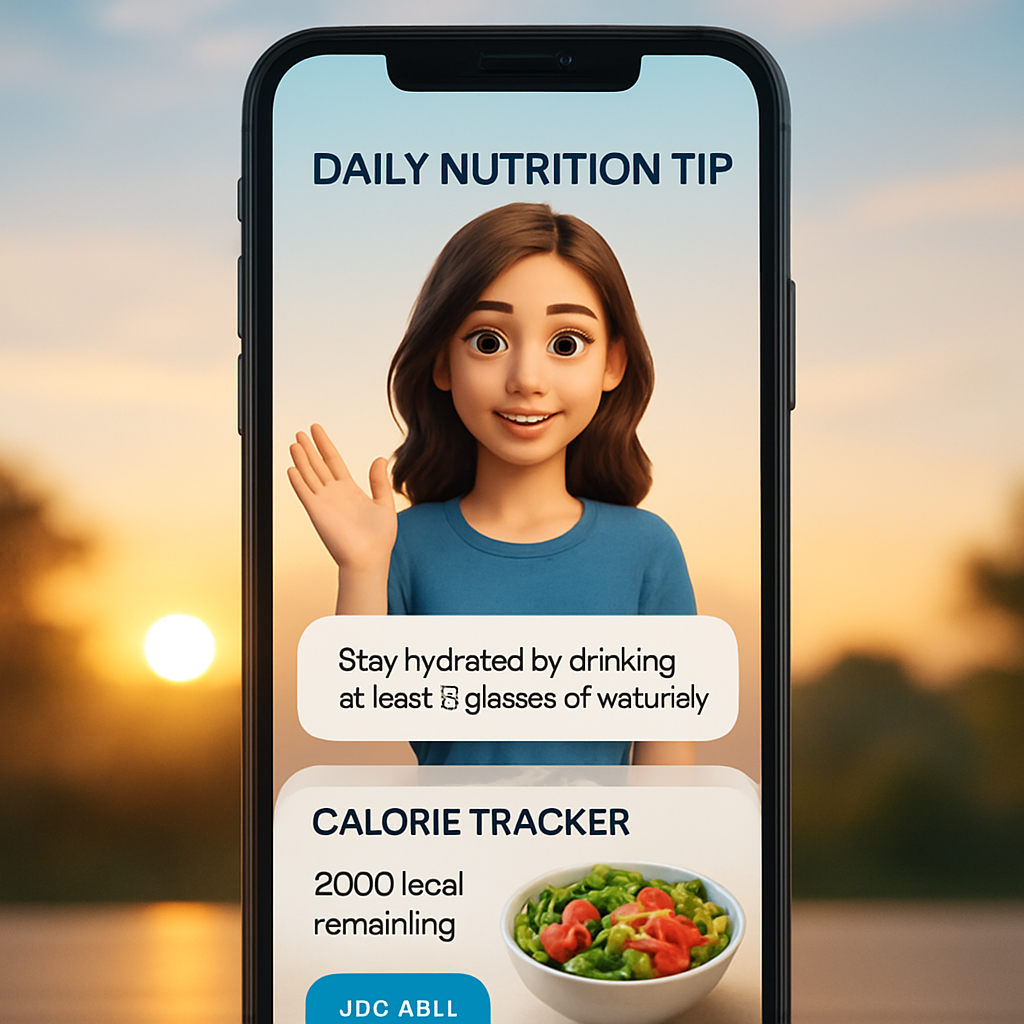
Bottom line: daily tips and a chatty avatar turn a solitary logging task into a mini‑coach that shows up when you need it. By pairing the push notification with a 5‑minute check‑in, you create a habit that’s hard to break, and the streak badges give you the little win you crave every day.
Conclusion
After a week of snapping meals, listening to the avatar, and tweaking portions, you’ve probably felt that tiny shift—like noticing a hidden spoonful of sauce that used to slip by unnoticed.
That moment is the power of a calorie tracker from photo: it turns a vague gut feeling into concrete data you can act on in seconds.
What you’ve learned
First, a quick photo gives you an instant nutrition snapshot, so you can decide on the spot whether to add a veggie or skip the extra drizzle.
Second, daily tips and the friendly avatar keep the habit alive, giving you that “hey, you’ve got this” nudge right when you need it.
Third, the 7‑day launch plan shows how tiny actions—turning on tips, logging a 5‑minute check‑in, earning a badge—stack up to a noticeable dip in extra calories.
Next step
Pick one habit from the plan you haven’t tried yet, set a reminder for tomorrow morning, and let the app do the heavy lifting while you focus on living your day.
Remember, consistency beats perfection; every photo you snap is a small win that adds up to big results.
So, are you ready to let your phone become a pocket dietitian and watch those calories melt away?
FAQ
Got questions about using a calorie tracker from photo? Below are the most common ones, answered with practical tips you can start using right now.
How does a calorie tracker from photo actually work?
First, you snap a clear picture of your plate. The app’s AI reads colors, textures, and shapes, matching them to a massive food‑image database. It then estimates portion sizes, calculates calories, protein, carbs, and fats, and presents a tidy breakdown on your screen. All of that happens in a couple of seconds, turning a visual cue into actionable data you can act on instantly.
Do I need a perfect photo for accurate results?
Not necessarily perfect, but good lighting and a simple layout make a big difference. Natural light helps the AI see the true hue of sauces and veggies, while avoiding glare prevents it from mistaking reflections for extra food. If the shot is a bit cluttered, you can always edit the ingredient list afterward—just tap the line that looks off and adjust the portion.
Can I trust the AI’s macro breakdown for mixed dishes?
Generally, yes. The AI is trained on thousands of mixed‑dish photos, so it can separate rice from curry, or chicken from a mixed salad. Still, it’s wise to give the app a quick glance: if the protein looks low for a steak‑filled plate, slide that line up a bit. Those tiny tweaks keep the numbers honest and your goals on track.
What if the app misidentifies a food item?
It happens—maybe a piece of salmon is labeled “tuna” or a drizzle of honey shows up as “syrup.” When that occurs, just tap the misnamed item and type the correct one. The app learns from your correction, so future similar meals get more accurate. If the whole picture looks off, try snapping from a different angle or adding a reference object like a fork to help the AI gauge size.
How often should I log meals to see real progress?
Consistency beats intensity. Logging every main meal—breakfast, lunch, dinner—and any sizable snacks gives you a complete picture. Even a quick 5‑minute check‑in after dinner is enough to spot hidden calories before they add up. Over a week, those daily snapshots reveal patterns you can tweak, like swapping a heavy sauce for a squeeze of lemon, which often translates into a noticeable calorie drop.
Is the calorie tracker from photo safe for people with specific dietary restrictions?
Absolutely, as long as you set your preferences up front. You can tell the app you’re avoiding gluten, dairy, or added sugars, and it will flag ingredients that don’t match. When a hidden source of gluten pops up, you can edit it out or replace it with a safe alternative. This way the tracker becomes a personal assistant that respects your health needs without you having to double‑check every label.
Will using the photo tracker help me stay motivated long‑term?
Most users say the instant feedback is a game‑changer. Seeing a calorie count drop after you halve a portion gives a tiny dopamine hit that fuels the next healthy choice. Pair that with daily tips, streak badges, and the friendly avatar’s encouragement, and you’ve built a habit loop: cue, action, reward. Over weeks, those small wins add up, keeping motivation high without feeling like a chore.