Ever caught yourself wondering why a delicious avocado toast leaves you bloated while a plain piece of toast doesn’t?
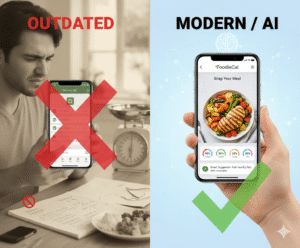
That uneasy feeling is often a sign of hidden food sensitivities, and tracking them can feel like hunting for a needle in a haystack. But what if you could snap a photo of your meal, let AI do the heavy lifting, and instantly see which ingredients might be the culprits?
Enter the food sensitivity tracker app—a tool that blends photo‑based meal logging with symptom journaling. Imagine you’re at a business lunch, you take a quick pic of the salad, and the app flags potential triggers like nuts or dairy based on your past entries. Within seconds you get a personalized alert, saving you from guessing and costly trial‑and‑error.
Here’s how you can get started in three simple steps:
- Log every meal with a snap; the AI recognises ingredients and adds them to your diary.
- Record any symptoms—bloating, headaches, skin flare‑ups—right after you eat.
- Review the weekly sensitivity report that highlights patterns and suggests alternatives.
Real‑world example: Sarah, a busy marketing manager, used a photo food tracker to discover that her chronic afternoon fatigue was linked to hidden gluten in processed sauces. After a month of tracking, the app’s insights helped her swap those sauces for gluten‑free versions, and her energy levels shot up.
Another case: Mike, a dad of two, noticed his son’s eczema flared after school snacks. By logging snack photos and symptoms, the app pinpointed a reaction to artificial food coloring, leading them to choose natural fruit snacks instead.
If you’re curious about how a photo‑first approach can simplify overall nutrition, check out Smart Eating Made Easy with a Photo Food Tracker App for a deeper dive.
And for those looking to complement tracking with holistic options, exploring natural remedies can offer additional relief for mild reactions.
So, does a food sensitivity tracker app sound like the missing piece in your wellness puzzle? Let’s dive in and see how turning every bite into data can finally give you the confidence to eat without fear.
TL;DR
A food sensitivity tracker app turns every meal snap into instant insight, helping you spot hidden triggers, log symptoms, and reclaim confident eating.
By reviewing weekly AI‑generated reports you can quickly adjust recipes, avoid flare‑ups, and stay energized without endless guesswork and enjoy meals with peace of mind every day.
Step 1: Set Up Your Profile and Sensitivity Preferences
Alright, imagine you’ve just downloaded the Foodie Cal app and you’re staring at that welcome screen. First thing you notice? A friendly prompt asking you to create a profile. It feels a bit like setting up a new social media account, but instead of choosing a cute avatar, you’re telling the app about your body.
Start with the basics: your name, age, weight, and activity level. Don’t sweat the details—if you’re not sure about exact numbers, a rough estimate works fine. The app uses this info to calibrate its AI, so the more honest you are, the sharper the insights become.
Create Your Food Sensitivity Profile
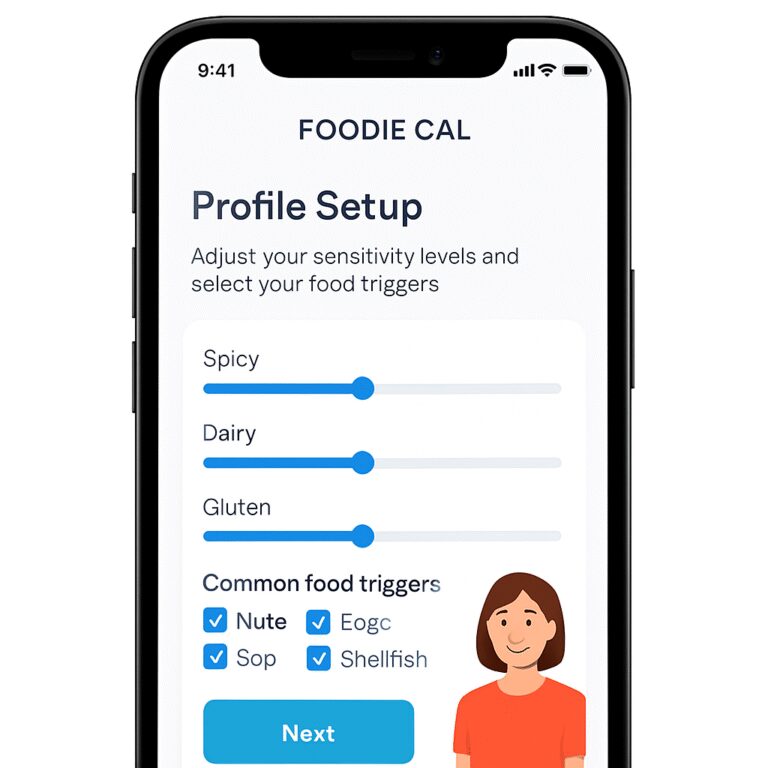
Next, you’ll see a list of common triggers—gluten, dairy, nuts, soy, and a handful of others. Tick the ones you already suspect, and leave the rest unchecked for now. The beauty is you can add custom ingredients later, like a specific spice blend you love.
Here’s a tip: think back to the last time you felt bloated after a meal. Was there a cheese sauce? Maybe a hidden wheat flour? Jot those down in the “Known Triggers” box. This little act of reflection can save you weeks of guesswork.
Set Sensitivity Preferences
Now the app asks how sensitive you are to each trigger. Do you react to a tiny dab of peanut butter, or only after a full sandwich? Slide the scale from “Mild” to “Severe” for each ingredient. If you’re not sure, start at the middle; you can always fine‑tune later as the AI learns from your symptom logs.
And don’t forget the optional “Symptom Types” list—headache, skin flare‑up, fatigue, digestive upset. Selecting the ones you experience helps the app match foods to symptoms more accurately.
Once you’ve filled those fields, hit “Save.” The app will instantly generate a personalized dashboard that highlights which ingredients to watch and suggests a daily reminder schedule.
So, what’s the next move? Let’s get your camera ready for the first snap.
Tip: Sync with Your Routine
Open your phone’s settings and enable push notifications for Foodie Cal. Choose a gentle reminder—maybe a quick ping before lunch and another after dinner. This way, you won’t forget to log that late‑night snack that could be the culprit behind tomorrow’s brain fog.
Need a deeper dive on how photo logging transforms your meals? Check out the guide Smart Eating Made Easy with a Photo Food Tracker App for a step‑by‑step walkthrough.
While you’re fine‑tuning your profile, you might wonder about soothing the occasional flare‑up. Some users find relief with natural options—think herbal teas, digestive enzymes, or even a calming chamomile brew. If you’re curious about broader alternatives, explore natural remedies that complement tracking.
Watch the short video above for a visual tour of the profile setup. It walks you through each screen, so you can follow along on your own device without missing a beat.
After you’ve nailed the basics, you’ll want to keep an eye on any supplementary aids you might be using. For some, a dab of CBD oil can calm gut inflammation and make the tracking data clearer. Curious about reputable sources? Look into CBD products that are third‑party tested and fit within a holistic wellness routine.
Finally, give yourself a quick sanity check: Does everything look right? Are you comfortable with the sensitivity sliders? If something feels off, remember you can always revisit this screen. The app is designed to evolve with you, not the other way around.
With your profile polished and preferences set, you’re ready to start snapping meals and watching the AI connect the dots. The next section will walk you through logging your first photo, so stay tuned.

Step 2: Log Meals Using Photo‑Based Tracking
Okay, you’ve set your sensitivities, picked an avatar, and you’re ready to eat. The next move is the easiest part – just point, snap, and let the app do the rest.
Snap the plate
Grab your phone the moment your food arrives. A quick photo from directly above works best – think of it like a flat‑lay you’d share on Instagram, but without the filters.
Don’t worry if the lighting isn’t perfect; the AI is trained to handle a bit of glare and shadow. And if it mislabels a piece of steak as sausage, you can tap “Edit” to correct it – the app learns from those tweaks.
Pro tip: include the entire plate, any side dishes, and the drink. That way the AI can spot hidden triggers like a splash of soy sauce or a sprinkle of nuts.
Fine‑tune the AI recognition
After the snap, the app shows a list of identified ingredients. Review it in a couple of seconds and confirm or adjust. This step is where you teach the system your personal “look‑alike” foods – maybe your homemade pesto looks like basil‑only pesto, but it has pine nuts you’re sensitive to.
Because you’ve already set sensitivity thresholds, the app will automatically flag anything that crosses your personal limit. For example, if you tolerate a thin slice of cheese but not a whole wedge, the app will highlight that portion.
Here’s a real‑world example: Jenna, a freelance graphic designer, snapped a quinoa bowl with avocado, roasted chickpeas, and feta. The AI caught the feta, and because she’d set a low‑tolerance for dairy, the app nudged her to swap it for a plant‑based cheese. Within a week she noticed her afternoon bloating vanished.
Add symptom context
Right after you confirm the meal, a tiny prompt asks, “How do you feel?” You can pick from common symptoms or type a note. It’s a single‑tap answer – no essay required.
Let’s say you logged a spicy taco dinner and selected “heartburn.” The app links that symptom to the taco’s ingredients and starts building a pattern. Over time you’ll see that certain chilies consistently trigger discomfort.
Another example: Tom, a busy dad, recorded a quick pizza slice with a side of soda. He noted a mild headache. After a few days the app highlighted the soda’s artificial sweetener as a possible culprit, prompting Tom to switch to sparkling water.
Review and adjust
All your snaps pile up in a visual diary. You can scroll through a day’s photos to see at a glance what you ate, what you felt, and what the AI flagged.
Every Sunday the app generates a concise report – “Your top three triggers this week were gluten, dairy, and added sugars.” That insight tells you exactly where to make a swap.
And if you’re curious about the science behind photo‑based tracking, check out the Food Diary app’s description of how visual logging boosts awareness and helps change habits.according to the Food Diary app.
So, what’s the next step?
Open the camera, snap that plate, confirm the ingredients, note any symptoms, and let the data speak for you. It’s a tiny habit that builds a massive picture of how your body reacts to food.
Give it a try tonight at dinner. You’ll be amazed how quickly patterns emerge when you pair a photo with a feeling.
Step 3: Review AI‑Powered Insights and Personalized Suggestions
Now that you’ve snapped a handful of meals and logged how you felt, the app starts whispering back to you. Those whispers are the AI‑powered insights – the data‑driven clues that turn a chaotic photo diary into a clear roadmap.
First thing you’ll see is the daily snapshot: a tidy card that flags any ingredient that crossed your personal tolerance line. Maybe the AI highlighted a splash of soy sauce in your stir‑fry, or a hidden nut butter in a smoothie. It’s not yelling, it’s just nudging you to notice the pattern.
So, what should you do when a card lights up?
Step‑by‑step: Decode the Insight
1. Open the insight panel from the home screen. You’ll get a list of “Triggered Ingredients” with a colour‑coded severity bar. Green means a mild nudge, amber signals a moderate reaction, and red means you’ve likely crossed a threshold.
2. Tap an ingredient to see the “Why?” overlay. The app pulls from your symptom log, your sensitivity settings, and a tiny knowledge base that explains common reactions – like why lactose can cause bloating within two hours.
3. Review the suggested swap. For each trigger, the AI proposes an alternative that matches the macro profile you’ve set. Think “swap dairy cheese for almond‑based cheese” or “replace white rice with quinoa to cut down on added sugars.”
4. Add the swap to your next meal with a single tap. The app saves it as a quick‑add favorite, so you don’t have to type it out again.
Real‑World Example: The Coffee‑Cream Conundrum
Take Jenna’s story from earlier. After a week of logging, the AI flagged the “heavy‑cream” entry in her morning latte as a red‑alert because she’d logged a mild headache two hours later, three times in a row. The insight panel suggested swapping to oat milk, which is lower in saturated fat and often easier on sensitive guts. Jenna tried the swap for three days, and the headache vanished. The AI then updated her tolerance score, so future lattes with oat milk stay green.
Another case: Mike logged a snack of processed cheese sticks and noted itchy skin the next morning. The AI linked the reaction to added artificial colorings, a common trigger for eczema. It suggested a natural cheese alternative and even offered a quick link to a list of low‑additive snack options.
Weekly Report: Your Personal Sensitivity Dashboard
Every Sunday, the app rolls up a concise report. You’ll see a bar chart of “Top 3 Triggers” and a timeline of symptom frequency. This is where the magic of pattern‑recognition shines – you can finally see that your Friday pizza habit is the culprit behind weekday fatigue.
Actionable tip: export the weekly PDF and share it with a nutritionist or your primary care provider. Having a visual summary makes the conversation much smoother.
Expert Insight: Keep Your Thresholds Fresh
Remember, your body changes. Hormonal shifts, stress, or even a new workout routine can alter how you react to foods. Every 2‑3 weeks, revisit the “Sensitivity Thresholds” screen and adjust sliders based on the latest data. It’s a tiny habit that keeps the AI’s recommendations razor‑sharp.
And if you’re also tracking water intake, you’ll notice a subtle synergy – staying hydrated can soften the impact of certain triggers. For a deeper dive on balancing fluids with food logging, check out How to Choose and Use a Daily Water Intake Calculator App for Optimal Hydration.
Boosting Reach: Partner Support
While the AI does the heavy lifting, getting the word out about your success can be powerful. If you’re looking to amplify your health‑tech story, consider partnering with a specialist agency that knows how to showcase wellness apps to the right audience. Healthier Lifestyle Solutions helps health‑focused brands get in front of the people who need them most.
Bottom line: the AI‑powered insights aren’t just numbers – they’re personalized suggestions that empower you to make smarter swaps, track progress, and feel confident in every bite.
Step 4: Track Hydration and Symptom Patterns
Alright, you’ve got your meals logged and the AI already nudging you toward smarter swaps. Now it’s time to add the missing piece: water and how you actually feel after each bite.
Why does hydration matter? Think about the last time you felt a little sluggish after a salty lunch – odds are you were also a bit dehydrated, and that dip in water can amplify any food‑related upset.
1. Log your water intake the same way you snap a meal
Open the “Hydration” tab, tap “Add Drink,” and either select a preset size (8 oz, 12 oz, 16 oz) or type in the exact amount. The app timestamps it, so you’ll see a clear timeline of fluid vs. food events.
Pro tip: keep a reusable bottle nearby and tap “Log Now” each time you finish a sip. The habit feels almost automatic once you pair it with your meal‑logging routine.
2. Connect symptoms to both food and water
After you note a symptom – headache, bloating, skin itch – the app asks whether you’d like to tag it to the most recent meal, the most recent drink, or both. Selecting both is handy for those “I think it’s the soda” moments.
Here’s a quick story: Alex, a freelance coder, started logging his coffee intake alongside his lunches. He noticed that on days he skipped his morning water, his post‑lunch bloating jumped from “mild” to “moderate.” The app highlighted that pattern, prompting him to add a glass of water before coffee – and the bloating eased.
3. Spot patterns with the “Hydration & Symptom” heatmap
Every Sunday, the app generates a simple heatmap that layers water volume on the y‑axis and symptom frequency on the x‑axis. Green zones mean you’re well‑hydrated and symptom‑free; red zones flag days where low water coincided with spikes in discomfort.
If you see a red block on a Tuesday, drill down: which meals, which drinks, what was the total water? The insight panel will suggest a target – maybe “add 250 ml of water before your afternoon snack.”
4. Adjust your daily water goals based on activity
The app can pull steps from your smartwatch and automatically bump your water target on high‑activity days. More movement means more sweat, which means a higher hydration need.
Try this: after a brisk 30‑minute walk, the app nudges you with a “You’ve burned 150 calories – consider an extra 200 ml of water.” It’s a tiny reminder that often makes the difference between “I felt okay” and “I felt great.”
5. Use the quick‑add “Symptom Templates”
Instead of typing “tight chest, rapid heartbeat” every time, tap a pre‑saved template like “Possible histamine reaction.” The app logs the exact wording, links it to the meal, and adds it to your weekly report.
Over time, you’ll build a library of your own symptom language, which makes the AI’s pattern‑matching smarter and faster.
Quick checklist before you close the app each night
- Did you log every glass of water?
- Did you tag each symptom to the right meal or drink?
- Did the heatmap show any red zones?
- Did you adjust tomorrow’s water target if needed?
| Feature | How to Use | What You Gain |
|---|---|---|
| Hydration Log | Tap “Add Drink” after each sip | Clear timeline of fluid intake |
| Symptom Tagging | Attach symptoms to meals, drinks, or both | Precise cause‑and‑effect data |
| Heatmap Report | Review weekly heatmap in Insights | Visual cue for hydration‑symptom links |
So, what’s the next move? Grab your water bottle, open the “Hydration” screen, and start logging. In a few days you’ll see a pattern emerge – maybe it’s the late‑night soda, maybe it’s skipping water after a workout. Either way, you’ll have concrete data to tweak your routine, and the AI will keep refining its suggestions.
Remember, the food sensitivity tracker app isn’t just about food; it’s about the whole ecosystem that fuels your body. When water, meals, and symptoms talk to each other, you finally get the full picture of what makes you feel your best.
Step 5: Engage with Your Avatar and Community Features
Now that you’ve got meals, symptoms, and water logged, it’s time to bring a little personality into the mix. The app’s avatar isn’t just a cute face – it’s a daily coach that nudges you, celebrates wins, and keeps you connected to a community of fellow trackers.
Pick an avatar that feels like you
When you first set up your profile, you chose a color theme. Dive back into the avatar screen and swipe through the options. Do you want a sleek robot, a playful fruit, or maybe a calm zen‑garden guide? Pick whatever makes you smile, because you’ll see that little character pop up every time you log a drink or tap “Done” after a symptom entry.
And here’s a tiny trick: rename the avatar with a nickname you love. Instead of “Avatar 1,” call it “Milo” or “Breeze.” That tiny personalization makes the reminders feel less like a push notification and more like a friend saying, “Hey, you’ve got this.”
Use the avatar’s daily check‑ins
Each morning the avatar drops a quick check‑in: “How did you sleep? Any bloating after last night’s pizza?” Answer with a tap or a short note. The app records that data right next to your symptom log, so the AI can spot trends you might miss.
Does it ever feel like the avatar is nagging? Flip the tone in Settings – you can switch from “encouraging” to “laid‑back” so the prompts match your mood.
Join the community feed
Behind the avatar lives a community board where users share their “aha!” moments. One day you might read, “I swapped almond milk for oat milk and my morning headache disappeared.” Another day you’ll see a photo of a rainbow‑colored salad that sparked zero symptoms for a fellow user.
Why does this matter? Seeing real‑world examples turns abstract data into practical ideas. You can comment, ask follow‑up questions, or even post your own tip. The more you interact, the more the algorithm surfaces content that’s relevant to your sensitivities.
So, how do you start contributing?
- Tap the “Share Insight” button after a successful day – the app auto‑fills the meal photo, symptom tags, and the avatar’s reaction.
- Write a short caption like, “Skipped soda after lunch, no afternoon crash – feeling great!”
- Tag the community with a hashtag that matches your goal, e.g., #GlutenFreeWins.
Earn badges and keep the momentum
The avatar hands out digital badges for streaks – “7‑Day Hydration Hero,” “Symptom‑Free Week,” or “Avatar Ally” for commenting three times in the community. Badges show up on your profile and act as a visual reminder that you’re making progress.
Ever notice how a badge can turn a mundane habit into a mini celebration? That tiny pop‑up feeling of “I earned this” fuels consistency, especially on busy workdays when logging feels like another task.
Sync avatar reminders with your calendar
If you’re a planner, go to Settings → Avatar Reminders and link them to your phone calendar. You’ll get a gentle nudge at 8 am to log breakfast, and a friendly ping at 6 pm to review the day’s symptoms before bedtime. Because the avatar knows your routine, those reminders feel less intrusive and more like a habit‑builder.
What if you miss a reminder?
Don’t worry – the avatar will ask you later, “Did you forget to log dinner? No problem, tap here when you’re ready.” That safety net prevents gaps in your data without making you feel guilty.

Turn community feedback into personal tweaks
When you read a tip that resonates, tap the “Try It” button. The app adds the suggested ingredient swap to your “Favorites” list, so next time you shop you can pull it up instantly. Over weeks, you’ll see a collection of crowd‑sourced hacks that have actually worked for people with similar sensitivities.
And because the avatar tracks which suggestions you accept, it refines future recommendations. It’s like having a personal trainer who learns which exercises you enjoy and which you dread.
Quick engagement checklist
- Pick or rename your avatar so it feels personal.
- Respond to daily check‑ins for richer symptom data.
- Post at least one insight or tip to the community each week.
- Celebrate earned badges – they’re proof of progress.
- Sync avatar reminders with your calendar to lock in the habit.
Give it a try tonight: open the avatar screen, rename it, answer the morning check‑in, and drop a quick “Didn’t feel any bloating after my quinoa bowl” note in the community. You’ll notice how the conversation sparks new ideas, and the avatar will cheer you on every step of the way.
FAQ
What exactly does a food sensitivity tracker app do for me?
At its core, a food sensitivity tracker app turns every bite you snap into data points you can actually act on. You photograph a meal, the AI tags the ingredients, you add any symptoms you notice, and the platform spots patterns over days or weeks. That means you stop guessing which foods trigger bloating, headaches or skin flare‑ups and start making evidence‑based swaps that fit your lifestyle.
How does the photo‑based logging work and is it accurate?
The photo‑based logging works like a visual diary. You point your phone at the plate, snap from above, and the app’s vision model pulls out common items—lettuce, chicken, nuts, sauces—within seconds. Accuracy is surprisingly high for everyday foods, and you can always tap “Edit” to correct a mis‑identified ingredient. Each correction trains the AI to recognize your kitchen quirks, so it gets smarter the more you use it.
Can I track symptoms and hydration together in the app?
Yes, you can log both meals and water in the same timeline, and the app lets you tag each symptom to the most recent bite, drink, or both. When you note a headache after a soda, the system records the beverage alongside the meal, then cross‑references that with your hydration levels. Over a week you’ll see heatmaps that highlight whether low water intake is amplifying certain food reactions, giving you a clear action plan.
What kind of personalized suggestions will the app give me?
The app builds a personal trigger profile based on what you’ve logged, then serves up swap ideas that match your macro goals and taste preferences. If dairy consistently flags a red alert, the suggestion might be almond‑based cheese or a probiotic‑rich yogurt that’s easier on your gut. Each recommendation includes a quick‑add button, so you can store it in your Favorites and pull it up next time you shop, keeping the process frictionless.
How does the community avatar help keep me motivated?
The avatar acts like a pocket coach that checks in, celebrates milestones, and nudges you when you miss a log. You can rename it, pick a style you love, and even set its tone from “cheerful” to “laid‑back,” so the reminders feel personal rather than generic push notifications. When you hit a badge—say a 7‑day symptom‑free streak—the avatar pops up with a congratulatory animation, turning a small habit into a rewarding game.
Is my data safe and private when I use the app?
Foodie Cal stores your data on encrypted cloud servers and never sells it to third‑party marketers. You control what’s shared—only you can export your logs or grant a nutritionist read‑only access. The app also offers two‑factor authentication to keep unwanted eyes out. By keeping the information locked behind your account, you get the insight you need without compromising the privacy of your personal health diary.
Do I need a premium subscription to get the full benefits?
The core features—photo logging, symptom tagging, basic AI insights, and avatar interaction—are available for free, so you can start seeing patterns right away. Upgrading to the PRO tier unlocks deeper analytics like weekly trend heatmaps, custom sensitivity thresholds, and unlimited community badge collection. If you’re serious about fine‑tuning your diet or need extra storage for a high‑volume photo diary, the paid plan gives you those advanced tools without ads or trackers.
Conclusion
We’ve walked through every step, from setting up your profile to letting the avatar cheer you on, and you can see how a food sensitivity tracker app turns guesswork into clear, actionable insight.
Think about the last time you felt bloated after a meal and had no idea why. With a quick snap and a symptom tag, the app flags the culprit, suggests a swap, and even tracks how hydration plays into the picture. That kind of feedback feels like having a personal nutritionist in your pocket.
So, what’s the next move? Open the app tonight, snap dinner, note how you feel, and let the AI do the heavy lifting. In a week you’ll have a mini report showing your top three triggers and a handful of badge‑earned wins.
Remember, consistency beats perfection. Even logging a few meals a day builds a data trail that gets sharper over time. The more you feed the system, the better it understands your unique sensitivities.
Ready to reclaim confident eating? Give Foodie Cal a spin, earn that first streak, and watch your meals become a source of energy instead of mystery.
Start today, and let every bite guide you toward a healthier, happier you.