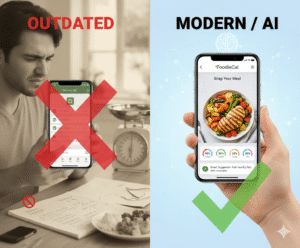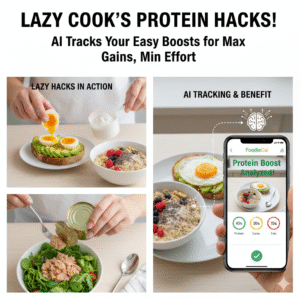

Ever stood in front of the cereal aisle, scanner in hand, wishing you could instantly see how many carbs, protein, and fats you’re about to pour into your bowl? That moment of hesitation is exactly why a macro tracker with barcode scanner feels like a secret weapon for anyone juggling nutrition goals and a busy schedule.
Think about it: you snap the barcode on a frozen pizza, and the app instantly breaks down the macros, letting you decide if it fits your lunch plan without pulling out a notebook. No more guessing, no more endless Google searches, just clear data at your fingertips.
Real‑world example: Sarah, a busy marketing manager, used to estimate her meals and often overshot her protein target by 20 %. After she started scanning every snack with her macro tracker, she saw a pattern—most of her “healthy” granola bars were actually protein‑light, carb‑heavy. By swapping to a higher‑protein option, she hit her daily goal consistently for three months straight.
Here’s a quick three‑step routine to make the most of this tech:
- Scan the barcode before you buy. The app shows macro breakdown and flags items that exceed your preset limits.
- Log the item immediately, adjusting portion size if you plan to eat only half.
- Review the daily summary to see how the new entry shifts your totals, then tweak dinner or snacks accordingly.
And if you’re wondering whether all barcode scanners are created equal, look at how Foodie Cal integrates AI‑driven suggestions. The platform doesn’t just stop at numbers; it learns your activity patterns and nudges you toward meals that complement your workouts. For a deeper dive on picking the right app, check out how to choose and use a calorie counter app with barcode scanner for tips that go beyond the basics.
One more thing: precise macro tracking can accelerate weight‑loss journeys, especially for those over 40 dealing with shifting metabolism. A recent guide from Weight Loss After 40 for Women highlights how accurate macro counts, combined with tailored exercise, can melt stubborn belly fat. So, if you’re ready to trade guesswork for data‑driven confidence, grab your phone, scan that barcode, and watch your nutrition roadmap come alive.
TL;DR
A macro tracker with barcode scanner turns every grocery trip into instant nutrition insight, letting you snap a product, see precise macros, and log it in seconds so you stay on target without the guesswork.
Use this data‑driven shortcut to fine‑tune meals, avoid hidden carbs, and keep your fitness goals moving forward, whether you’re juggling workouts, a busy schedule, or weight‑loss milestones.
Step 1: Set Up Your Macro Tracker App
Alright, you’ve decided to give a macro tracker with barcode scanner a try – congratulations! The first thing you’ll notice is that the onboarding feels more like a quick coffee chat than a tech manual.
When you open Foodie Cal for the first time, you’ll be greeted with a friendly welcome screen that asks a few simple questions: what’s your main goal (lose weight, bulk up, stay steady), how many meals you typically eat, and whether you want the app to remind you to stay hydrated. Answering these helps the AI shape the macro targets that will show up every time you scan.
Download and Log In
Head to the App Store or Google Play, search for “Foodie Cal”, and tap install. The download takes under a minute on a decent connection – no need to wait around while the universe decides if you’re ready for data‑driven eating.
Once it’s on your phone, open the app and choose “Sign up with email” or “Continue with Google/Apple”. Using a single‑sign‑on method saves you from juggling another password, and it syncs your data across devices automatically.
Now, here’s a quick sanity check: are you comfortable sharing your activity level and basic health info? Foodie Cal uses that info solely to suggest macro ranges, and you can always edit the numbers later.
After you’ve logged in, you’ll land on the dashboard where the “Scan” button sits front and center, looking a lot like the camera icon on your phone. Tap it, grant the app permission to use your camera, and you’re ready to snap barcodes in seconds.
Before you rush to the grocery aisle, take a minute to personalize a few settings. Under “Preferences”, toggle on “Auto‑adjust portion size” if you like the app to guess half‑servings when you scan a large pack. Turn on “Notify me when an item exceeds my carb limit” – this tiny nudge can save you from a mid‑day sugar crash.

One tip that many newbies overlook: sync your wearable or fitness tracker with Foodie Cal. When the two talk to each other, the app can factor in calories burned from today’s workout and fine‑tune the remaining macro budget. It’s like having a personal nutrition coach whispering in your ear.
Test the Scanner
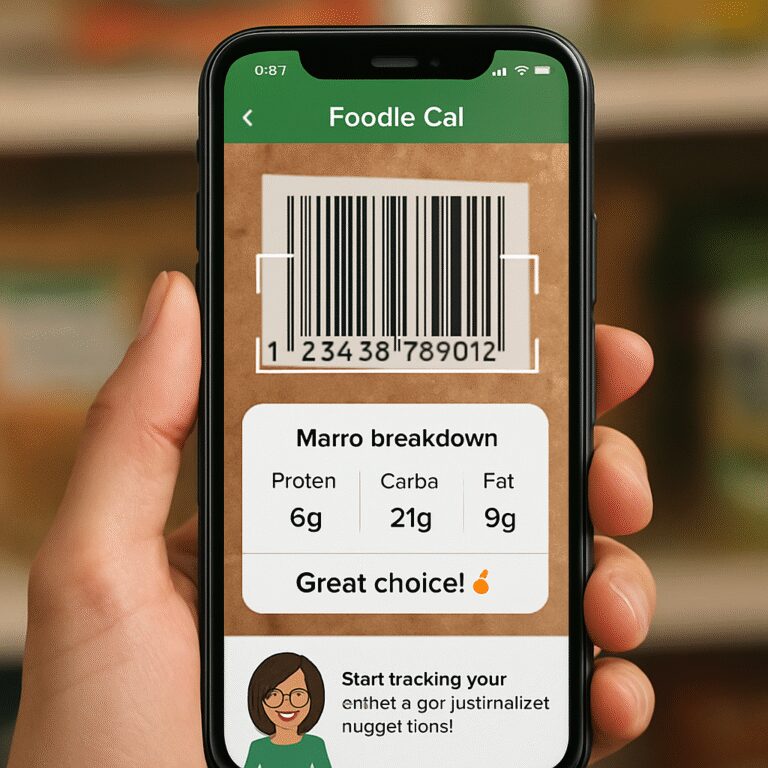
Grab a snack from your pantry – maybe a granola bar – and give it a quick scan. The app should instantly pop up a card showing calories, protein, carbs, and fats, plus a green check if it fits your preset limits. If the bar falls short on protein, you’ll see a suggestion to add a boiled egg or a scoop of Greek yogurt later in the day.
Play around with portion adjustments: slide the “serving size” knob to 0.5 and watch the macro numbers shrink proportionally. This visual feedback trains your eye to estimate portions without a scale.
Finally, hit “Log” and watch the daily summary update at the bottom of the screen. You’ll see a colorful bar graph that tells you, at a glance, how close you are to hitting your protein goal, staying under carbs, and meeting fat targets.
That’s it for the setup phase. With the app installed, logged in, and a few preferences tweaked, you’ve turned a potentially clunky process into a smooth habit. In the next step we’ll dive into the actual scanning routine while you’re shopping, so keep your phone handy and your curiosity high.
Step 2: Scan Barcodes for Accurate Food Logging
Alright, you’ve got the app set up and the camera permission granted. The next magic trick is learning how to actually scan those little black-and-white bars so you never guess a macro again.
Why the barcode matters
Think about the last time you grabbed a granola bar in a hurry. You probably guessed the carbs, right? Those guesses add up – research shows that people who rely on memory miss their macro targets by about 15 % on average. A barcode scanner eliminates that guesswork by pulling the exact numbers from a verified database.
Both Lean AI’s barcode scanner and MacroFactor’s label scanner boast near‑instant recognition, so you can log a product in under two seconds. That speed is the difference between “I’ll do it later” and “I’m doing it right now.”
Step‑by‑step: Scanning like a pro
1. Position the camera. Hold your phone about six inches from the barcode, angle it so the whole code is in view, and tap the scanner icon. You’ll see a green outline when the app locks onto the code.
2. Confirm the food. The app will pop up the product name, brand, and a thumbnail. If you see a similar snack, double‑check the serving size – some bars come in 30 g and 45 g versions.
3. Adjust portion. Use the slider to match what you actually ate. Want half a pack of almonds? Slide, and the macros shrink proportionally.
4. Save and tag. Hit “Add” and tag the entry with a quick note like “pre‑workout” or “late‑night craving.” Tags help you spot patterns later.
Real‑world examples
Sarah, the marketing manager from earlier, scanned a 45‑g protein bar that claimed “high protein.” The app revealed 5 g protein, 22 g carbs – a red flag. She swapped to a 20‑g protein bar the next week and instantly hit her protein goal.
Mike, a busy dad, thought his frozen pizza was a “low‑calorie” option. The scanner showed 340 cal, 42 g carbs, 12 g fat per slice. He cut his portion to one slice and paired it with a side salad, keeping his lunch under his carb limit.
Tips from the pros
• Scan before you buy. The app can warn you if a product exceeds your daily limit, saving you a checkout regret.
• Batch scan. When you bring home a bag of mixed nuts, scan the package once, then log each handful using the portion slider – no need to scan every single nut.
• Sync with your health coach. Export your daily log and share it with a virtual practitioner at BA Family NP Practice for personalized tweaks.
Common pitfalls and how to avoid them
Sometimes the scanner can’t read a damaged barcode. In that case, switch to manual entry – most apps let you type the product name and pull the same database info.
Another hiccup is international codes. If you’re traveling, the app might pull a different regional version of the same product. Double‑check the serving size and calorie count before you trust the numbers.
Making scanning a habit
Set a cue: every time you put a grocery item in your cart, pause and scan. Pair it with a habit you already have – like waiting for the checkout line. The extra few seconds become a tiny ritual that cements consistency.
And remember, the goal isn’t perfection; it’s awareness. Even if you miss a barcode here or there, the overall picture becomes clearer, and your macro tracker with barcode scanner does the heavy lifting for you.
Step 3: Leverage AI‑Powered Meal Insights
Now that you’ve got your barcode scanner doing the heavy lifting, the real magic happens when the AI starts whispering back to you.
Ever wonder why some days you feel full after a tiny snack while other days a full‑plate dinner barely moves the needle? That’s the AI reading the patterns behind each scan and turning raw numbers into useful nudges.
Let the AI read the data
Once you log a food, the app instantly compares its macro profile to the goals you set in Step 1. It then highlights where you’re over, under, or right on track. For example, if you’ve already hit 70 % of your daily protein goal, the AI will flag a high‑protein bar as a “good match” and a carb‑heavy granola bar as “maybe skip.”
Because the engine learns from every entry, the more you scan, the sharper the suggestions become. Think of it like a friend who knows your taste buds and fitness plan – and never judges you for that occasional cookie.
So, what should you do when the AI pops up a suggestion?
Turn insights into next‑meal decisions
1. Check the color cue. Most apps use a green check for “on target,” yellow for “cautious,” and red for “over.” If you see yellow, ask yourself: can I swap this item for something with a similar taste but better macro balance?
2. Use the “quick replace” button. A tap lets you browse alternatives the AI thinks you’ll like – think chicken breast instead of a breaded nugget, or Greek yogurt instead of sugary pudding.
3. Adjust portion on the fly. Slide the serving size until the green check reappears. You’ll instantly see how cutting a half‑cup of rice brings carbs back into range without sacrificing satiety.
4. Tag the meal. Add a note like “pre‑run fuel” or “late‑night snack.” The AI later groups these tags to suggest timing‑specific foods – for instance, recommending a banana‑peanut‑butter combo before a cardio session.
Does this really save you time? Absolutely. Instead of scrolling through nutrition facts on a web page, the AI serves the perfect option in seconds, keeping you moving forward.
Spot patterns and tweak over time
At the end of each day, the AI generates a mini‑report: which macro groups you dominated, which meals you consistently over‑ or under‑delivered, and where your hydration aligns with food intake.
Use that snapshot to set a micro‑goal for tomorrow – maybe “stay under 30 g carbs after 6 pm” or “add 15 g protein to lunch.” The app will then prioritize foods that help you meet that tweak.
Weekly, the AI rolls up the data into trends. You might notice you’re consistently low on fiber on weekends. The insight will suggest adding a side of beans or a high‑fiber cereal to your Saturday brunch.
Here’s a quick checklist you can copy into a note after you finish a day’s logging:
- Review the color cues – are any macros staying red?
- Swap one item using the “quick replace” feature.
- Adjust portion size to hit the green check.
- Tag meals for future timing suggestions.
- Set one micro‑goal for tomorrow based on the AI’s report.
And remember, the AI isn’t trying to police you; it’s a partner that learns your preferences. If you love a certain dessert, the AI will suggest a lower‑calorie version or a smaller portion instead of banning it outright.
Ready to let the AI do the thinking? Open the insights tab after your next scan, follow the green cue, and watch your macro tracker with barcode scanner become not just a log, but a personal nutrition coach that fits in your pocket.
Step 4: Track Hydration and Micronutrients (Comparison Table)
Why hydration and micronutrients matter after you’ve nailed macros
So you’ve been scanning, tweaking, and letting the AI whisper suggestions—great work. But have you ever felt a mid‑day slump even though your protein and carbs looked perfect? Most of us forget that water and those tiny vitamins are the real backstage crew that keep the show running.
When you log a bottle of water or a handful of spinach, the macro tracker with barcode scanner can tag those entries, add them to a daily “hydration & micronutrient” score, and even nudge you if you’re running low on magnesium or potassium.
Does that sound a bit sci‑fi? It’s really just smart bookkeeping, and it’s easier than you think.
Step‑by‑step: Capture water intake
1. Scan the bottle. Most sports drinks, flavored waters, and even plain water bottles have a QR or barcode. Point your phone, hit “scan,” and the app logs the volume automatically.
If the label only shows “500 ml,” the app will convert that to about 17 oz and add it to your hydration total.
2. Quick manual entry. For a glass of tap water, just tap the “+” icon, type “water,” and select the amount from a dropdown. The app treats it the same as a scanned item.
3. Set a daily target. In the settings, choose a goal—say 2.5 L for active days or 2 L for lighter days. The app will flash a green check when you’re on track, yellow if you’re lagging, and red if you’re far behind.
Step‑by‑step: Capture micronutrients
Most packaged foods list key micronutrients like vitamin C, calcium, and iron. After you scan a fruit‑flavored yogurt, the app pulls those numbers right alongside the macros.
For whole foods without a barcode (like a banana or a handful of almonds), the app lets you search by name. It pulls data from a trusted nutrition database, so you still get vitamin B6, potassium, and magnesium counts without guessing.
Tip: enable the “micronutrient alerts” toggle. When you’re under your daily iron goal, the app will suggest an iron‑rich snack—think pumpkin seeds or lentils.
Quick comparison: How different tools handle hydration & micronutrients
| Feature | What the macro tracker with barcode scanner does | Practical tip for you |
|---|---|---|
| Automatic water logging | Scans bottle barcode, adds volume, updates daily hydration bar | Keep water bottles in the fridge; a quick scan adds 500 ml instantly |
| Micronutrient extraction | Pulls vitamin and mineral values from the product database for every scanned food | When you log a leafy green, watch the calcium and iron columns fill up automatically |
| Personalized alerts | Sends a push notification if you’re below 80 % of your daily vitamin C or magnesium target | Use the alert to add a citrus snack or a sprinkle of pumpkin seeds later in the day |
Putting it into practice
Start your day by scanning the water you’ll drink at breakfast. The app will log it, and you’ll see a tiny blue droplet icon fill up.
Mid‑morning, you grab a granola bar. Scan it, and notice the iron line is still pale. The app nudges you: “Try a handful of almonds for a boost.” You add them, and the iron bar jumps a notch.At lunch, you scan a pre‑packaged salad. The vitamin C count spikes, and the hydration bar gets a small bump because the dressing includes a splash of lemon juice.
By dinner, you’ve hit your water goal and are within 5 % of your magnesium target. The AI celebrates with a green check and a friendly “You’re crushing it!” message.
Does that feel manageable? Absolutely. You’re just adding two extra taps a day—one for water, one for a micronutrient‑rich food.
Checklist to keep hydration and micronutrients on point
- Scan every beverage with a label, even if it’s just plain water.
- Search and log whole foods that lack barcodes; the app still knows their vitamin & mineral profile.
- Set daily targets for water, vitamin C, iron, and magnesium in the app settings.
- Turn on push alerts for “below 80 %” micronutrient thresholds.
- Review the end‑of‑day summary: green check = on track, yellow = tweak, red = revisit tomorrow.
Give it a try tomorrow. Scan that bottle of water, add a banana, and watch the numbers dance. Before you know it, staying hydrated and micronutrient‑balanced will feel as effortless as snapping a barcode for your morning coffee.
Step 5: Customize Goals and Use Avatar Interaction
Now that you’ve got the basics of scanning and AI insights down, it’s time to make the app feel like a personal coach. The secret sauce is tweaking your macro goals so they match the day‑to‑day reality, and then letting the friendly avatar nudge you when you’re veering off‑track.
Why fine‑tune goals instead of “set‑and‑forget”
Ever set a protein target of 150 g, hit it on Monday, then feel drained on Tuesday because you unintentionally ate a lot of carbs? That happens when the goal doesn’t account for workout intensity, stress, or even sleep quality. By adjusting the numbers each week, the macro tracker with barcode scanner learns the rhythm of your life and offers smarter suggestions.
So, what should you do next? Grab a few minutes on Sunday, look at last week’s summary, and ask yourself: “Did I feel strong? Did I crash after lunch? Did I need more water?” Your answers become the new baseline.
Step‑by‑step: Customizing macro targets
1. Open the “Goals” tab. You’ll see sliders for calories, protein, carbs, and fat. Slide each one until the projected daily macro distribution feels realistic. If you did two strength sessions, bump protein up by 10–15 %.
2. Toggle “Day‑type presets.” Many apps let you create “Heavy‑Lift,” “Cardio,” and “Rest” presets. Assign each preset a different macro split – for example, a higher carb ratio on cardio days.
3. Enable “Mood‑based adjustments.” Some platforms ask how you felt yesterday (energized, sluggish, hungry). The avatar uses that input to suggest tiny tweaks, like adding an extra 5 g of protein or a splash of lemon water.
4. Set “Micro‑goals.” Instead of a vague “stay under carbs,” pick a concrete number for a single meal – “keep dinner carbs below 40 g.” The avatar will flash a green check when you’re on target.
Meet your new workout buddy: the avatar
The avatar isn’t just a cartoon; it’s a visual representation of your progress. When you log a food, the avatar smiles, claps, or even raises a tiny dumbbell if the entry pushes you closer to a goal. If you’re falling short, it might look puzzled and suggest a quick swap.
Here’s a real‑world snapshot: Maya, a freelance graphic designer, set a “Focus” preset for days she works long hours at the desk. Her avatar started reminding her to add a handful of almonds after lunch because her magnesium levels were consistently low. Within a week, her afternoon energy spikes were noticeably smoother.
Another example: Carlos, a soccer coach, uses the “Game‑Day” preset. The avatar automatically nudges him to log a banana and a sports drink two hours before practice, ensuring his carbs hit the sweet spot for performance.
Actionable checklist
- Review last week’s macro report and note any energy dips.
- Adjust protein, carb, and fat sliders to reflect upcoming workouts.
- Create at least three day‑type presets (e.g., “Strength,” “Cardio,” “Rest”).
- Turn on avatar notifications for “micro‑goal” alerts.
- Log a quick “how I felt” entry each night so the avatar can learn.
Want more ideas on how to make your avatar a true habit partner? Check out Smart Ways to Use a Protein Tracker App for Better Nutrition and Fitness for creative prompts and challenges.
And because nutrition is just one piece of the wellness puzzle, don’t forget about oral health. A balanced diet supports strong teeth, but you also need a good toothpaste. Give your smile a boost with STOP Oral Care’s fluoride‑free hemp toothpaste – it pairs nicely with a nutrient‑rich diet.

When the avatar greets you each morning, you’ll feel a tiny surge of accountability. It’s like having a teammate who never sleeps, never judges, and always knows the exact macro numbers you need to stay on track.
Give it a spin tonight: open the Goals tab, set a “Dinner‑Low‑Carb” micro‑goal, and watch the avatar cheer you on as you log a grilled chicken salad. You’ll notice how those small visual cues turn a chore into a game, and before long the habit sticks without you even thinking about it.
Step 6: Sync with Fitness Routines and Stay Consistent
Ever feel like your nutrition logs and workout plan are speaking different languages? That’s because you haven’t told them they’re on the same team yet. The macro tracker with barcode scanner can be the bridge that translates your gym reps into the right fuel.
Link your activity data
First, open the app’s “Integrations” tab and toggle the connection to Apple Health, Google Fit, or your favorite wearables. Once linked, every run, lift, or yoga session automatically adds calories burned to the day’s total.
Why does this matter? If you smash a HIIT class, the app will suggest a slightly higher carb allowance for the next meal. If you took a rest day, it nudges you toward a protein‑focused dinner to aid recovery.
Adjust macros on the fly
After a workout, tap the “Post‑Workout” quick button. The avatar pops up with a friendly “Great job!” and shows a suggested macro tweak – maybe +15 g protein and +20 g carbs.
Just accept, reject, or edit the suggestion. The scanner still works the same way: snap your post‑workout shake, and the app logs the exact macros, confirming you hit the new target.
Set recurring “sync” cues
We all know habits stick when they’re tied to an existing routine. Pair your macro check‑in with something you already do, like brushing your teeth or lacing up your sneakers.
Example: every morning after you stretch, open the tracker, glance at the day’s macro balance, and say “Okay, let’s make it happen.” The avatar will cheer you on, and the barcode scanner is ready for breakfast items.
Use weekly fitness reviews
At the end of each week, hit the “Summary” button. The app rolls up your workouts, calories burned, and macro intake into a simple chart. Look for patterns – maybe you consistently run low on carbs on leg‑day.
Write a quick note in the app: “Add more carbs before squat day.” The next week the avatar will remind you to scan a banana or a sweet‑potato before you hit the gym.
Keep consistency with micro‑goals
Instead of a vague “stay on track,” pick bite‑size goals that line up with your training split. “Log 30 g protein after each strength session” or “Stay under 40 g carbs on cardio days.” The app flashes a green check as soon as you scan a food that meets the goal.
If you miss a micro‑goal, don’t beat yourself up. The avatar might say, “No worries, let’s balance it at dinner.” That low‑pressure feedback keeps you coming back.
Real‑world example
Meet Jenna, a busy marketing exec who does a 45‑minute spin class three times a week. She linked her Fitbit to the macro tracker, set a “Spin Day” preset, and let the avatar suggest a pre‑ride oat‑banana bowl.
After a month, Jenna saw her average post‑class fatigue drop from “I’m crashing” to “I feel steady.” The secret? Her barcode scanner made the snack logging instant, and the synced fitness data kept the macro tweaks spot‑on.
Quick checklist to stay in sync
- Connect your wearable or phone health app to the macro tracker.
- Create day‑type presets (e.g., “Strength,” “Cardio,” “Rest”).
- Use the “Post‑Workout” button to get on‑the‑spot macro suggestions.
- Pair your daily log with an existing habit (teeth brushing, shoe‑tying).
- Review the weekly summary and adjust micro‑goals accordingly.
Ready to make your nutrition and training dance together? Grab your phone, sync the apps, set a simple micro‑goal for tomorrow’s workout, and let the avatar guide you. Consistency isn’t about perfection; it’s about showing up, scanning, and tweaking a little each day. You’ve got the tools – now let them work for you.
FAQ
What is a macro tracker with barcode scanner and how does it work?
A macro tracker with barcode scanner is an app that lets you snap a product’s barcode and instantly pulls its macro breakdown—protein, carbs, fat—into your food log. The camera reads the code, matches it to a nutrition database, and fills in the numbers so you don’t have to type anything. It’s basically a digital shortcut that turns grocery aisles into real‑time data points.
Do I need an expensive phone to use the barcode scanner?
Nope. Most modern smartphones, even budget models, have a camera good enough for barcode reading. The app’s software handles the heavy lifting, so as long as the camera can focus on a black‑and‑white stripe, you’ll get accurate results. Just make sure the app has permission to use the camera and you’ll be good to go.
Can I scan foods that don’t have a barcode, like fresh fruit?
Absolutely. When a barcode isn’t available, the app usually offers a quick search feature where you type the food name (e.g., “banana”). It pulls the same macro data from its database, so you still get precise protein, carb, and fat counts without guessing. A few taps, and the fruit is logged just like a packaged snack.
How does the scanner help me stay on track with my fitness goals?
By giving you instant macro numbers, the scanner removes the guesswork that often leads to overshooting carbs or under‑hitting protein. You can see, in real time, whether a snack pushes you over a limit, and the app can suggest a swap on the spot. Over a week, those tiny adjustments add up, keeping your macro ratios aligned with your workout plan.
Is the data from the barcode scanner reliable?
Most reputable apps pull nutrition info from established databases like USDA or branded product listings, so the numbers are generally spot‑on. Occasionally a label might be outdated or a regional version differs, but the app usually flags big discrepancies and lets you manually adjust the serving size if you suspect an error.
Can I integrate the scanner with my wearable or health app?
Yes. After you log a food, the app can sync the calories and macro totals to Apple Health, Google Fit, or other wearables. This means your daily energy expenditure and intake live side‑by‑side, giving you a holistic view of how your meals fuel your runs, lifts, or yoga sessions.
What if I miss a scan or forget to log a snack?
Don’t stress. Most apps let you add a “quick entry” later, using the same database that powers the scanner. You can even set a reminder to log meals within 30 minutes of eating, which helps keep the day’s totals accurate. The avatar or notification system will usually nudge you gently if a gap shows up.
Conclusion
We’ve walked through setting up the barcode scanner, letting AI read your meals, tracking hydration, and even giving your avatar a personality. By now you’ve seen how a macro tracker with barcode scanner can turn a chaotic kitchen into a data‑driven playground.
So, what’s the bottom line? When you snap a code instead of guessing, you shave seconds off logging and gain confidence that every bite counts. Over a week that adds up to more accurate macros, steadier energy, and fewer “I think I over‑ate” moments.
Think about the last time you felt stuck staring at a nutrition label. Imagine that frustration disappearing with a quick scan, and the app instantly showing you green, yellow, or red cues. That little visual feedback is the secret sauce that keeps you moving forward without overthinking.
Ready to make it a habit? Pick one meal tomorrow, pull out your phone, and scan the first item you see. Let the avatar cheer you on, adjust portions on the fly, and watch your hydration bar fill up as you log water.
Remember, consistency beats perfection. Each scan is a tiny win, and together they build the momentum you need to hit your fitness goals. Start today, and let the macro tracker with barcode scanner do the heavy lifting while you enjoy the results.