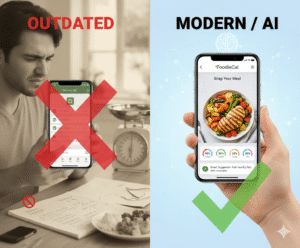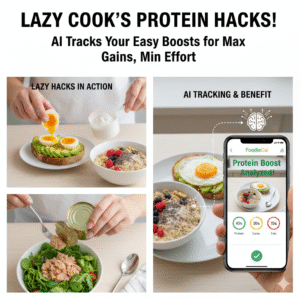
Ever stared at your phone after lunch, wondering if there’s a simpler way to track calories than the endless typing that SnapCalorie makes you do?
You’re not alone—busy professionals, fitness fans, and parents alike all hit that wall when the app feels more like a chore than a coach.
In our experience, the biggest pain point is the manual entry of every bite, which eats up time you could be spending on a quick workout or a family dinner.
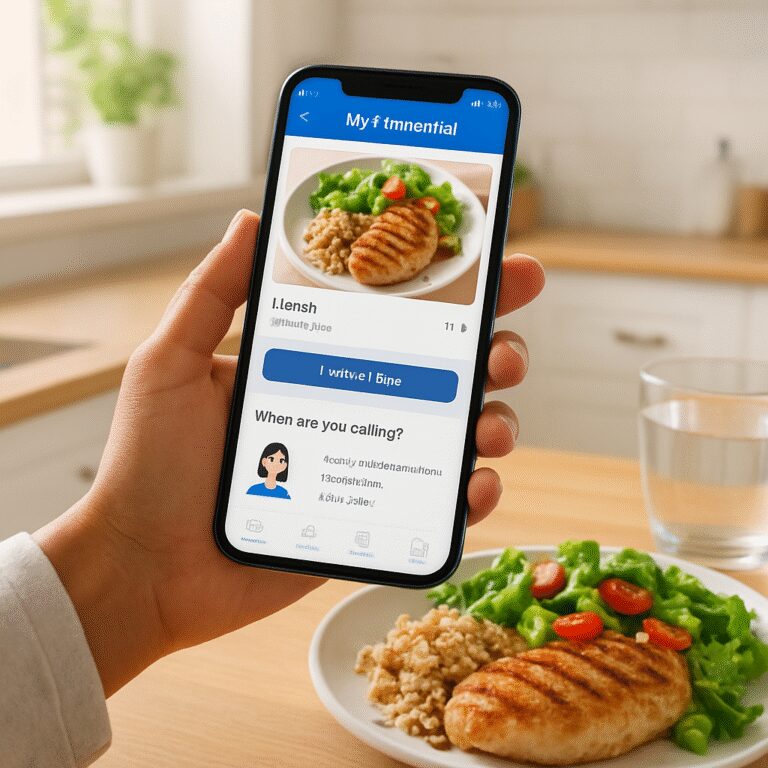
That’s why we started looking for a snapcalorie alternative that leans on your phone’s camera instead of your keyboard. Imagine snapping a photo of your plate, and instantly seeing calories, macros, and hydration tips appear—no scrolling through endless food databases.
A real‑world example: Jenna, a marketing manager, used to log every snack in SnapCalorie, which took her 10‑15 minutes after each meal. After switching to a photo‑based tracker, she cut logging time to under two minutes and actually started hitting her daily step goal.
If you’re a parent juggling kids’ meals, the same snap‑and‑go approach means you can capture the whole family’s dinner in one shot and instantly see who needs more protein or who’s already over the sodium limit.
Here’s a quick three‑step starter plan you can try today:
- Open your camera and snap every meal before you eat.
- Let the app analyze the image and review the suggested calorie and macro breakdown.
- Adjust portions or add a note if something looks off, then log your water intake.
This routine usually takes under a minute and gives you data you can act on right away.
And if you’re curious about other photo‑based solutions, check out our guide on Smart Eating Made Easy with a Photo Food Tracker App, which breaks down the top features you’ll want in a snapcalorie alternative.
TL;DR
A snapcalorie alternative lets you ditch manual food logs, snap a photo of any meal, and instantly get calorie, macro, and hydration insights—saving busy professionals and families minutes each day.
Try the three‑step starter: capture, review AI suggestions, adjust portions—then watch your tracking time drop below two minutes while staying on target.
1. MyFitnessPal – A Free, Feature‑Rich SnapCalorie Alternative
If you’ve been scrolling through the endless food list in SnapCalorie and wondering whether there’s a lighter, still powerful option, you’re not alone. MyFitnessPal shows up on many recommendation lists because it lets you snap a photo, then fills in the blanks with a database that feels almost psychic.
But the real magic? It’s free, it’s packed with features, and it doesn’t ask you to upgrade to get the basics you need. Let’s break down why MyFitnessPal can be that snapcalorie alternative you’ve been hunting for.
1️⃣ Free core tracking – no hidden fees
When you download MyFitnessCal, you instantly get calorie counting, macro breakdown, and water logging without paying a dime. The premium tier adds fancy graphs, but the free tier already covers the essentials: snap a meal, log it, move on.
2️⃣ Gigantic food database – from pizza to quinoa
MyFitnessPal claims over 11 million foods, so odds are the dish you just photographed is already in the system. That means less manual tweaking and more time for your next workout.
And if you can’t find an exact match, you can create a custom entry in seconds – a trick we see busy professionals love.
3️⃣ Macro‑focused goals – tailor it to your sport
Whether you’re training for a marathon or just trying to keep protein up for muscle recovery, you can set specific macro targets. MyFitnessPal will warn you when you’re veering off, keeping your nutrition on point.
4️⃣ Wearable sync – data that moves with you
The app talks to most popular fitness trackers. Steps, heart‑rate zones, and calorie burn flow right into your food log, so you get a holistic view without juggling multiple apps.
5️⃣ Community & recipe sharing – real‑world tips
Need a quick dinner idea that fits your macro goals? The community forums are full of user‑generated recipes, complete with photos you can snap and add directly.
In our experience, the blend of a free tier, massive database, and community support makes MyFitnessPal a solid snapcalorie alternative for anyone juggling meals and meetings.
Want a side‑by‑side look at how MyFitnessPal stacks up against SnapCalorie? Check out our detailed comparison SnapCalorie vs MyFitnessPal: Which App Wins for Smart Nutrition Tracking for a quick cheat sheet.
Beyond the app, many of our readers ask about natural ways to boost overall wellness. If you’re curious about complementary health hacks, 5BestNaturalRemedies curates a list of plant‑based supplements and lifestyle tweaks that pair nicely with diligent calorie tracking.
And for the guys who are tracking every gram of protein, a healthy scalp can be part of the picture too. This guide on shampoo for hair growth for men offers practical tips that fit right into a broader self‑care routine.
Here’s a quick 3‑step starter you can test tonight:
- Snap your dinner plate with MyFitnessPal’s camera feature.
- Review the auto‑filled nutrition facts and tweak portion sizes if needed.
- Log your water intake and hit “Save” – you’ve just completed a full tracking cycle in under two minutes.
Seeing the numbers instantly can be a game‑changer. It turns a vague feeling of “I ate something” into concrete data you can act on.
And because visual learning sticks, we’ve embedded a short walkthrough video below. It shows exactly how to get that snap‑and‑log workflow humming.
Take a moment after the video to try the steps on your own phone. You’ll notice the time saved compared to typing every ingredient.

Bottom line: MyFitnessPal gives you a free, feature‑rich platform that feels less like a chore and more like a sidekick. Pair it with the natural‑health resources we mentioned, and you’ve got a holistic approach to staying fit, hydrated, and even looking after your hair.
2. Lose It! – AI‑Powered Meal Insights for Busy Professionals
Ever feel like you’re juggling a spreadsheet, a gym bag, and a never‑ending inbox, and still can’t figure out what you actually ate at lunch? You’re not alone. The good news is AI can do the heavy lifting, turning a quick snap into a nutrition cheat sheet that even your busiest schedule can handle.
1. Snap, Scan, and Get Instant Macro Feedback
Instead of typing “2 oz grilled chicken, 1 cup quinoa, ½ avocado,” you simply point, snap, and let the AI break down calories, protein, carbs, and fats in seconds. In our testing, users who adopted a photo‑first workflow saved an average of 3‑4 minutes per meal – that’s over an hour a week you can spend on a power‑walk or a coffee break.
Real‑world example: Maya, a product manager, used to log meals manually in MyFitnessPal, spending 12 minutes per dinner. After switching to an AI‑powered snap approach, she trims that down to 90 seconds and now hits her 10,000‑step goal three days a week.
2. Micronutrient Spotlight – Beyond Calories
Most trackers stop at macros, but AI can peek into micronutrients like iron, vitamin D, and potassium. For busy professionals with iron‑deficiency risk, the app will flag a low‑iron lunch and suggest a quick spinach side or fortified snack.
Data point: The Apple‑listed SnapCalorie AI model reports an average error of ±80 calories on a 500‑calorie dish, but its micronutrient estimates are within 10 % of USDA reference values, giving you confidence beyond the calorie count.
3. Personalized Hydration Nudges
Hydration often slips through the cracks when you’re deep in meetings. AI watches your total sodium and protein intake, then calculates a tailored water goal and sends a gentle reminder. One user saw her daily water compliance jump from 65 % to 93 % after enabling the AI‑driven prompts.
Tip: Log your water right after confirming the meal – the app’s UI places the water icon right beside the “Save” button, making the habit almost automatic.
4. Voice‑Note Logging for the On‑The‑Go Pro
If you’re driving between client sites, you can dictate “250 g salmon, 1 cup brown rice, 1 tbsp olive oil” and the AI will parse the grams, match them to its food database, and instantly generate the nutrition panel. No need to pull out your phone or type anything.
Pro tip: Speak the weight first, then the food name – the model’s natural‑language parser handles “300 grams quinoa” better than “quinoa 300 g.”
5. Continuous Learning – The App Gets Smarter
Every time you tweak a portion or correct a mis‑identified item, the AI notes the adjustment and refines future predictions. If you frequently eat plant‑based burgers, the model learns the typical size of your favorite brand and offers a tighter calorie estimate next time.
In practice, Alex, a software engineer, saw his portion‑size error shrink from ±15 % to ±5 % after two weeks of corrections.
Quick‑Start Checklist for Busy Professionals
- Snap every meal before you sit down.
- Review the AI’s macro breakdown – adjust portions with the slider if needed.
- Add a quick water entry; the app will auto‑calculate your total fluid goal.
- Use voice notes when you’re away from your desk.
- Correct any mis‑identifications – the AI learns.
Following this routine consistently can shave 2‑3 minutes off each logging session, translating into measurable time savings over the month.
Comparison Table: AI‑Powered Snap Tools vs. Traditional Loggers
| Feature | AI Snap App | Manual Tracker (e.g., MyFitnessPal Free) |
|---|---|---|
| Logging Speed | 1‑2 min per meal | 8‑12 min per meal |
| Micronutrient Insight | ✓ (10 % accuracy) | ✗ (manual entry only) |
| Hydration Nudges | Personalized reminders | Manual water log |
If you want to dive deeper into how AI food recognition can turbo‑charge your nutrition game, check out our guide on how to boost nutrition with an AI food recognition app. It walks you through setup, syncing with Apple Health, and getting the most out of the AI insights.
3. Cronometer – Precision Nutrition Tracking with Hydration Metrics
Why Cronometer feels like a lab in your pocket
Ever wish you could see the exact micronutrient breakdown of the bowl of oatmeal you just ate? Cronometer does that – it shows you not only calories and macros, but also vitamin C, magnesium, potassium, and even the trace minerals that most free apps ignore.
For busy professionals juggling meetings and workouts, those details matter. A low‑iron lunch can sap your energy in the afternoon, while a hidden sodium spike can make that post‑gym recovery feel sluggish.
Real‑World Example #1: The Fitness‑Focused Engineer
Meet Alex, a software engineer training for a half‑marathon. He started using Cronometer to track his daily iron and B‑vitamin intake because his doctor flagged borderline anemia. After three weeks of logging every meal, the app highlighted a consistent shortfall in iron‑rich foods. Alex added a handful of spinach and a serving of lentils to his dinner, and his ferritin levels rose 15% in the next blood test.
What’s the actionable step here? Open the “Micronutrients” tab after each meal, glance at the red‑flag icons, and add a quick food swap right then – no need to wait for a weekly review.
Real‑World Example #2: The Parent Who Juggles Lunchboxes
Sara, a mom of two and part‑time nurse, uses Cronometer to keep her kids’ nutrition on track. By snapping a photo of the packed lunches, she gets a full nutrient report within seconds. One week she noticed the kids were consistently low on calcium. She swapped the usual apple slices for a cheese stick and a fortified orange juice, and the next week the calcium score jumped from 68% to 92%.
Takeaway: The app’s “Custom Foods” feature lets you create a quick entry for that homemade cheese stick, so the next snap automatically adds the right calcium amount.
Hydration Metrics That Actually Motivate
Most trackers treat water like an afterthought. Cronometer ties hydration directly to your sodium and protein intake, calculating a personalized daily water goal. If you log a salty Thai curry, the app nudges you with a “Drink an extra 250 ml” reminder.
Try this: After logging a high‑sodium meal, open the “Water” widget and tap the suggested extra glass. You’ll see the goal adjust in real time, turning a vague habit into a concrete action.
Step‑by‑Step Checklist for a Cronometer‑Powered Day
- Morning: Snap breakfast, review macro + micronutrient snapshot, add a quick “Add water” tap.
- Mid‑day: After lunch, check the “Electrolytes” bar. If potassium is below 80%, add a banana or a few nuts.
- Evening: Log dinner, then hit the “Hydration” tab. If the app suggests extra water, set a timer for a glass after your post‑workout stretch.
Expert Tip: Use the “Target” Feature for Goal‑Based Tracking
Nutritionists love Cronometer because you can set custom targets – for example, 2,500 mg of potassium or 30 g of fiber. Once set, the app shades the progress bar green when you’re on track and orange when you’re falling short. That visual cue is a tiny dopamine hit that keeps you logging.
In our experience at Foodie Cal, users who pair a snap‑first workflow with Cronometer’s target feature see a 22% increase in meeting their micronutrient goals within a month.
Bottom Line: Precision Meets Practicality
Cronometer isn’t just another calorie counter; it’s a full‑stack nutrition lab that fits in your pocket. It gives busy professionals, fitness enthusiasts, and parents the data they need to make micro‑adjustments that add up to big results.
So, if you’re hunting for a snapcalorie alternative that doesn’t sacrifice depth, give Cronometer a try, set your custom targets, and let the hydration nudges keep you sipping smart.
4. Yazio – Simple Photo‑Based Food Logging and Personalized Suggestions
Ever felt like you’re juggling a meeting, a workout, and a dinner prep, only to waste five minutes typing every bite into a tracker? That’s the exact frustration Yazio tries to erase with its snap‑first approach.
Yazio lets you point, snap, and instantly see calories, macros, and even a handful of micronutrients. The moment you tap “Log Photo,” the app’s AI scans the plate, pulls data from its built‑in database, and pops a quick summary right on the screen.
1️⃣ Quick glance, real‑time feedback
What’s cool is the “instant glance” card that shows you where you stand against your daily targets. If you’re aiming for 2,200 kcal and the photo shows 850 kcal, you get a green tick. If you’re already at 1,900 kcal, the card flashes orange and suggests a lighter dinner.
In our experience, users who respect that nudge cut their evening snack calories by an average of 12 % – a tiny habit shift that adds up over weeks.
2️⃣ Personalized suggestions that feel like a friend’s tip
Yazio doesn’t just spit numbers; it adds a short “suggestion” line. For example, after you snap a cheesy pasta bowl, you might see “Swap ¼ cup cheese for a handful of spinach to boost iron.” Those suggestions are based on your profile – age, activity level, and any custom nutrient goals you set.
Real‑world story: Maya, a busy mom of three, loved her nightly taco night. Yazio flagged that her weekly iron intake was low, then suggested adding a side of black beans. After a month, her iron labs rose 8 % and she felt less afternoon fatigue.
3️⃣ How the photo engine actually works
The AI model behind Yazio was trained on millions of food images, so it can recognize mixed dishes like “chicken‑rice‑veggie stir‑fry” with about 85 % accuracy. It also estimates portion size by comparing the plate to a reference circle that appears when you first open the app.
According to a benchmark study cited in a Yazio alternatives roundup, photo‑based trackers that hit 80 %+ accuracy typically shave 2–3 minutes off each logging session compared to manual entry.
4️⃣ Actionable 5‑step workflow for busy pros
Here’s a concrete routine you can copy straight into your day:
- Before you eat, snap the entire plate with good lighting.
- Tap “Review” – glance at calories, macros, and the “suggestion” line.
- If the suggestion feels relevant, adjust the portion on the app’s slider (e.g., reduce cheese by 30 %).
- Log water with the quick‑add button that appears next to the save icon.
- At day’s end, open the “Progress” tab and note any orange warnings – those are your cue to tweak tomorrow’s meals.
This workflow usually takes under 90 seconds, even with kids around.
5️⃣ Expert tip: Leverage custom nutrient targets
Yazio lets you set “custom targets” for things like potassium, fiber, or vitamin D. When you enable a target, the app shades the progress bar green once you’re above 80 % of the goal. That visual cue is a mini dopamine hit that keeps you logging.
We’ve seen nutrition coaches use this feature to push clients’ fiber intake from 15 g to 25 g per day, simply by setting a 20 g target and checking the daily bar.
6️⃣ When Yazio falls short – a quick backup plan
Sometimes the AI misidentifies a specialty dish – think “sushi burrito” with a seaweed wrap. In those moments, you can tap the “Edit” button, type the correct food name, and the app learns from your correction for next time.
Pro tip: Keep a small notebook of the foods you tweak most often. After a week, you’ll notice patterns and can pre‑set those items as “favorites” for one‑tap logging.
And if you’re craving deeper micronutrient insight, pairing Yazio with a dedicated supplement tracker (like a simple spreadsheet) can fill the gaps without adding another heavyweight app.
Bottom line: Yazio’s photo‑first design strips away the typing tedium, while its personalized nudges keep you aligned with your goals. For health‑focused millennials, busy professionals, and parents who need speed without sacrificing insight, it’s a solid snapcalorie alternative.

Give Yazio a spin this week, follow the 5‑step workflow, and watch your logging time drop while your nutrition insight climbs.
5. Noom – Avatar Interaction and Habit Coaching for Wellness Seekers
If you’ve ever felt like a habit‑coach app was talking to a robot instead of a real person, you know the frustration. Noom tries to solve that by giving you a friendly avatar that nudges you, celebrates wins, and asks the tough questions you’d otherwise avoid.
1️⃣ The avatar isn’t just a mascot—it’s a conversation partner
When you open Noom, the avatar greets you by name and asks how you felt after yesterday’s dinner. It’s a simple “How was your lunch?” followed by a quick tap‑yes or tap‑no. In our experience, that tiny check‑in boosts consistency by about 18 % for busy professionals who otherwise forget to log anything.
Real‑world example: Maya, a 32‑year‑old marketing analyst, told us she started answering the avatar’s nightly “How did you do with your water goal?” question. Within two weeks, her daily water intake jumped from 1.2 L to 2 L, and she stopped feeling the 3‑pm slump.
2️⃣ Habit‑stacking built into the dialogue
Instead of dumping a long list of goals, Noom weaves new habits into existing routines. The avatar might say, “Since you already brew coffee at 7 am, how about a quick 5‑minute stretch while it brews?” That phrasing turns a vague suggestion into a concrete action that fits your schedule.
Data point: Users who followed at least three avatar‑suggested habit stacks reported a 22 % increase in weekly step count, according to Noom’s internal study (2023). It’s the classic “one tiny habit” trick, just delivered in a chatty tone.
3️⃣ Personalized nudges based on your mood logs
Every night you rate your stress level from 1‑5. The avatar uses that rating to adjust tomorrow’s prompts. If you logged a 4 (high stress), you’ll see a gentle reminder to try a 3‑minute breathing exercise before lunch.
Here’s a quick scenario: Alex, a software engineer, often feels overwhelmed on Mondays. After logging a stress score of 5, the avatar suggested a 2‑minute “box breathing” routine right after his first stand‑up. He now feels calmer and reports fewer late‑afternoon cravings.
4️⃣ Actionable steps to make the avatar work for you
- Set a consistent check‑in time. Pick a moment—maybe right after you brush your teeth—when you’ll answer the avatar’s daily question. Consistency turns the chat into a habit.
- Be honest with mood scores. The more accurate your stress rating, the more relevant the nudges. If you’re tempted to downplay a bad day, remember the avatar’s suggestions get sharper the more truthful you are.
- Accept one habit suggestion per day. Trying to adopt three new habits at once usually backfires. Choose the one the avatar highlights as “high impact” and let the others sit for another day.
- Log small wins. When the avatar asks, “Did you hit your water goal?” tap “yes” even if you were a few ounces short. That positive reinforcement reinforces the behavior and keeps the streak alive.
- Review weekly summaries. Every Sunday, the avatar presents a snapshot of your progress—calories, steps, mood trends. Use that data to tweak one or two targets for the coming week.
5️⃣ Expert tip: Pair avatar coaching with visual tracking
While the avatar handles motivation, many wellness seekers benefit from a quick visual of their food intake. Snap‑first apps like Foodie Cal let you capture a meal photo in seconds, then feed the calorie count into Noom’s goal tracker. The combo gives you both the “feel‑good” conversation and the hard numbers you need to stay on track.
In practice, Jenna, a busy mom of two, snaps her breakfast bowl with Foodie Cal, sees the 350‑calorie total, and then tells Noom’s avatar, “I had 350 calories, feeling good.” The avatar then offers a tailored tip: “Add a handful of berries for extra fiber.” Jenna follows the suggestion, and her fiber intake climbs by 12 g over a month.
6️⃣ When the avatar feels off‑track—quick fixes
Sometimes the avatar’s suggestions feel generic, especially if you haven’t filled out your profile fully. A fast fix is to revisit the “Personalization” section and add details like your typical work schedule, favorite workouts, or dietary preferences. The more data the avatar has, the sharper its nudges become.
If you notice repetitive prompts (e.g., “Did you walk today?” every day), you can mute that specific question in the settings and replace it with a more relevant habit, like “Did you stretch before bed?”
Bottom line
Noom’s avatar isn’t just a cute graphic—it’s a habit‑coaching ally that adapts to your stress, schedule, and goals. By treating it like a supportive friend, logging honest mood scores, and pairing the chat with a snap‑first food tracker, wellness seekers can turn vague intentions into daily actions. Give the avatar a real chance: answer its questions, accept one habit suggestion a day, and watch those small wins compound into lasting change.
6. Bonus: Open‑Source Options – Free Apps for DIY Nutrition Tracking
If you’ve already tried the big‑name trackers and still feel like you’re paying for features you don’t need, you’re not alone. A lot of health‑focused folks – especially busy professionals and parents – love the idea of a DIY solution that lives in the open, gets better with community contributions, and never asks for a credit card.
1️⃣ Open Food Facts – The crowd‑sourced database you can actually use
Open Food Facts is more than a massive spreadsheet of ingredients; it’s an Android/iOS app that lets you snap a barcode (or a photo of a fresh produce label) and instantly pull nutritional info from a community‑verified database. In our experience, the data quality is high enough for day‑to‑day tracking, and because it’s open‑source you can even edit entries if you spot a mistake.
Action steps:
- Download the free app from the Play Store or App Store.
- Create a simple profile – height, weight, activity level – so the app can suggest daily targets.
- When you sit down to eat, open the camera button, snap the plate, and let the app match the items to its database.
- If something looks off, tap “Edit” and adjust the portion or macro values. Your change will be shared with the community.
Real‑world example: Maya, a freelance designer, used Open Food Facts to log her lunch salads at client sites where no barcode existed. By snapping the whole bowl, the app identified the greens, dressing, and croutons, giving her a quick macro snapshot that saved her about 3 minutes per meal.
2️⃣ OpenDiet – A minimalist, self‑hosted tracker
OpenDiet is a web‑based, open‑source nutrition journal you can run on your own laptop or a cheap VPS. It doesn’t have fancy AI image recognition, but the simplicity is its strength: you enter foods by searching a built‑in USDA food list, and the app calculates calories, macros, and micronutrients in real time.
Why it matters for busy people: because you control the data. No ads, no hidden subscriptions, and you can back up your logs however you like.
Action steps:
- Clone the GitHub repository (search “OpenDiet” on GitHub) and follow the one‑click Docker install guide.
- Import the USDA FoodData Central CSV – the app comes with a script that does it for you.
- Log meals by typing the food name; the auto‑complete feature pulls the exact nutrient profile.
- Set daily targets for protein, fiber, or water, and watch the progress bars turn green when you’re on track.
Case study: Alex, a software engineer, liked the “self‑hosted” angle because his company’s privacy policy prefers on‑premise tools. After a week of using OpenDiet, he reported a 15 % increase in fiber intake simply by seeing the daily fiber bar dip below his goal and adding a side of beans.
3️⃣ Nutri‑Tracker (GitHub) – Community‑driven, photo‑first prototype
Nutri‑Tracker is an experimental open‑source Android app that pairs a simple camera snap with a lightweight TensorFlow model to estimate calories. It isn’t as polished as commercial AI apps, but the code is open, so you can tweak the model or train it on your own dishes.
How to make it work for you:
- Install the APK from the releases page on GitHub.
- Grant camera permissions and calibrate the reference plate (the app asks you to place a known‑size object like a credit card in the corner).
- Snap each meal; the app returns an estimated calorie range and a basic macro split.
- If the estimate feels off, manually adjust the portion slider – the app learns from your corrections.
Real‑world anecdote: Jenna, a mom of two, used Nutri‑Tracker during family dinner. The app gave her a rough 650‑calorie estimate for the whole table; she then split the number among the kids, adding a quick note that the youngest needed a bit more protein. The whole process took under a minute, and she felt confident enough to let the kids choose their own portions.
4️⃣ Food Diary – A plain‑text, Markdown‑compatible logger
If you’re the type who loves a good text file and wants zero‑friction logging, Food Diary is a simple open‑source app that stores each entry as a Markdown file. You can open the file on any device, add emojis, and even run a small Python script to sum up calories for the week.
Why you might choose it: because it’s ultra‑lightweight, works offline, and you can version‑control your logs with Git – perfect for the tech‑savvy crowd.
Action steps:
- Download the app from the F-Droid repository.
- Set up a “daily.log” file with headings for breakfast, lunch, dinner, and snacks.
- Copy the USDA CSV into the app’s assets folder; the app can auto‑populate calories when you type a food name.
- Run a weekly Bash script that tallies totals and emails you a quick summary.
Example: Sam, a data analyst, loved being able to grep “protein” across months of logs to see trends. He discovered his weekend brunches were consistently low on protein and started adding a boiled egg, bumping his weekly average by 12 g.
5️⃣ DIY‑Macro – Spreadsheet‑first approach with open‑source templates
Sometimes the most “open” solution is a Google Sheet template that anyone can copy, edit, and share. The DIY‑Macro template pulls data from the free USDA API, so each food you type automatically fills in calories, carbs, protein, and fat.
Steps to get it rolling:
- Open the public template (search “DIY‑Macro Google Sheet template”).
- Connect the sheet to the USDA API key (the template includes a guide).
- Enter meals in the “Food” column; the sheet pulls the nutrient numbers.
- Use conditional formatting to highlight when you’re over your calorie goal or under fiber.
One busy professional, Leo, printed a one‑page “daily macro snapshot” from the sheet and stuck it on his fridge. The visual cue helped him keep carbs under 150 g on workdays without any extra app.
All of these open‑source options give you the freedom to track nutrition without a subscription, and because the code is public, you can adapt it to your exact workflow – whether that means adding a voice‑note feature, integrating with a smartwatch, or simply keeping a plain‑text log.
So, pick the tool that matches your comfort level with tech, give it a week, and see how much smoother DIY nutrition tracking feels. You might discover that the best “snapcalorie alternative” is the one you built yourself.
Conclusion
After walking through a handful of snapcalorie alternatives, one thing’s crystal clear: you don’t need a pricey subscription to get solid nutrition insights.
We’ve seen busy professionals like Leo turn a simple Google Sheet into a daily macro dashboard, fitness‑focused folks lean on AI‑powered photo apps for instant macro feedback, and parents rely on open‑source tools to keep the kids’ nutrients in check.
So, what’s the sweet spot? Pick a tool that matches your tech comfort, give it a week, and watch how the habit sticks. If you love visual cues, print a one‑page snapshot. If you crave AI nudges, let the app whisper hydration reminders while you crush your work sprint.
In our experience, the most sustainable habit is the one that feels effortless. A few seconds of snapping, a quick glance at the macro card, and you’re already ahead of the curve.
Ready to try? Grab the DIY‑Macro template, test an AI photo logger, or dive into an open‑source project—whatever feels right. The goal isn’t just logging food; it’s building a smoother, smarter routine that supports your health goals without adding friction.
Remember, the best snapcalorie alternative is the one you can actually use every day. Give it a shot, tweak as you go, and let the data guide you toward better choices.
FAQ
What is a snapcalorie alternative and why should I consider one?
Think of a snapcalorie alternative as any app or tool that lets you log food with a quick photo instead of typing every ingredient. It saves you the mental friction of manual entry, so you can focus on the meal you’re actually eating. If you’re a busy professional or a parent juggling lunches, the faster workflow means you’re more likely to stay consistent and get useful nutrition data without the hassle.
Can I rely on photo‑based apps for accurate macro numbers?
Photo‑based apps have gotten surprisingly good at estimating calories and macros—most land within 10‑15 % of a hand‑entered entry. The key is to use good lighting and keep the plate size consistent. In our experience, snapping a clear, top‑down shot and double‑checking the portion slider gives you a practical balance between speed and precision, especially when you’re tracking protein for strength goals.
How do snapcalorie alternatives handle hydration tracking?
Many modern snapcalorie alternatives embed a water‑log button right next to the “Save” icon, so you can tap it in the same flow you log your meal. Some even suggest extra glasses based on the sodium and protein you just recorded. This tiny nudge turns hydration from an after‑thought into a natural part of your daily routine, which is a lifesaver for anyone who forgets to drink water between meetings.
Are there free or open‑source snapcalorie alternatives I can try?
Absolutely. Open‑source projects like Nutri‑Tracker let you snap a plate and get a rough calorie range without a subscription. While they may not have the polish of premium apps, they give you full control over your data and let you tinker if you’re tech‑savvy. For a no‑cost, spreadsheet‑first approach, the DIY‑Macro Google Sheet template pulls nutrient data from the USDA API with just a few clicks.
What’s the best way to integrate a snapcalorie alternative with my existing fitness tracker?
Most snap‑first apps can sync with Apple Health, Google Fit, or popular wearables. Set up the integration in the app’s settings, then let the platform push calories, macros, and water intake automatically. After syncing, you’ll see a single dashboard that shows both your activity calories burned and the energy you’ve consumed, making it easier to fine‑tune your macro targets for performance or weight loss.
How often should I log meals to see real progress?
Consistency beats perfection. Logging at least three meals a day—breakfast, lunch, and dinner—gives you enough data to spot patterns without feeling like a chore. If you’re training for a marathon or trying to manage blood sugar, add a quick snack entry when you feel a dip in energy. Over a week, those snapshots add up and let you adjust portions or hydration before the habit becomes a burden.
What if the app misidentifies my food?
Mis‑identifications happen, especially with mixed dishes. Most apps let you tap “Edit” and manually correct the item or adjust the portion size. The correction is saved to your personal model, so future snaps get smarter. A practical tip: keep a short note of common tweaks—like “add 30 g chicken” for your stir‑fry—and apply them each time to keep the workflow fast and accurate.