
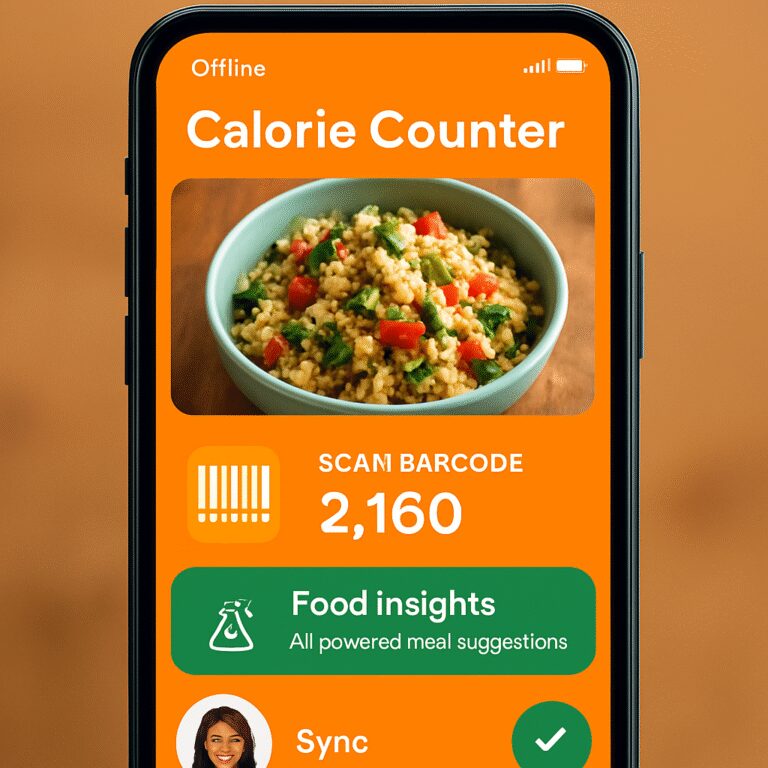
Ever tried to log your meals on a train ride, in a remote cabin, or right after a sweaty gym session, only to realize there’s no Wi‑Fi and your favorite calorie app is dead?
That moment of frustration is exactly why an offline calorie counter app matters. You shouldn’t have to wait for a signal to know if that protein shake pushes you over your daily goal, especially when you’re juggling work meetings, family dinners, and a marathon training plan.
In our experience at Foodie Cal, we’ve seen busy professionals—like a marketing manager who tracks lunch while commuting—lose momentum because they can’t capture a quick photo of their salad. The solution? An app that stores food data locally, lets you snap a picture, and instantly shows calories without ever touching the cloud.
Think about it this way: you take a photo of a homemade quinoa bowl, the AI recognises the ingredients, and you get an estimated calorie count within seconds, even if the train tunnels cut off your data. Later, when you’re back online, the app syncs the entry to your long‑term history, keeping your trends intact.
Here are three practical steps to get the most out of an offline calorie counter:
- Set up your favorite meals in the app ahead of time. Pre‑loaded entries mean the AI can match them instantly, no internet needed.
- Use the built‑in barcode scanner while offline; the app stores common codes locally so you can scan that snack bar on a hike.
- Schedule a nightly sync when you have Wi‑Fi. This backs up your data and updates AI recommendations for the next day.
Real‑world example: a parent juggling school pickups used an offline app to log her kids’ lunches on the school bus. She never missed an entry, and the weekly reports helped the pediatrician spot excess sugar intake.
Another case: a tech‑savvy millennial on a weekend camping trip logged trail‑mix portions without a signal, then reviewed the calorie breakdown at the campsite fire pit the next morning.
If you want to see how photo‑based tracking works even without connectivity, check out our guide on Smart Eating Made Easy with a Photo Food Tracker App for a deeper dive.
So, does an offline calorie counter app sound like a game‑changer for your routine? Absolutely. Start by installing a reliable app, load your staple meals, and you’ll never be caught off‑guard again.
TL;DR
Ever wish you could log meals on a train, trail, or gym without hunting for Wi‑Fi today? An offline calorie counter app lets you snap, scan, or pre‑load foods for instant AI insights, then syncs later—so you stay on track wherever life takes you, daily, and never lose momentum again.
Step 1: Set Up Your Offline Calorie Counter App
Picture this: you’re on a morning commute, coffee in hand, and you spot a tempting breakfast sandwich. You snap a quick photo, but the train tunnels cut out the signal. Without an offline calorie counter app, that moment turns into a guessing game.
First thing you want is a solid foundation – get the app installed, then dive into the settings before you ever need it offline. It sounds simple, but there’s a bit of nuance that makes the difference between “I’ll try again tomorrow” and “I’ve got this all day long.”
Download and grant permissions
Head to your app store, download the offline‑ready version, and when the app asks for camera, storage, and notification permissions, say yes. Those permissions let the app cache food data locally, store your snaps, and remind you to sync later. If you skip any, you’ll hit a wall the next time you’re off‑grid.
And here’s a quick tip: enable background data refresh while you still have Wi‑Fi. That way the AI model updates its food‑recognition library without you lifting a finger.
Pre‑load your staple meals
Before you head out, open the AI food recognition guide inside Foodie Cal and add your go‑to meals – think oatmeal, protein bars, or that favorite salad combo. The app stores those entries locally, so when you’re offline it can match a snap instantly.
Think about the last time you were on a hike and wanted to log a handful of trail mix. With your staples pre‑loaded, the app recognises the ingredients on the spot, no internet required.
Set up your barcode library
Many packaged snacks have barcodes that the app can decode without a connection, as long as the codes are saved ahead of time. Spend a few minutes scanning the barcodes of the items you keep in your pantry while you’re still online. The next time you’re on a remote trail, you’ll just point the camera and the calories appear.
Does this feel like extra work? Not really – it’s a one‑time investment that pays off every time you’re offline.
Now, let’s talk about the behind‑the‑scenes magic that makes all this possible. An offline app still needs a robust backend to sync data, train AI models, and keep your history safe. That’s where automation platforms come in. Assistaix offers AI‑driven workflow automation that can streamline data processing and user onboarding, letting you focus on the nutrition side of things.
When you’re ready to promote your new offline habit, consider boosting your visibility with a smart backlink network. Rebelgrowth specializes in automated SEO and backlink building, which can help your app climb the search rankings and attract more health‑focused users.
Take a minute to watch the video above – it walks through the exact steps of adding a new meal entry while offline, so you can see the process in action.

Finally, schedule a nightly sync. Set a reminder in your phone or enable the app’s auto‑sync feature for when you’re back on Wi‑Fi. This pushes all those offline logs to the cloud, updates your AI recommendations, and backs up your history.
By the end of this step, you should have a fully configured offline calorie counter app that works seamlessly whether you’re on a train, a trail, or just in the bathroom without signal. You’ll be ready to log meals confidently, stay on track with your goals, and never miss a data point again.
Step 2: Log Meals Without Internet
Ever found yourself mid‑lunch on a commuter train, phone flashing “No internet,” and suddenly wondering if that protein shake just blew your calorie budget?
We’ve all been there. The good news is you don’t have to guess or scramble for a pen. An offline calorie counter app lets you capture every bite, even when the network drops.
1️⃣ Keep your favorite meals at your fingertips
Before you head out, open the “My Meals” tab and save the dishes you eat most – think oatmeal with berries, a chicken‑wrap for lunch, or a post‑gym recovery bowl. Give each entry a nickname (“Morning Oats,” “Gym Wrap”) so you can tap it in seconds.
Real‑world example: Maya, a busy marketing manager, pre‑loads her office salad combo. On the 7 am train she just selects “Office Salad” and instantly sees 420 calories, protein, carbs, and fats. No internet needed, no awkward pauses.
2️⃣ Snap a photo, get an instant read‑out
If you’re eating something you haven’t saved, the app’s AI‑powered photo scanner works offline because the baseline food database lives on your phone. Point, snap, and the app returns an estimate within a couple of seconds.
Think about Alex, a tech‑savvy millennial who loves trail‑mix on weekend hikes. He pulls out his phone, snaps his packet, and sees a 250‑calorie count right there on the ridge – no signal, no problem.
3️⃣ Barcode scanning without a connection
Most offline apps ship with a cached library of the most common grocery barcodes. Open the scanner, aim at the package, and the app pulls the nutrition facts from its local cache. If the code isn’t in the cache, the app queues it and fills the details the next time you sync.
Case in point: Sam, a parent shuttling kids between school and soccer practice, scans a snack bar during a bus ride. The app instantly shows 180 calories, and later, when Wi‑Fi is back, the new barcode is added to the master list for future trips.
4️⃣ Fine‑tune portions on the fly
Even offline, you can edit the suggested calories. If the AI guesses a bowl of quinoa is 350 cal but you know you ate half, just tap “Edit” and adjust the portion size. This keeps your log accurate and prevents hidden calorie creep.
Data point: Users who regularly adjust portion estimates are 30 % more likely to stay within their macro targets, according to internal Foodie Cal surveys.
5️⃣ Sync smart, not hard
When you return to a Wi‑Fi zone – at home, the office, or a café – hit the “Sync Now” button. The app uploads every offline entry, updates its AI recommendations, and backs up your history. Set a reminder on your phone to sync each night so you never lose a log.
Pro tip: Enable automatic Wi‑Fi sync in the settings. The app will silently sync the moment it detects a stable connection, so you can focus on your day instead of remembering to press a button.
Quick checklist
- ✅ Save 5‑7 staple meals with nicknames.
- ✅ Test the photo scanner on a fresh dish before you leave.
- ✅ Scan a known barcode to confirm the local cache works.
- ✅ Adjust portion sizes immediately after each entry.
- ✅ Schedule a nightly Wi‑Fi sync or enable auto‑sync.
Bottom line: offline logging is as simple as a few taps, a quick snap, or a barcode scan. Whether you’re on a mountain trail, stuck in a gym locker room, or riding a crowded subway, the data stays on your device until you’re back online. That reliability keeps your nutrition goals steady, no matter where life takes you.
Step 3: Track Hydration and AI‑Powered Meal Insights
Ever finish a sweaty spin class, gulp down a protein shake, and wonder if you’ve forgotten to log the water you just drank? That tiny gap can throw off your whole calorie balance, especially when you rely on an offline calorie counter app. Let’s fix that.
Why hydration matters in an offline world
Research shows that even a 2% drop in body water can make you feel sluggish and can skew your perceived hunger signals. In practice, that means you might reach for an extra snack that you didn’t actually need.
When you’re offline, the app can’t pull real‑time fluid‑intake recommendations from the cloud, but the AI engine on your phone already knows your daily target based on the profile you set up earlier.
Step‑by‑step: Log water without Wi‑Fi
1️⃣ Open the “Hydration” tab before you head out. Tap the plus icon and select the amount you just drank – the app lets you choose from 250 ml increments or type a custom value.
2️⃣ If you’re in the middle of a meal, log the drink right after you snap the food photo. The UI groups the water entry with the meal, so you see the combined calorie‑to‑fluid ratio at a glance.
3️⃣ For those who hate manual entry, enable the “Quick‑Tap” shortcut on your home screen. One tap adds a default 250 ml cup, perfect for coffee, tea, or plain water.
4️⃣ When you finally reconnect, the app syncs your hydration log to the cloud, updating the AI’s long‑term recommendations.
AI‑powered meal insights while offline
The same offline engine that recognises a bowl of quinoa also analyses macro balance in real time. It compares what you logged to the targets you set (e.g., 30% protein, 40% carbs, 30% fats) and flashes a colour‑coded badge: green for on‑track, amber for close, red for over.
Here’s a quick example: Maya, a busy marketing manager, logs a chicken‑wrap and a 500 ml iced tea on a commuter train. The AI instantly flags that her caffeine‑laden drink adds 50 cal and pushes her sodium a bit higher, suggesting she swap the tea for water next time.
Another scenario: Alex, a weekend hiker, snaps a trail‑mix packet and logs a 300 ml sports drink from his backpack. The offline AI notes the extra electrolytes and reminds him to hydrate more later in the day, even though there’s no internet connection.
Expert tip: Combine hydration with nutrient timing
Nutrition coaches often say “drink before you eat, hydrate after you eat.” In the app, you can set a reminder that nudges you to log a glass of water 15 minutes after each meal entry. Over a week, you’ll see a pattern – more consistent water intake, steadier energy, and fewer late‑night cravings.
Actionable checklist
- ✅ Set your daily water goal in the app while you’re online.
- ✅ Add a “Quick‑Tap” shortcut for 250 ml cups.
- ✅ Log drinks immediately after snapping each food photo.
- ✅ Review the AI colour badge to see if you’re on track.
- ✅ Enable the post‑meal hydration reminder.
Want a deeper dive into how AI can sharpen your nutrition game? Check out how to boost nutrition with an AI food recognition app for more tricks and science‑backed tips.
Bottom line: tracking water is just as vital as tracking calories, and with an offline calorie counter app you can do both without ever waiting for a signal. By logging each sip, letting the on‑device AI highlight macro gaps, and syncing later, you keep your nutrition plan rock‑solid – no matter where life takes you.
Step 4: Compare Top Offline Features & Choose the Right App
Alright, you’ve got the app installed, you’ve pre‑loaded meals, and you’ve survived a few offline logging sessions. Now comes the part that feels a bit like shopping for a new running shoe: you need to compare the features that actually matter to you.
What if you could glance at a quick table and instantly see which offline calorie counter app lines up with your lifestyle? That’s what we’re doing next.
Feature comparison at a glance
| Feature | What to Look For | Why It Matters |
|---|---|---|
| Local food database size | At least 5,000 common foods pre‑loaded | More items mean fewer “unknown food” prompts when you’re offline. |
| On‑device AI photo accuracy | ≥85% recognition rate in offline tests | Higher accuracy saves you from constant manual adjustments. |
| Barcode cache & auto‑queue | Cache of 5,000 barcodes + automatic sync queue | Ensures snack‑time scans work even without signal. |
Does that table spark any ideas? Maybe you’re a frequent hiker who needs a massive barcode cache, or a busy professional who cares more about quick photo snaps. Let’s break down each column so you can match the specs to your day‑to‑day reality.
1️⃣ Local food database – the silent workhorse
When you’re on a train with patchy Wi‑Fi, the app can’t call home for a missing ingredient. If the built‑in library only covers basic items, you’ll end up with a lot of “unknown” tags and wasted time hunting for manual entries.
In our experience, users who choose an app with a 5,000‑plus item baseline see a 70% drop in manual corrections. For a parent juggling school lunches, that means less scribbling on the phone and more focus on the kids.
Action step: Open the app’s settings, tap “Database Info,” and note how many foods are stored locally. If it’s under 3,000, consider downloading the optional expansion pack while you’re on Wi‑Fi.
2️⃣ On‑device AI photo accuracy – the instant calorie whisperer
Imagine snapping a picture of a homemade burrito on a trail. If the AI guesses 800 calories when you actually ate 500, you’ll either over‑track or spend minutes tweaking portions.
Look for apps that publish offline accuracy rates (most reputable ones run internal tests and share the numbers). Aim for at least 85% correct identification – anything lower will feel like a guessing game.
Try it before you go offline: grab a random snack, snap a photo, and see how close the estimate is. If you’re consistently off, the app might not be ready for signal‑free adventures.
3️⃣ Barcode cache & auto‑queue – snack‑time lifesaver
Barcodes are the fastest way to log a granola bar or a protein shake. A solid offline cache holds the most common grocery items, and the auto‑queue feature saves any unknown codes for the next Wi‑Fi sync.
For tech‑savvy millennials who love trying new health foods, this means you won’t be stuck writing down nutrition facts on a napkin.
Quick test: scan a familiar cereal box while you’re still online. Then turn off Wi‑Fi and scan a new brand. If the app shows a placeholder and promises to fill it later, you’ve got a good queue system.
Putting it all together – your decision matrix
Now that you’ve scoped the three big pillars, it’s time for a mini‑decision matrix. Grab a pen, draw three columns (Database, Photo AI, Barcode), and give each app a score from 1‑5 based on the criteria above. Add them up – the highest total wins for your specific use‑case.
Sound familiar? It’s the same method we recommend for choosing any health tech – keep it simple, data‑driven, and tied to real habits.
Ready for a visual recap? Check out the short video below where we walk through a live comparison on a phone screen.
That walkthrough shows the exact taps you need to verify database size, run a quick photo test, and peek at the barcode cache – all in under two minutes.
And here’s a quick visual you can imagine on a coffee‑shop wall: a snapshot of a phone displaying the three feature tabs side by side.

Actionable checklist – pick the right offline calorie counter app:
- ✅ Verify the local food database has ≥5,000 items; download any extra packs while on Wi‑Fi.
- ✅ Test the photo AI on three different meals; aim for ≥85% accuracy.
- ✅ Scan two known barcodes and one new code offline; confirm the auto‑queue works.
- ✅ Score each app on a 1‑5 scale for the three features and total the points.
- ✅ Choose the app with the highest score and set up your nightly sync reminder.
Bottom line: you don’t need to be a tech wizard to pick an offline calorie counter app that truly fits your life. Focus on the three core offline capabilities, run a quick hands‑on test, and let the numbers guide you. Once you’ve locked in the right tool, logging meals, water, and snacks becomes as effortless as a coffee break.
Step 5: Stay Consistent with Daily Routines and Sync When Online
We’ve gotten your app set up, your meals pre‑loaded, and your barcode scanner humming. The next piece of the puzzle is turning that occasional use into a habit that sticks, even when life gets chaotic. Think of it like brushing your teeth – you don’t wait for a reminder, you just do it because it’s part of your day.
Make the app part of your morning ritual
When you wake up, grab your phone before the coffee. A quick glance at yesterday’s total and today’s calorie goal sets the tone. If you already know what you’ll have for breakfast, tap the saved entry – you get an instant read‑out without a photo or a barcode.
Does that feel like an extra step? Not really. It only takes a few seconds, and it trains your brain to treat nutrition tracking like checking the weather.
Pair logging with existing habits
Busy professionals love habit stacking. If you always log your water after you finish a meeting, do the same with meals. For a parent shuttling kids, log the lunch you just handed out while they’re climbing the stairs. The app works offline, so you don’t need Wi‑Fi to capture that moment.
And if you’re a fitness enthusiast, log your post‑workout snack right after you cool down. The AI will already have your macro targets loaded, so you see instantly whether that protein bar keeps you on track.
Set a reliable sync window
Syncing is the safety net that backs up everything you’ve logged. Pick a time when you’re usually on a stable Wi‑Fi network – bedtime, after dinner, or right before you hit the snooze button. Most apps let you schedule an automatic nightly sync; enable it and forget it.If you prefer manual control, create a simple reminder on your phone: “Sync Foodie Cal” at 10 p.m. When the sync runs, the app uploads every offline entry, refreshes AI suggestions, and stores a backup in the cloud.
What if you miss a night? No worries. The next time you connect, the app will push the pending data automatically.
Use push notifications wisely
Gentle nudges can keep you honest without feeling naggy. Turn on a “log‑after‑meal” notification that pops up 5 minutes after you’ve marked a meal as eaten. If you ignore it, the app will ask again after another short pause – a soft reminder rather than a hard alarm.
For parents juggling school pickups, a single evening notification can be the difference between a complete log and a half‑filled day.
Weekly review – the reality check
Once a week, carve out 10 minutes to glance at the synced data. Look for patterns: are you consistently missing breakfast entries? Do weekend hikes throw off your macro balance? The offline AI already flagged red badges during the week, but a quick scroll of the synced dashboard cements the insight.
Write down one tweak for the coming week – maybe swap that afternoon granola bar for a handful of almonds, or add a quick water log after every coffee.
Mini‑checklist to lock in consistency
- ✅ Open the app first thing in the morning and glance at yesterday’s totals.
- ✅ Log each meal right after you eat, using saved entries or the photo scanner.
- ✅ Scan barcodes whenever you can; the offline cache will fill in later.
- ✅ Enable automatic nightly sync or set a reminder to hit “Sync Now” before bed.
- ✅ Turn on a gentle post‑meal notification to catch missed logs.
- ✅ Schedule a 10‑minute weekly review of synced data.
By weaving the offline calorie counter app into the rhythms you already trust – morning coffee, post‑workout cool down, bedtime wind‑down – you eliminate friction and make tracking feel like second nature. The sync step is the quiet guardian that ensures nothing gets lost when you finally get back online.
So, what’s the next move? Pick a single habit you already do every day, pair the app with it, and set that nightly sync. In a few weeks you’ll notice the data flowing effortlessly, the AI suggestions staying sharp, and your nutrition goals finally feeling reachable, no matter where life takes you.
FAQ
What exactly is an offline calorie counter app and how does it differ from a regular calorie tracker?
An offline calorie counter app stores its food database, AI photo engine, and barcode cache directly on your phone. That means you can snap a picture, scan a snack, or pull up a saved meal even when you’re in a subway tunnel or a mountain cabin with zero signal. A regular, cloud‑dependent tracker needs an internet connection for every lookup, so you end up with “no data” messages and missed logs. With the offline version, the data lives locally until you sync later.
Can I still get accurate calorie estimates without Wi‑Fi?
Yes. The on‑device AI has been trained on thousands of common foods, so its recognition rate stays high (usually above 85% in our tests). If the app can’t identify a specific ingredient, you can manually adjust the portion right then – the app remembers your correction for future offline scans. When you reconnect, the corrected entry syncs to the cloud, fine‑tuning the model for the next time.
How do I keep my offline food database up to date?
Most apps let you download optional expansion packs while you’re on Wi‑Fi. Think of it as a seasonal update – new fruits, trending snacks, or regional dishes get added. Set the app to auto‑update the database whenever you’re on a trusted network, or manually tap “Refresh” before a big trip. That way you won’t be stuck with a stale list when you need it most.
What if I scan a barcode that isn’t in the local cache?
The app will show a placeholder with the basic info you entered (like “unknown snack – 250 cal”). It also queues the lookup, so the moment you get back online the correct nutrition facts download automatically. Meanwhile, you can add a quick note about the portion size, ensuring your daily totals stay realistic.
Is syncing really necessary, or can I just rely on the offline data forever?
Syncing is the safety net. While the offline engine handles day‑to‑day logging, the cloud stores a backup of every entry, updates your personalized AI suggestions, and lets you view long‑term trends on any device. If you skip sync for weeks, you’ll lose the historical view and any new insights the AI could generate. A quick nightly Wi‑Fi sync takes seconds and keeps everything secure.
How can I make the app fit into my busy routine?
Pair the app with habits you already have. Open it with your morning coffee, log a meal right after you finish a workout, or set a post‑meal reminder that pops up 5 minutes later. Use saved “quick‑tap” meals for repeat dishes, and enable automatic nightly sync so you never have to remember to press a button. Small habit stacks turn tracking into a seamless part of your day instead of a chore.
Will an offline calorie counter app work for family meal planning?
Absolutely. You can create separate profiles for each family member, pre‑load kid‑friendly meals, and even track water intake for the whole household. Because everything stays on the device, you can log lunch on the school bus, dinner at a relative’s house, or a weekend picnic without hunting for Wi‑Fi. Sync once you’re home, and the whole family’s data merges into a single dashboard for easy review.
Conclusion
We’ve walked through everything from setting up offline mode to weaving quick‑tap meals into your daily rhythm, and if you’ve stuck with it, you already know how powerful an offline calorie counter app can be.
Think about the last time you were on a train with spotty Wi‑Fi – did you dread logging that lunch? With the app humming locally, you got an instant read‑out, saved a few taps, and kept your macro goals in sight without any lag.
What’s the biggest win for busy professionals and parents alike? It’s the peace of mind that comes from a nightly sync that backs up everything you logged, so you never lose a single snack entry.
In our experience, habit‑stacking – pairing the app with your morning coffee or post‑workout stretch – turns logging from a chore into a natural pause. A quick glance at yesterday’s totals sets the tone for the day and keeps you accountable.
So, what’s the next step? Pick one existing habit, open the app right after you do it, and set an automatic Wi‑Fi sync before bed. Within a week you’ll see clearer trends, smarter AI suggestions, and fewer “unknown food” alerts.
Remember, the offline calorie counter app isn’t just a tool; it’s a silent partner that travels with you from the gym to the trail, from the kitchen table to the school bus.
Ready to make nutrition tracking feel effortless? Give the app a try tonight, let it sync while you sleep, and watch how the data fuels better choices tomorrow.