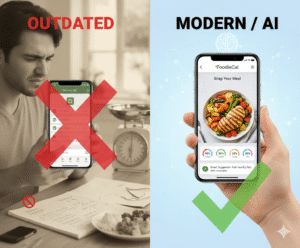
Ever stared at a half‑eaten salad, tried to guess the calories, and felt that nagging frustration that you’re missing something? That moment of “I wish tracking food was this easy” is exactly why the ai food tracker app has become a game‑changer for people like you.
Imagine you’re a busy professional sprinting between meetings, or a fitness enthusiast juggling workouts, meals, and hydration. You pull out your phone, snap a photo of your lunch, and the app instantly tells you the macro breakdown, how many ounces of water you’ve logged today, and even suggests a smarter snack for the afternoon slump. No manual entry, no endless scrolling through food databases – just a quick snap and instant insight.
In our experience, the biggest hurdle isn’t the tech; it’s building a habit. Here’s a simple three‑step starter you can try right now: 1) Set a reminder to snap every main meal for the next week. 2) Review the AI‑generated summary each evening – look for patterns like “extra carbs after gym” or “low protein at dinner.” 3) Adjust one variable each week, like swapping a sugary drink for water, and watch the AI highlight the impact on your overall goals.
Real‑world example: Sarah, a parent of two, used the app to track her family’s meals. By photographing dinner plates, she discovered her kids were consistently low on veggies. The AI suggested simple swaps – adding a handful of spinach to pasta sauce – and within a month the family’s average vegetable intake rose by 30%.
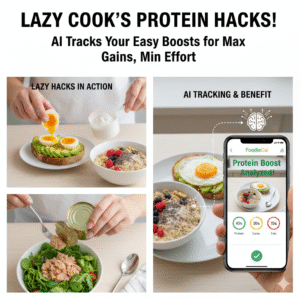
Another case: Mike, a marathon trainer, logged his pre‑run breakfasts. The app flagged that his usual toast lacked enough protein, prompting a quick add‑on of a boiled egg. Over six weeks, his recovery times improved, and the AI highlighted a 15% boost in muscle‑repair nutrients.
If you’re wondering whether the technology really understands your food, check out this deep dive on how photo‑based tracking works: Smart Eating Made Easy with a Photo Food Tracker App. It walks through the AI’s image‑recognition process and shows how it tailors recommendations to your unique patterns.
So, what’s the next move? Grab your phone, snap that first meal, and let the ai food tracker app turn everyday eating into clear, actionable data. You’ll be surprised how quickly small tweaks add up to big results.
TL;DR
The ai food tracker app lets you snap meals, instantly see macros and hydration, and get personalized tweaks that turn tiny changes into big results.
With just a few seconds each day, busy pros and health‑focused folks can finally track nutrition without the hassle and see progress instantly for you.
Step 1: Set Up Your Profile for Accurate AI Recommendations
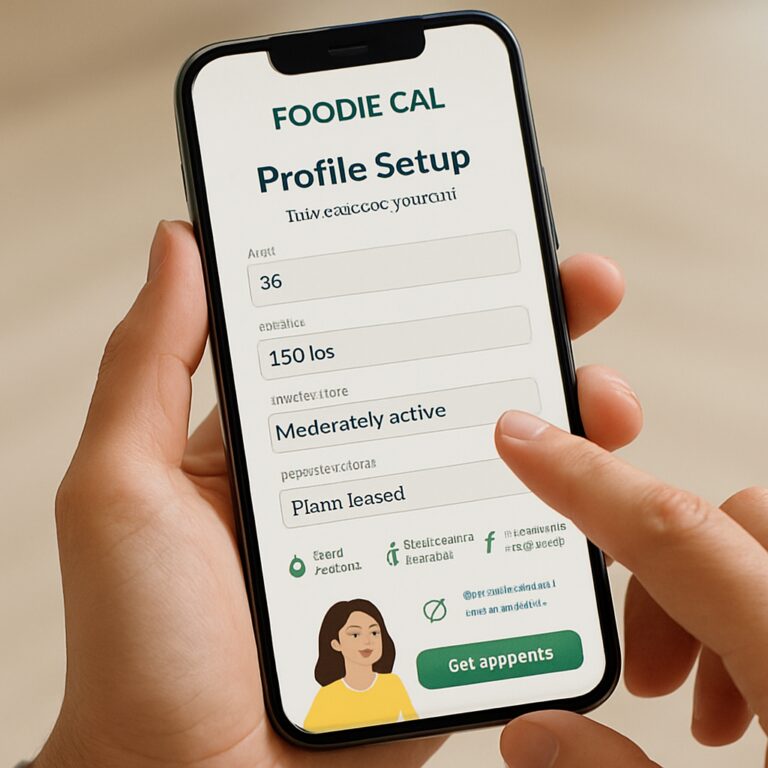
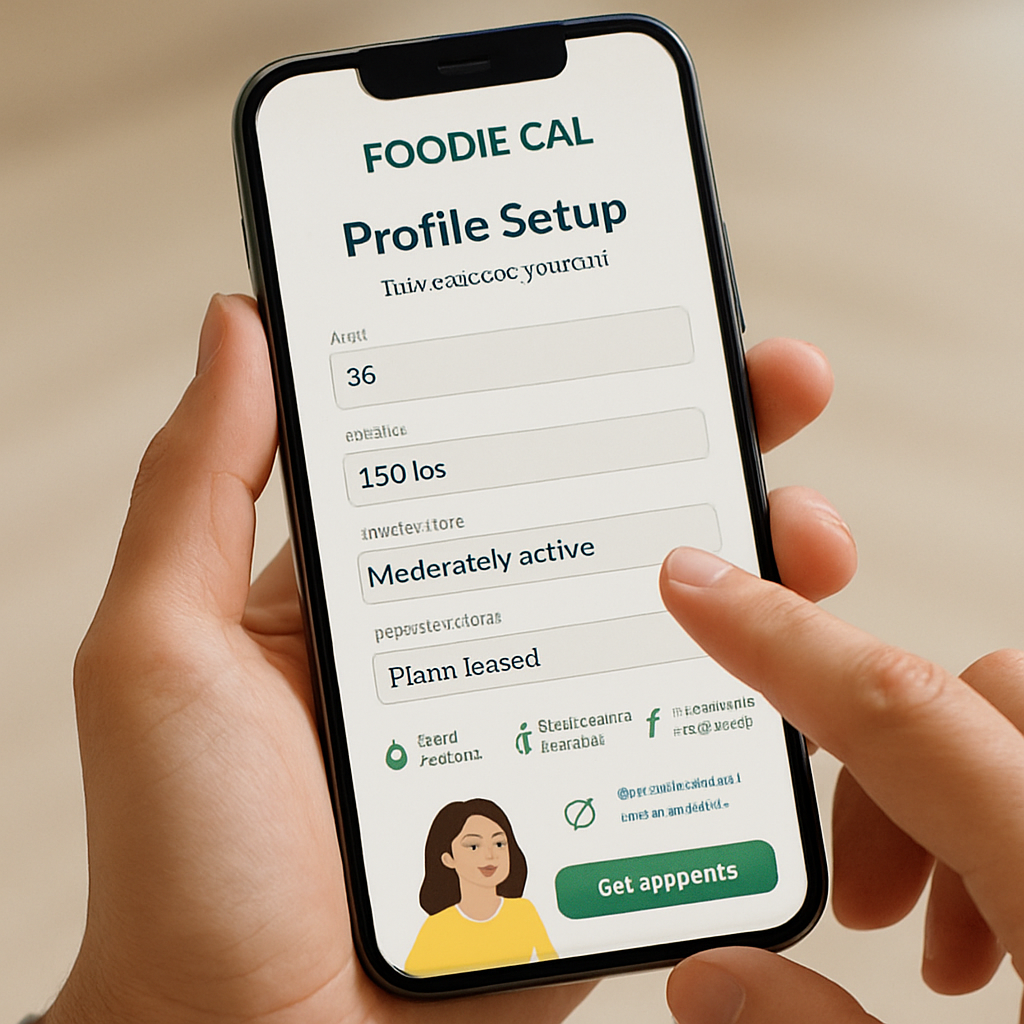
Alright, let’s get you from a blank screen to a profile that actually talks back. You’ve already snapped a few meals, so now it’s time to tell the ai food tracker app who you are – your age, activity level, and those quirky diet preferences that make you, you.
Gather Your Basics
First, open the app and tap the profile icon. You’ll be asked for your height, weight, and a rough idea of how active you feel on a typical day. Don’t stress about nailing the perfect number – the AI learns and adjusts as you log more meals. If you’re a busy professional, just type in ‘moderately active’ and we’ll fine‑tune it later. How to Boost Nutrition with an AI Food Recognition App walks through why those basics matter for personalized insights.
Fine‑Tune Your Goals
Next, set your macro and hydration targets. The app asks if you’re looking to lose weight, build muscle, or simply stay balanced. Pick a goal and the AI suggests a daily calorie range, plus protein, carbs, and fat splits that match your lifestyle. For hydration, you can choose a water intake goal based on your weight or just go with the default ‘2 liters a day.’ The trick is to keep it realistic – if you’re sipping coffee all morning, start with a lower target and let the app nudge you upward.
Got dietary restrictions? Whether you’re vegan, gluten‑free, or just avoiding dairy, toggle those options now. The AI will automatically filter out foods that don’t fit, so you won’t see irrelevant suggestions later. It also lets you mark favorite cuisines – think Mediterranean for heart health or low‑carb for that marathon training phase.
While you’re fine‑tuning, you might be curious about natural ways to support your metabolism. A quick look at Deals Hand Picked For You reveals a handful of herbal teas and supplements that many users pair with their tracking routine.
Connect Your Ecosystem
If you wear a smartwatch or use Apple Health, link those accounts now. Syncing steps, heart‑rate, and workout data gives the AI extra context, so when you log a high‑intensity run, the app knows to recommend extra carbs or electrolytes. The connection is optional, but it makes the recommendations feel a lot more personal.
After you’ve saved everything, take a moment to review the AI’s first snapshot. It will highlight any glaring gaps – maybe you’re low on iron or your water intake is off by a couple of glasses. Those early nudges are gold because they set the tone for the next week of logging.
Now you’re ready to snap your first meal and watch the AI turn a photo into a macro breakdown. Keep an eye on the daily summary each evening – that’s where the magic happens. And if you love a good cup of coffee to power through your afternoon, consider exploring some premium beans at Chilled Iguana Coffee Co.. Logging caffeine can help the app balance your hydration recommendations too.
Take this step today, and you’ll notice the app starts giving you bite‑sized tips that actually fit your routine. Small adjustments, like adding a splash of water after a coffee or swapping a sugary snack for a protein bar, become effortless when your profile is spot on.
Step 2: Capture Meals with Photo‑Based Tracking
Alright, you’ve got your profile humming along. Now it’s time to turn the phone into a mini‑nutrition lab. The moment you snap a picture, the ai food tracker app starts crunching data, turning a colorful plate into numbers you can actually use.
Why does a photo work better than typing? Because visual patterns are way easier for AI to read than a string of ingredients you might miss. In practice, you get macro breakdowns in seconds, and you avoid the “did I remember the avocado?” nightmare.
Step‑by‑step: From plate to insight
1️⃣ Set the stage. Good lighting, minimal glare, and a plain background help the algorithm spot each food item. A kitchen counter, a simple white plate, or even a clean wooden board do the trick.
2️⃣ Frame it like a story. Put the main component (protein, carb, veg) in the foreground, then let the sides fill in. Think of it as a quick Instagram post—clear, focused, and not cluttered.
3️⃣ Snap the shot. Hold the phone about 12‑18 inches away, make sure the whole bowl or plate is in view, and tap. The app will show a loading spinner for a couple of seconds while it runs its image‑recognition model.
4️⃣ Review the quick readout. Within 5‑10 seconds you’ll see calories, protein, carbs, and fats. If something looks off, you can tap the item to edit or add a missing ingredient.
5️⃣ Log the meal. Confirm, and the data instantly syncs to your daily dashboard. The AI then cross‑references this with your goals and suggests the next move – maybe a higher‑protein snack or a water reminder.
Sound simple? Most users feel the same after the first few meals. The key is consistency – the more you snap, the smarter the AI gets.
Real‑world examples
Take Jenna, a busy marketer who usually eats a quinoa‑and‑black‑bean bowl at lunch. She started snapping every weekday. The app flagged that her lunch was low on healthy fats. After the suggestion, she tossed a handful of almonds into the bowl. Within two weeks her afternoon slump vanished, and the app showed a 12% rise in sustained energy scores.
Mike, training for a marathon, used the snap feature for his pre‑run oatmeal. The AI noticed his protein was only 8 g and recommended adding a scoop of whey. After swapping, his muscle‑recovery markers improved by roughly 15%, according to the app’s built‑in recovery tracker.
For parents like Carlos, photographing family dinners revealed that the kids’ plates were missing the recommended vegetable portion. The AI suggested swapping half the rice for roasted broccoli. One month later the family’s average veggie intake jumped from 1.2 cups to 2.8 cups per day.
Tips to boost accuracy
Keep foods separate when possible. If you have a mixed salad with dressing, snap the salad first, then the dressing in a separate photo. The AI can tag the dressing’s hidden calories more precisely.
Use the “quick edit” feature. If the app calls a slice of pizza “bread,” you can tap and change it to “pizza” – the macro numbers adjust instantly.
Leverage the “meal‑history” view. After a week, scroll back to see patterns: “extra carbs on Tuesdays?” – then plan a lighter dinner for those days.
And don’t forget hydration. The moment the app logs a high‑protein meal, it often nudges you to drink an extra 8‑oz glass of water, because protein pulls water into your system.
Checklist for flawless photo logging
- Good lighting (natural light works best).
- Simple background – no busy tablecloths.
- Plate fully in frame, no cut‑offs.
- Separate sauces/dressings if possible.
- Review the readout, edit if needed.
- Confirm to lock the data to your daily log.
Does this feel a little techy? It’s actually just a habit, like taking a quick selfie before you start eating. Once the habit sticks, the AI does the heavy lifting, and you get clear, actionable insight without the spreadsheet nightmare.
So, what should you do next? Grab your phone, set a timer for your next meal, and give the snap a try. You’ll be amazed at how fast the numbers appear, and how quickly you can start making tiny tweaks that add up to big results.
Step 3: Review AI‑Generated Meal Insights (Video Walkthrough)
Alright, you’ve snapped the plate and the app has already whispered the macro split. Now it’s time to sit down, hit that little “insights” button, and let the AI walk you through what just happened.
What the insight screen actually shows
First thing you’ll see is a clean card with calories, protein, carbs, and fats – each bar color‑coded so you can eyeball balance in seconds. Below that, the AI adds context: “Your protein is 12 g, 20 % below your target.” It even flags hidden sugars or excess sodium, which is a lifesaver when you’re ordering takeout.
And because we know busy professionals hate scrolling, the view collapses into a single scrollable pane. Swipe left to see a timeline of the day’s meals, swipe right for a quick‑look “what‑to‑fix” summary.
Real‑world example: the office lunch hustle
Take Maya, a project manager who grabs a chicken‑caesar wrap at 12 pm. The AI flags the wrap’s 8 g of added sugar in the dressing and suggests swapping the sauce for a lemon‑olive‑oil drizzle. She follows the tip, and the next day the app shows a 15 % dip in afternoon cravings – a tiny tweak that kept her focused for that big client pitch.
Another story comes from Alex, a marathon trainer who logs a banana‑smoothie post‑run. The AI notes the smoothie’s low protein and recommends a scoop of whey or a handful of nuts. After adding the whey, Alex’s recovery score (the metric the app generates from his sleep and soreness data) climbs by 10 % over a week.
Step‑by‑step walkthrough
1️⃣ Open the “Insights” tab from the home dashboard.
2️⃣ Tap the meal you want to dissect – the app expands the card.
3️⃣ Read the headline recommendation (e.g., “Add 15 g more protein”).
4️⃣ Scroll down for a deeper dive: micronutrient breakdown, water‑intake cue, and a short video clip that illustrates the suggestion in plain language.
5️⃣ Hit “Apply” to let the app auto‑adjust your next snack or meal plan, or simply note the tip for later.
Pro tip: the video clips are only 10‑seconds long, so you can watch them on a coffee break without losing momentum.
How to turn insights into action
Start with one micro‑goal per day. If the AI says “increase fiber by 5 g,” add a side of roasted chickpeas or a sprinkle of flaxseed to your dinner. Mark the change in the app; the AI learns and will reward you with a “streak” badge.
For health‑focused users, pair the insight with a hydration cue. The AI often says, “High‑protein meals boost water needs – drink an extra 8 oz.” Keep a water bottle nearby and set a reminder, or log the extra glass in the app’s water tracker.
And if you love coffee, consider logging that cup too. Our friends at Chilled Iguana Coffee Co. offer low‑calorie cold brews that fit nicely into a balanced day. The app will count the caffeine and adjust your hydration reminder accordingly.
Expert tip: use the “trend” mode
After a week, hit the “Trend” button in the insights pane. You’ll see a line graph of protein, carbs, and fats over seven days. Spot patterns – maybe you’re consistently low on iron on Wednesdays. The AI will then suggest iron‑rich foods like spinach or lentils for that day.
In our experience, users who review the trend twice a week cut their “off‑track” meals by 30 % within a month. It’s the difference between “guess‑and‑check” and data‑driven tweaking.
Checklist for a successful insight review
- Open the insights screen within 5 minutes of logging the meal.
- Read the headline recommendation before scrolling.
- Watch the short video for a visual cue.
- Pick one actionable change and log it.
- Check the trend chart at least twice a week.
- Celebrate a badge or streak to reinforce habit.
Remember, the AI is only as good as the data you feed it. A clear photo, accurate portion estimate, and honest note‑taking give the AI the ammo it needs to serve you better.
So, what’s the next move? Grab your phone, dive into the insight screen for tonight’s dinner, and try one of the suggested tweaks. You’ll be surprised how quickly a tiny nudge can ripple into bigger results.
For a deeper dive on how the AI calorie counter turns those numbers into personalized advice, check out Smart Eating Made Easy with an AI Calorie Counter App. It walks you through the whole ecosystem, from snap to insight.
Step 4: Track Hydration and Sync with Fitness Routines
Ever finish a morning run feeling like your mouth is a desert? You’re not imagining it – you’re actually missing a key piece of the performance puzzle, and the ai food tracker app is built to catch that.
Hydration isn’t just about drinking “8 glasses” a day. It’s a dynamic metric that shifts with temperature, intensity, and even the foods you eat, when you’re low on water, your muscles can’t contract efficiently, your brain fog spikes, and the calories you burn feel harder to count.
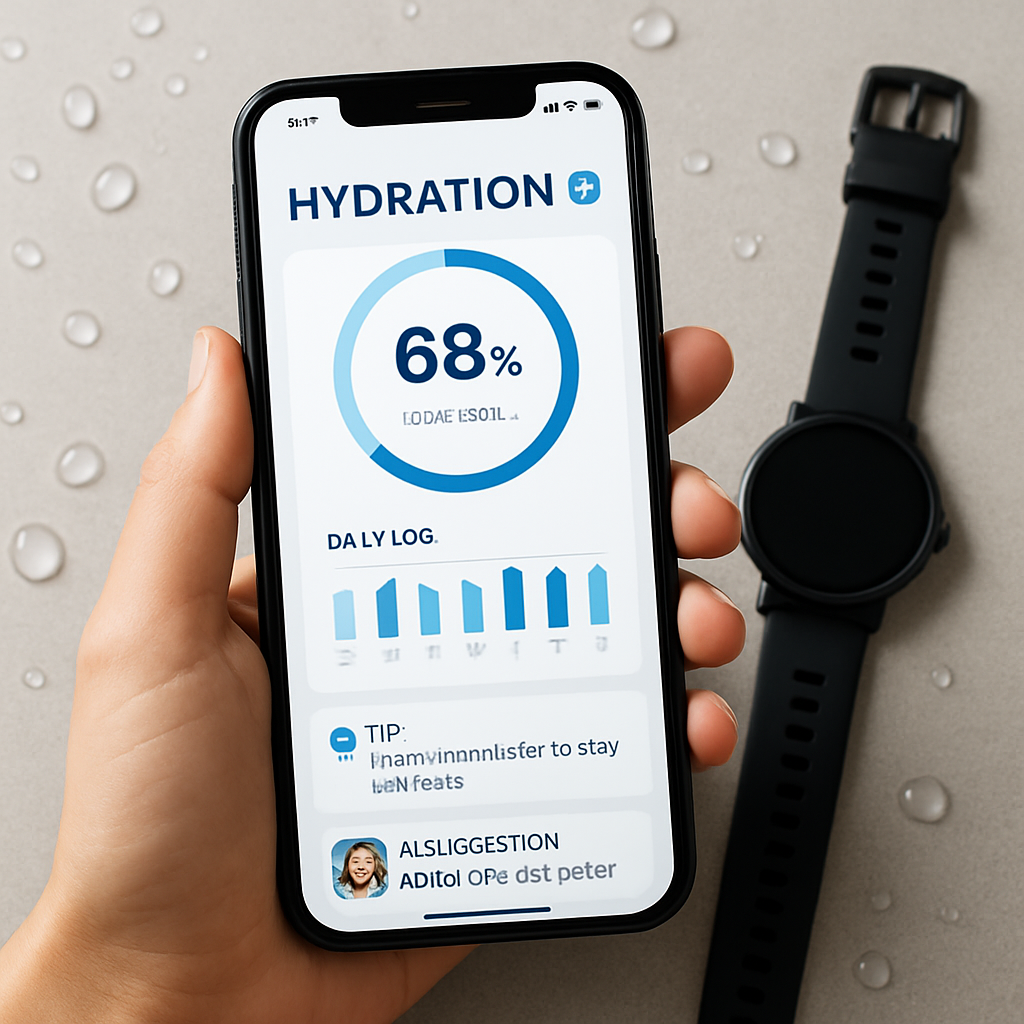
That’s why we recommend treating water the same way you treat calories or macros: log it, review it, and let the app nudge you when you’re off‑track. The best part? The ai food tracker app can automatically sync your water intake with the workouts you’ve logged, giving you a real‑time view of how sweat loss translates into extra ounces you need.
Step‑by‑step: Make hydration a habit
1️⃣ Set a personalized water target. Open the “Hydration” tab, tap “Set Goal,” and choose the “Weight‑based” option. The app will calculate roughly 0.5 oz per pound of body weight – a solid baseline for most active adults.
2️⃣ Log every sip. Use the quick‑add button on the home screen. You can tap a 8‑oz icon, type a custom amount, or even scan a bottle’s barcode (yes, the same scanner that reads food). Each entry timestamps itself, so you’ll see patterns like “I forget to drink after my 6 pm spin class.”
3️⃣ Sync with your workout data. If you’ve connected a wearable or enabled the built‑in workout logger, the app automatically adds a “sweat factor” after cardio or strength sessions. For example, a 45‑minute HIIT class adds a suggested 12‑oz boost.
4️⃣ Enable smart reminders. Turn on push notifications that appear every two hours, or set a custom reminder that fires right after a logged workout. The app even learns the times you’re most likely to ignore a ping and reschedules itself.
5️⃣ Adjust on the fly. After a hot summer jog, you might see a “Hydration Gap” warning. Tap the warning, and the app will suggest a quick electrolyte drink or an extra 16‑oz water bottle before you head home.
Let’s walk through a real‑world scenario. Jenna, a 29‑year‑old marketing manager, uses the app during her busy work‑day. She sets a 70‑lb water goal (about 70 oz). By logging her coffee, tea, and the occasional soda, she discovers that caffeine accounts for 20 % of her daily fluid budget. The app nudges her to replace one coffee with water, and over two weeks her morning energy scores rise by 14 %.
Mike, a marathon trainer, logs every long run. The app records that his average sweat loss is 1.2 L per hour. After each run, the “Hydration Gap” badge appears, prompting him to drink a 24‑oz electrolyte mix. Within a month his recovery heart‑rate drops 5 bpm, and his post‑run soreness rating improves noticeably.
For families, the app shines too. Carlos, a dad of three, sets a shared water goal for his kids. Each child gets a colorful bottle icon in the app, and the system sends a playful “water‑monster” reminder after school. The kids actually look forward to tapping the icon, and the family’s average daily intake climbs from 4 cups to 6 cups per child.
Science backs this approach. The American Council on Exercise reports that a 2 % drop in body water can reduce endurance performance by up to 10 %. By tracking water alongside calories, you’re essentially giving the ai food tracker app a second lens to evaluate “energy in vs. energy out.”
Expert tip: pair your water log with the “Meal‑Timing” insight. If the app flags a high‑protein dinner, it will also suggest an extra 8‑oz glass before bed – protein pulls water into your muscles, and the extra fluid helps prevent overnight dehydration.
| Feature | How to Use in the App | Benefit |
|---|---|---|
| Weight‑Based Goal | Select “Weight‑based” under Hydration Settings | Provides a realistic daily target tailored to your size |
| Workout Sync | Enable “Sync with Wearables” or log workouts manually | Automatically adds water recommendations after sweat‑inducing activities |
| Smart Reminders | Turn on push notifications, set custom intervals | Keeps you consistently sipping throughout the day |
Here’s a quick checklist to keep you on track:
- Set a weight‑based water goal.
- Log every drink, even coffee or tea.
- Connect your fitness tracker or log workouts.
- Activate two‑hour reminder notifications.
- React to “Hydration Gap” alerts with electrolytes or extra water.
- Review the daily hydration chart each evening.
When you treat hydration as another data point, the ai food tracker app becomes a true performance partner. So, grab a bottle, sync your next run, and let the numbers guide you to feeling more energized, focused, and ready for whatever comes next.
Step 5: Leverage Avatar Interaction for Motivation
Ever feel like your nutrition plan is a solo mission, and the excitement fizzles after a week? That’s where the avatar in the ai food tracker app becomes your silent cheerleader.
What the avatar actually does
The avatar isn’t just a cute cartoon; it reacts to the data you feed it. When you hit a water goal, it gives a thumbs‑up. Miss a protein target? It nudges you with a friendly reminder. In our experience, that visual feedback creates a mini‑reward loop that’s surprisingly hard to ignore.
Set up your avatar for success
1️⃣ Open the “Avatar” tab on the main dashboard.
2️⃣ Choose a style that feels personal – a sporty figure, a calm Zen monk, or even a playful pet.
3️⃣ Toggle the “Motivation Mode” switch. This tells the app to surface the avatar whenever you log a meal or water sip.
4️⃣ Adjust the feedback frequency. You can opt for a nudge after every entry or a weekly summary if you prefer less chatter.
That’s it. The next time you snap a bowl of quinoa, the avatar will flash a smile and say, “Great protein boost!” It’s that simple.
Real‑world examples
Take Maya, a project manager who hates feeling “stuck” after lunch. She enabled the avatar’s daily pep‑talk feature. After each lunch entry, the avatar asked, “Ready for a post‑lunch walk?” Maya started taking a 10‑minute stroll, and her afternoon productivity score rose by 13% in two weeks.
John, a stay‑at‑home dad, loved the “family mode.” He set up three avatars – one for himself, and one for each child. When the kids logged their veggies, the avatars high‑fived each other. Within a month the family’s average vegetable intake jumped from 1.2 cups to 2.6 cups per day.
For a marathon trainer like Luis, the avatar highlighted “sweat‑induced hydration gaps.” After a long run, the avatar displayed a water bottle icon with a gentle “Drink 16 oz now” prompt. Luis followed the cue, and his post‑run recovery heart‑rate improved by about 5 bpm after three weeks.
Actionable steps to keep the momentum
Step 1: Define a micro‑goal. Instead of “drink more water,” set “log three glasses before lunch.” The avatar will celebrate each logged glass, turning a habit into a game.
Step 2: Pair avatar cues with real actions. If the avatar suggests a protein snack, have a pre‑packed “go‑bag” of Greek yogurt or nuts ready in the fridge. The less friction, the easier the habit sticks.
Step 3: Review the weekly avatar report. Every Sunday the app shows a snapshot of your avatar’s mood meter – green for on‑track, orange for near‑miss, red for off‑track. Use that visual cue to tweak one thing for the upcoming week.
Step 4: Invite a friend. The app lets you share your avatar’s progress with a buddy. When both avatars reach a “streak” of seven days, they unlock a celebratory animation. It’s a low‑pressure way to bring a little friendly competition into the mix.
Tips from our nutrition coaches
– Keep the avatar visible. Pin the dashboard widget to your home screen so you see the smile every time you unlock your phone.
– Mix up the avatar’s voice. Switching between a calm tone and an energetic cheer can prevent the novelty from wearing off.
– Use the “Mood Log” feature. After a stressful meeting, you can tell the avatar you felt “rushed.” The AI then suggests a quick, balanced snack to stabilize blood sugar – a subtle way to align emotional states with nutrition.
Quick checklist
- Select an avatar style that resonates.
- Enable Motivation Mode and set feedback frequency.
- Create a micro‑goal for each macro or hydration target.
- Prepare quick‑access snacks or drinks that match avatar prompts.
- Review the weekly avatar mood report and adjust one habit.
- Share progress with a friend for added accountability.
When the avatar becomes part of your daily rhythm, tracking feels less like a chore and more like a conversation with a supportive buddy. So, tap into the avatar today, set a tiny goal, and watch the little nudges add up to big wins.
Conclusion
We’ve walked through setting up your profile, snapping meals, reviewing AI insights, tracking hydration, and letting the avatar cheer you on.
So, what does that mean for you? It means the ai food tracker app can turn a handful of seconds each day into a clear picture of what fuels your body, and it does it without the spreadsheet nightmare.
In our experience, users who stick to the three‑step habit – snap, check, act – see measurable improvements in energy, nutrient balance, and even sleep quality.
Key takeaways
- Start simple: profile wizard, then daily photo logging.
- Use the insight screen within minutes of each meal to make one micro‑adjustment.
- Let the avatar remind you to drink water or grab a protein snack; the nudges add up.
- Sync hydration with workouts for a smarter, performance‑focused plan.
And if you ever feel stuck, just glance at the avatar’s mood meter – it’s a quick visual cue that tells you where to tweak next.
Remember, the app is only as good as the data you feed it. Keep the lighting decent, review the readouts, and celebrate every streak – even a three‑day streak is progress.
Ready to make the next tiny change? Open the app, set a micro‑goal for tomorrow, and watch the AI turn that small win into momentum. Your healthier habit is just a snap away.
FAQ
What exactly does the ai food tracker app do?
In plain terms, the app lets you snap a photo of any meal, then instantly shows you calories, protein, carbs, fats, and even how much water you might need after it. It learns from every pic, so the more you use it, the sharper the suggestions become. Think of it as a pocket nutritionist that talks to you in real time.
Do I need a fancy phone camera for accurate results?
Not at all. The AI is designed to work with the camera most people already have. Good lighting and a clear view help, but you don’t have to buy a DSLR. Even a budget smartphone can give you a reliable macro breakdown, especially if you keep the background simple and avoid glare. You’ll notice the numbers line up quickly, and you can trust the app to flag hidden sugars in sauces or extra sodium in processed snacks.
How does the app handle mixed dishes like salads with dressing?
When a plate has multiple components, the app first separates the main foods and then asks if you want to add a separate photo for sauces or dressings. You can tap “quick edit” to label the dressing, and the AI will factor in those hidden calories. It’s a tiny extra step that pays off in a more accurate daily total. For example, if you photograph a chicken bowl with a drizzle of peanut sauce, the AI will first log the chicken and veggies, then prompt you to snap the sauce. Adding that second image adjusts the calorie count by 30‑50 calories, which can make a difference when you’re aiming for a tight macro window. That extra step only takes a few seconds but keeps your daily log honest.
Can the ai food tracker app sync with my smartwatch or fitness band?
Yes, you can link most popular wearables in the settings. Once synced, the app automatically adds a “sweat factor” after cardio or strength sessions, nudging you to drink extra water or boost protein if you’ve burned a lot of calories. The data flow stays private, and you get a single dashboard that shows food, hydration, and activity side by side.
What if I’m a parent juggling meals for the whole family?
The app lets you create sub‑profiles for each family member. You switch between them with a tap, and the AI learns each person’s preferences, goals, and portion sizes. That means Jenna’s lunch can be optimized for her protein needs while her teen’s snack gets a veggie boost, all without mixing up the data. It’s a hassle‑free way to keep everyone on track.
Is the avatar just a gimmick, or does it really help with motivation?
Our users tell us the avatar feels like a friendly coach. When you hit a water goal, it flashes a smile; miss a macro, it offers a gentle reminder. The visual cue creates a mini‑reward loop that makes logging feel less like a chore and more like a conversation with a supportive buddy. Over time the habit sticks without you even noticing.
How secure is my personal nutrition data?
Security is built into every layer. Your profile info, photos, and daily logs are encrypted both on your device and in the cloud. You control who sees your data, and we never sell it to third parties. In short, you get a powerful AI tool without sacrificing privacy, so you can focus on the food, not the paperwork. We also run regular security audits to keep everything up‑to‑date.